How to Perform a WhatsApp Broadcast?
The WhatsApp Broadcast feature allows you to send personalized messages to a large number of contacts. Please follow the steps below to create and send your broadcast task.
Steps
1. Start a New Broadcast
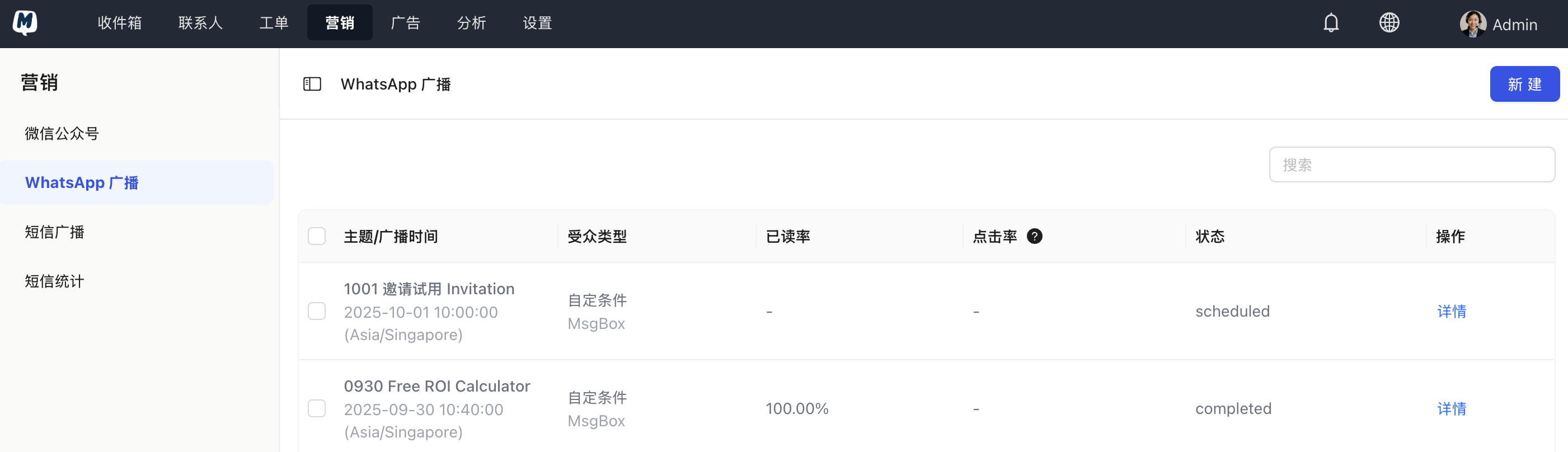
Go to the Marketing > WhatsApp Broadcast page and click the "New" button in the top right corner.
2. Set Target Audience
You can choose between two ways to filter your audience based on your needs:
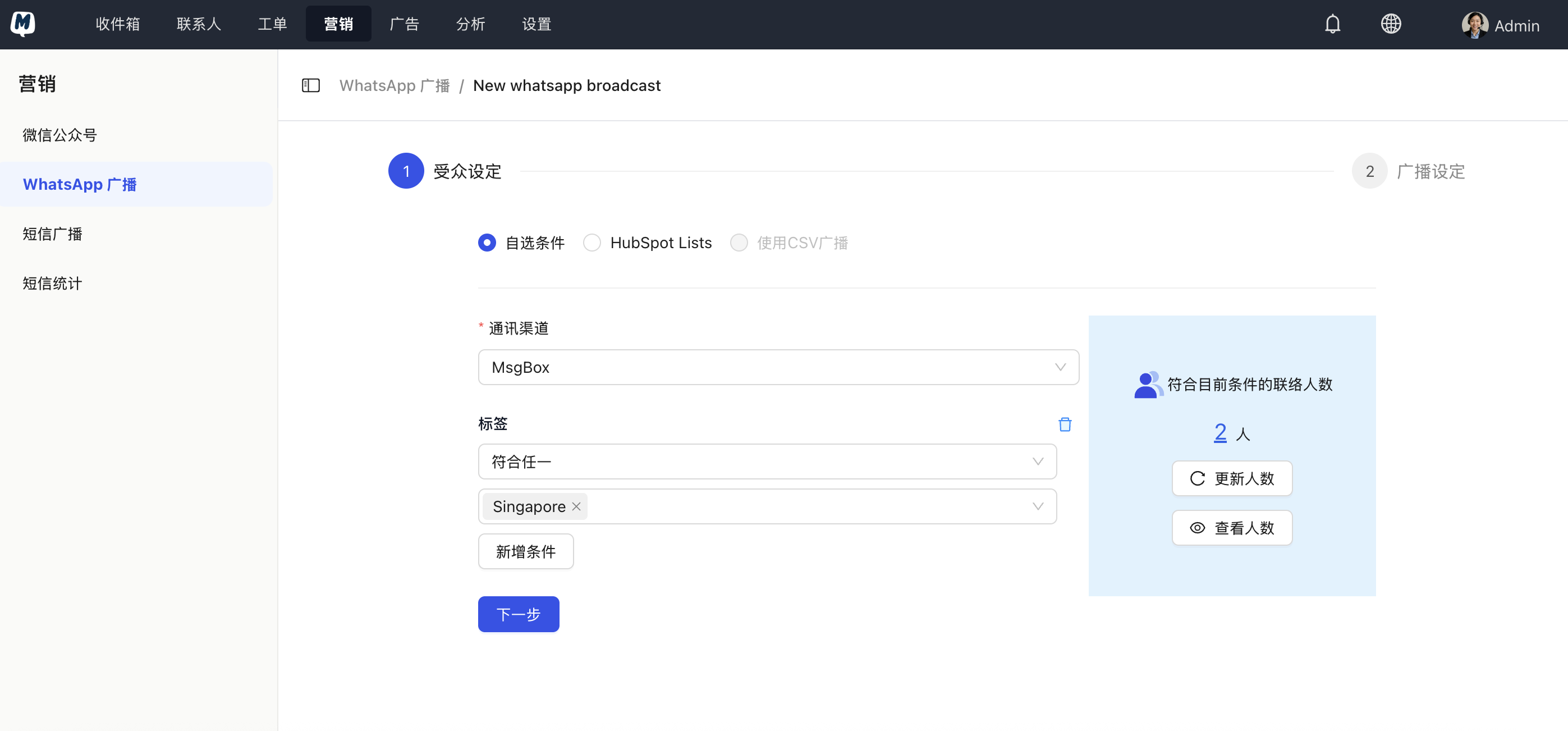
Option A: Custom Filters
- Select Channel: Choose the WhatsApp Business account to be used for sending the broadcast.
- Add Filter: You can add filtering criteria based on contact profiles (e.g., tags, region) or time information.
- Confirm Criteria: After entering the filter information, press Enter to confirm.
- Preview Count: Click "Update Count" on the right to confirm the estimated number of recipients, then click "Next".
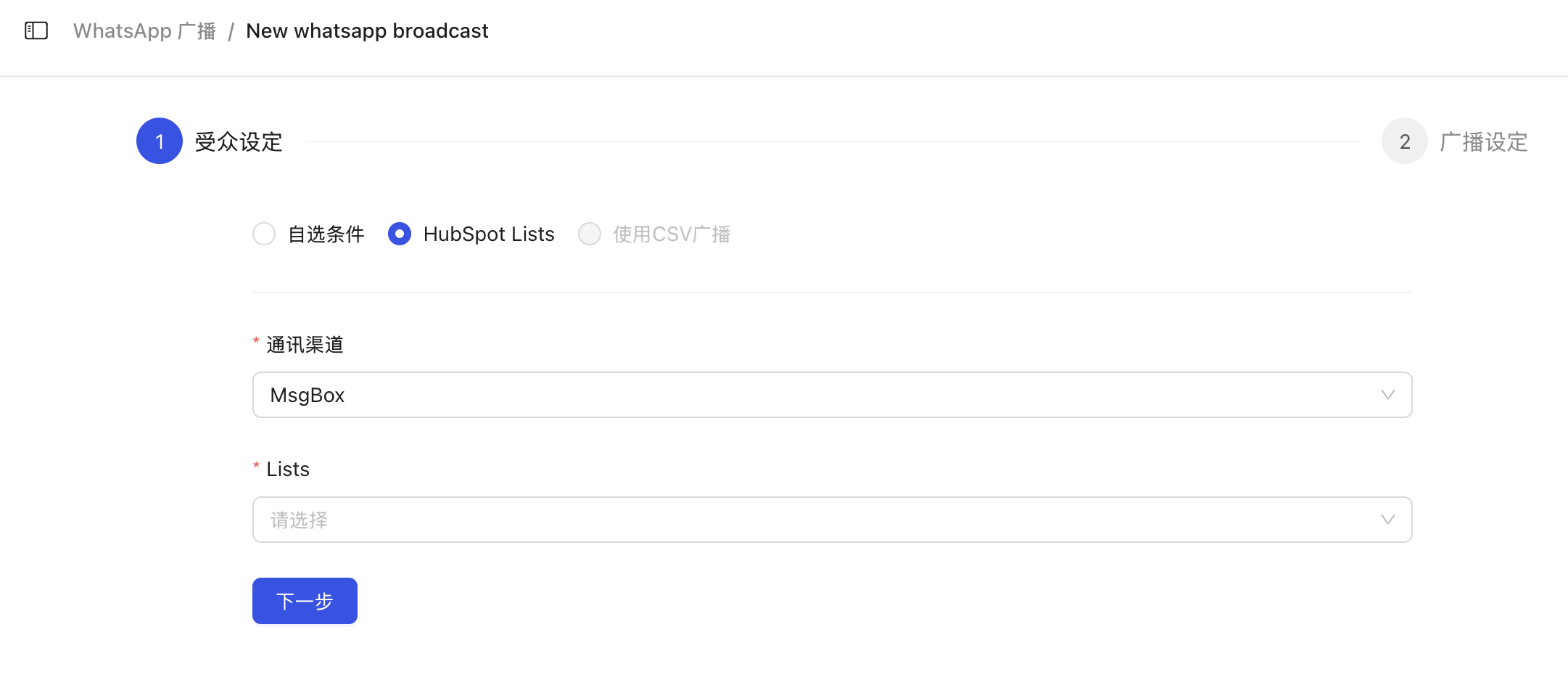
Option B: HubSpot Lists
- Select Channel: Choose the corresponding WhatsApp Business account.
- Select List: Choose a target contact group directly from synchronized HubSpot Lists, then click "Next".
3. Set Basic Broadcast Information
- Broadcast Subject: Enter a broadcast name for internal management purposes only.
- Sending Time: Set to send immediately or schedule for later.
Timezone Tip
Scheduled sending will automatically match the timezone of your current browser's region.
4. Select and Edit Content
Select an existing WhatsApp message template and click "Edit Content".
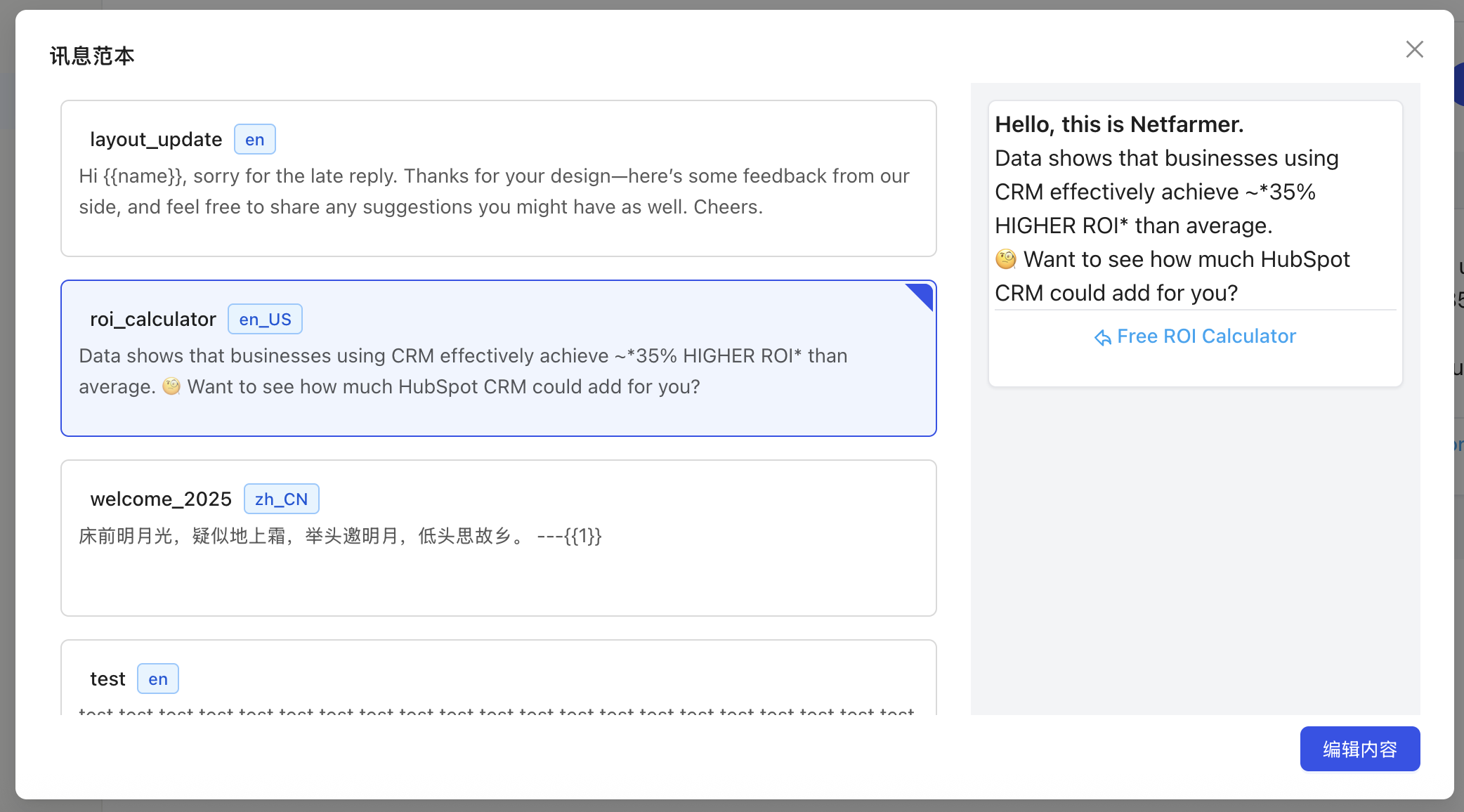
Message templates come from synchronized WhatsApp message templates. If you cannot find a template, please refer to: How to Sync WhatsApp Message Templates.
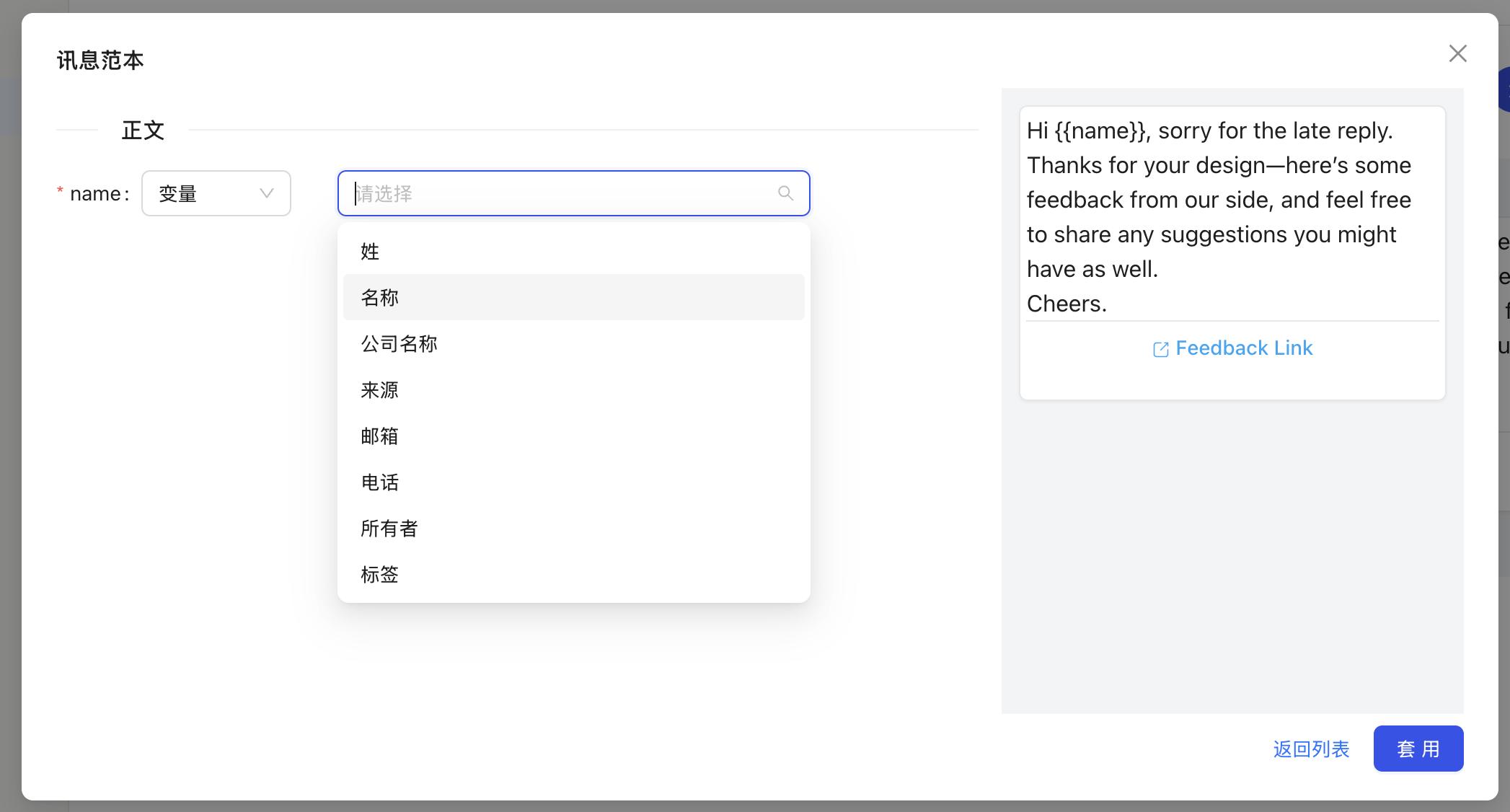
5. Fill in Variable Information
If your template contains variables (e.g., {{1}}), please fill them in as prompted:
- Variable Type "Text": All contacts will receive the same content.
- Variable Type "Variable": Reference MsgBox contact profiles (e.g., "Name"). The system will automatically fill in the corresponding information for each contact to send personalized messages.
6. Submit and Monitor
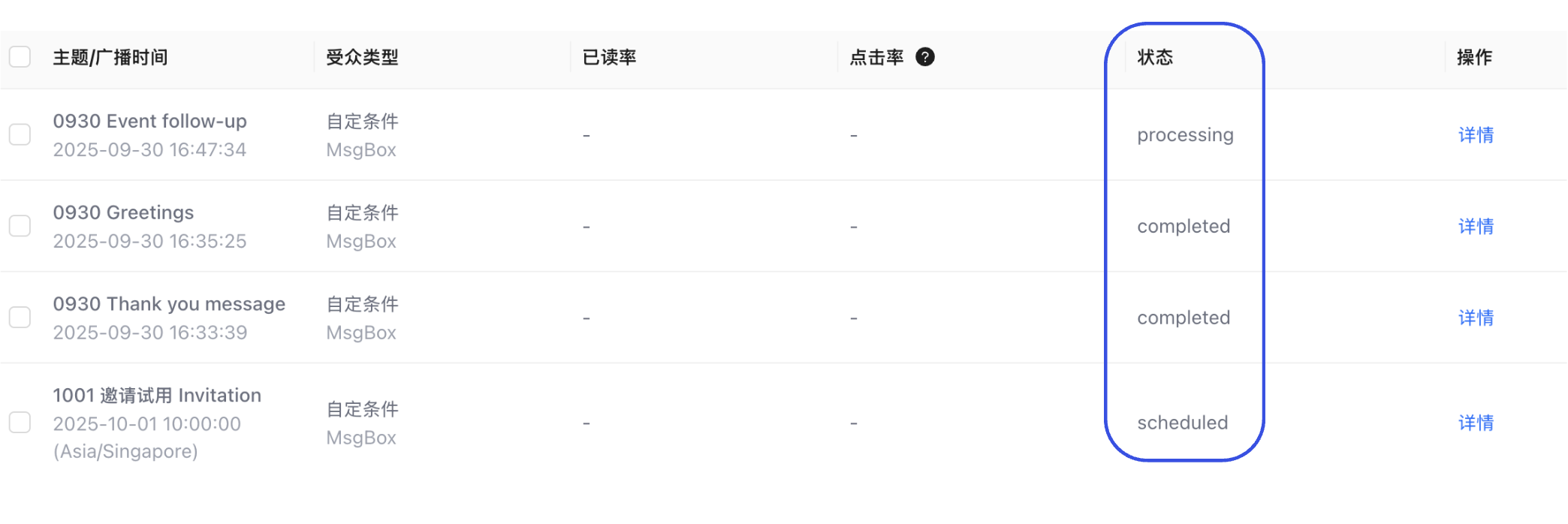
Click "Apply" and then "Submit". Sending a broadcast takes some time; you can view the sending progress and status in real-time on the list page.
FAQ and Reminders
- Fees: Please ensure your WhatsApp account has a sufficient balance in Meta Business Suite.
- Template Restrictions: Broadcasts only support using template messages that have been approved by Meta.
- Sending Failure: If sending fails, please check if the contact's phone number format includes the correct country code.