Adding Comments and Internal Notes
When handling complex customer inquiries, effective internal team communication is vital. The Comments feature allows you to record key background information or instructions directly within the conversation flow without disturbing the customer.
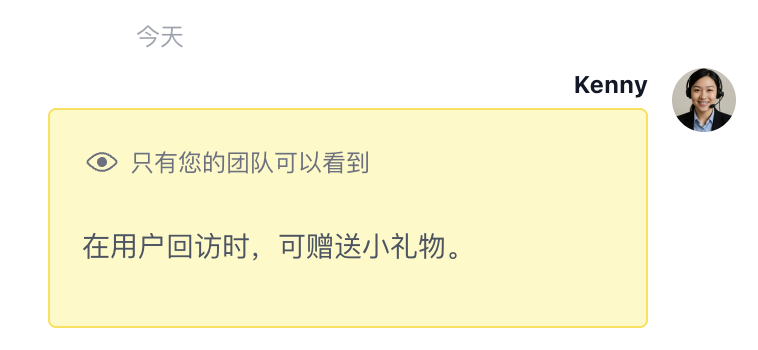
All comments and internal notes are visible to internal team members only. Customers using WhatsApp, WeChat, or other clients cannot see this information, so you can record details with confidence.
How to Add a Comment?
- Enter Target Conversation Go to the Inbox page and open the customer conversation where you wish to add a note.
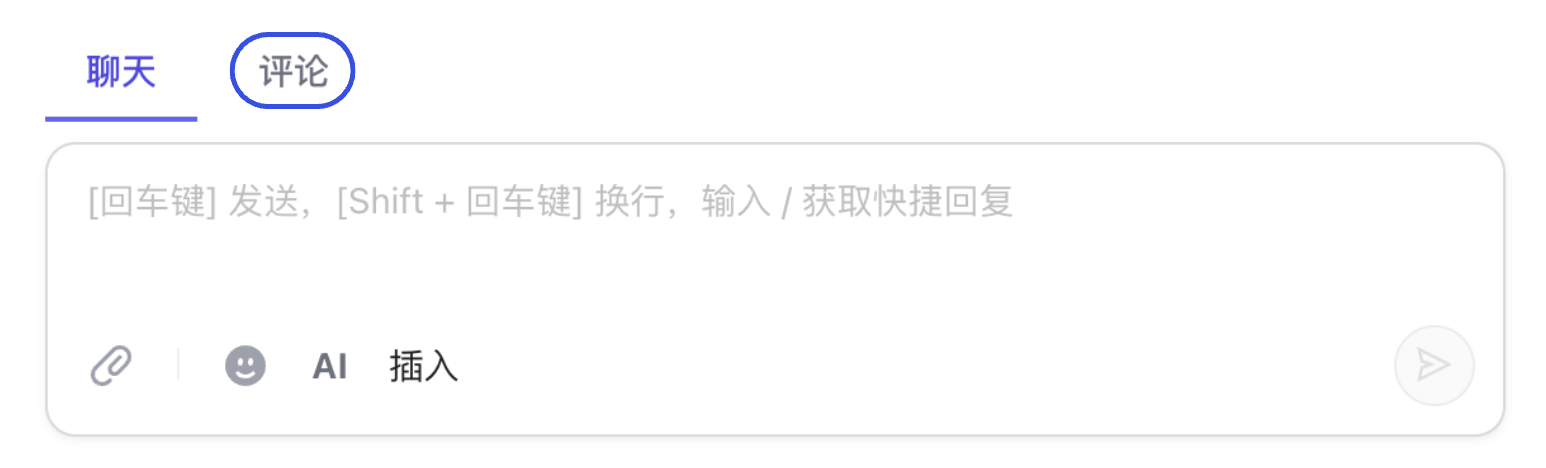
- Switch to Comment Mode
At the top of the chat input box, switch the mode from "Reply" to "Comment." The input box background typically changes to a pale yellow to indicate this mode.
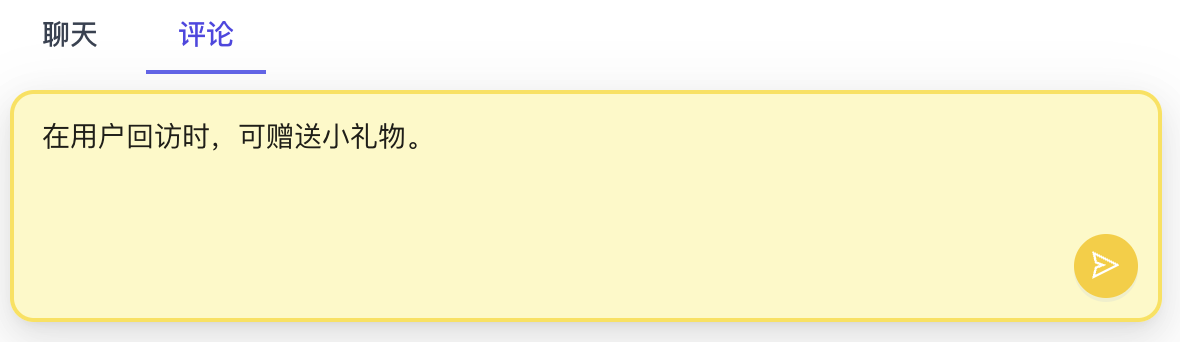
- Type and Send
Enter the content of your note (e.g., "This customer is inquiring about 2026 Spring Collection pricing; please have the Sales Lead intervene") and click Send.
Visual Effect: Comment messages will appear in the chat history with a distinct yellow background, making them easy for team members to identify at a glance.
How to Manage and Delete Comments?
If recorded information becomes outdated or needs correction, you can remove it at any time.
- Locate the target comment in the Inbox.
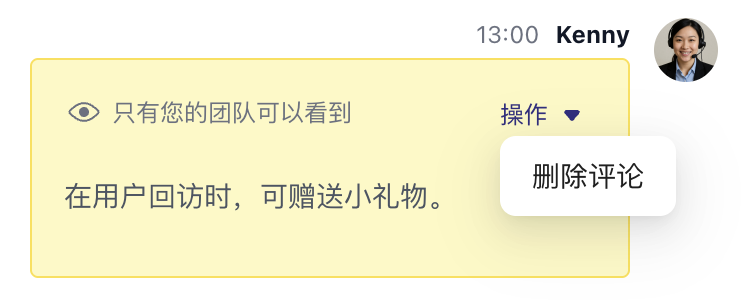
- Hover your mouse over the comment message and click the "Actions" (three dots) icon on its right.
- Select "Delete Comment" and confirm to remove it.
Collaboration Tips
While writing a comment, you can type @ followed by a member's name (e.g., @Toby). The mentioned colleague will receive an instant alert in their system notification center, enabling more efficient cross-team handovers and support.
Related Guides: