Assigning Conversations via Workflow Automation
MsgBox supports intelligently assigning conversations to specific members or teams through workflow automation. By implementing automated routing based on preset rules, you can significantly reduce customer wait times and ensure inquiries are handled by the most appropriate team.
How to Automatically Assign Conversations to a Team?
-
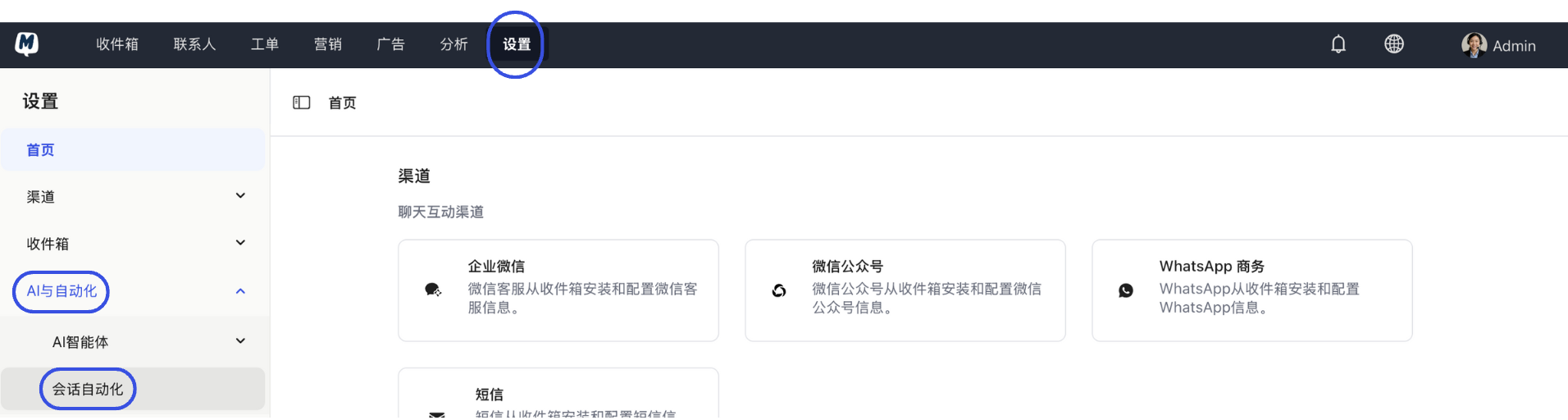
Enter Automation Settings Go to Settings > AI & Automation > Conversation Automation.
-
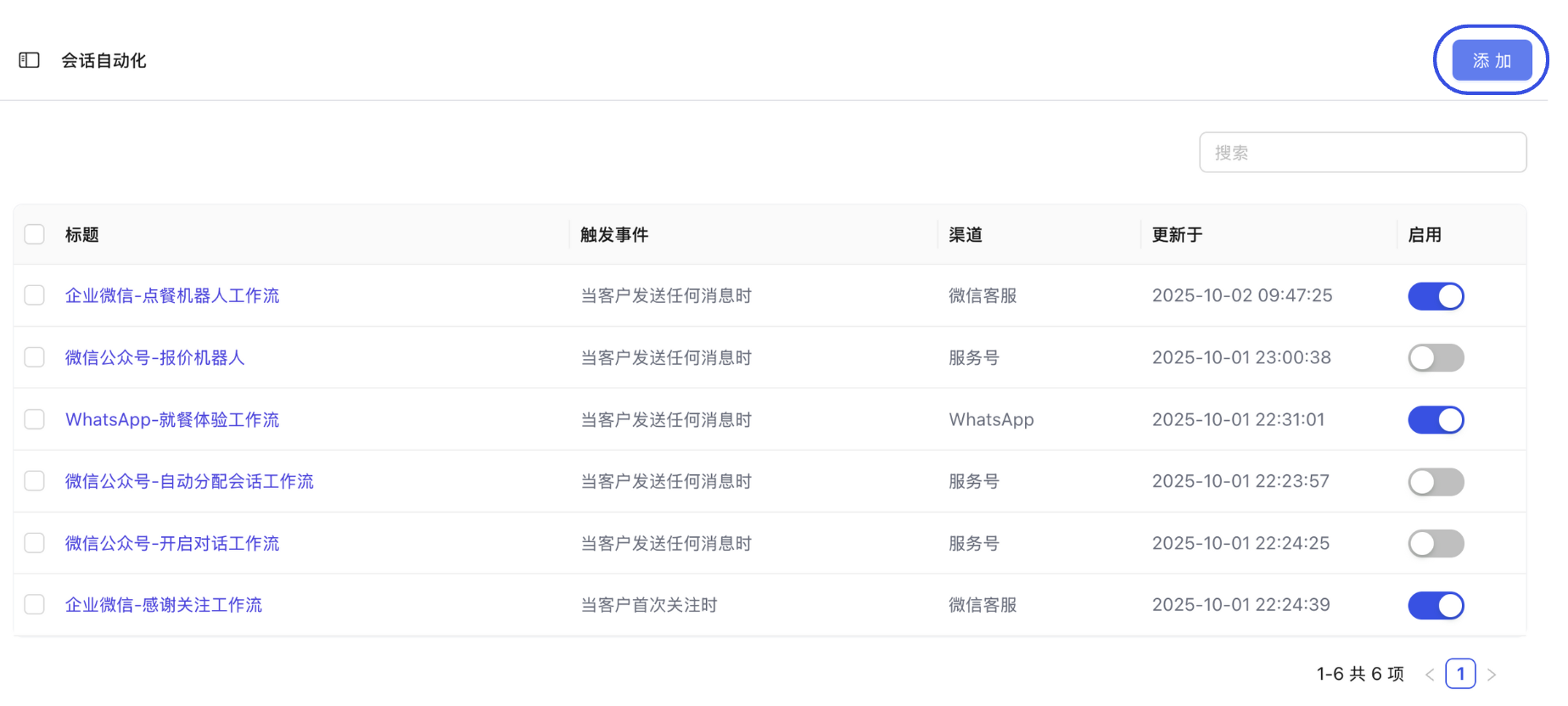
Create New Workflow Click the "Add" button in the top right corner of the page.
-
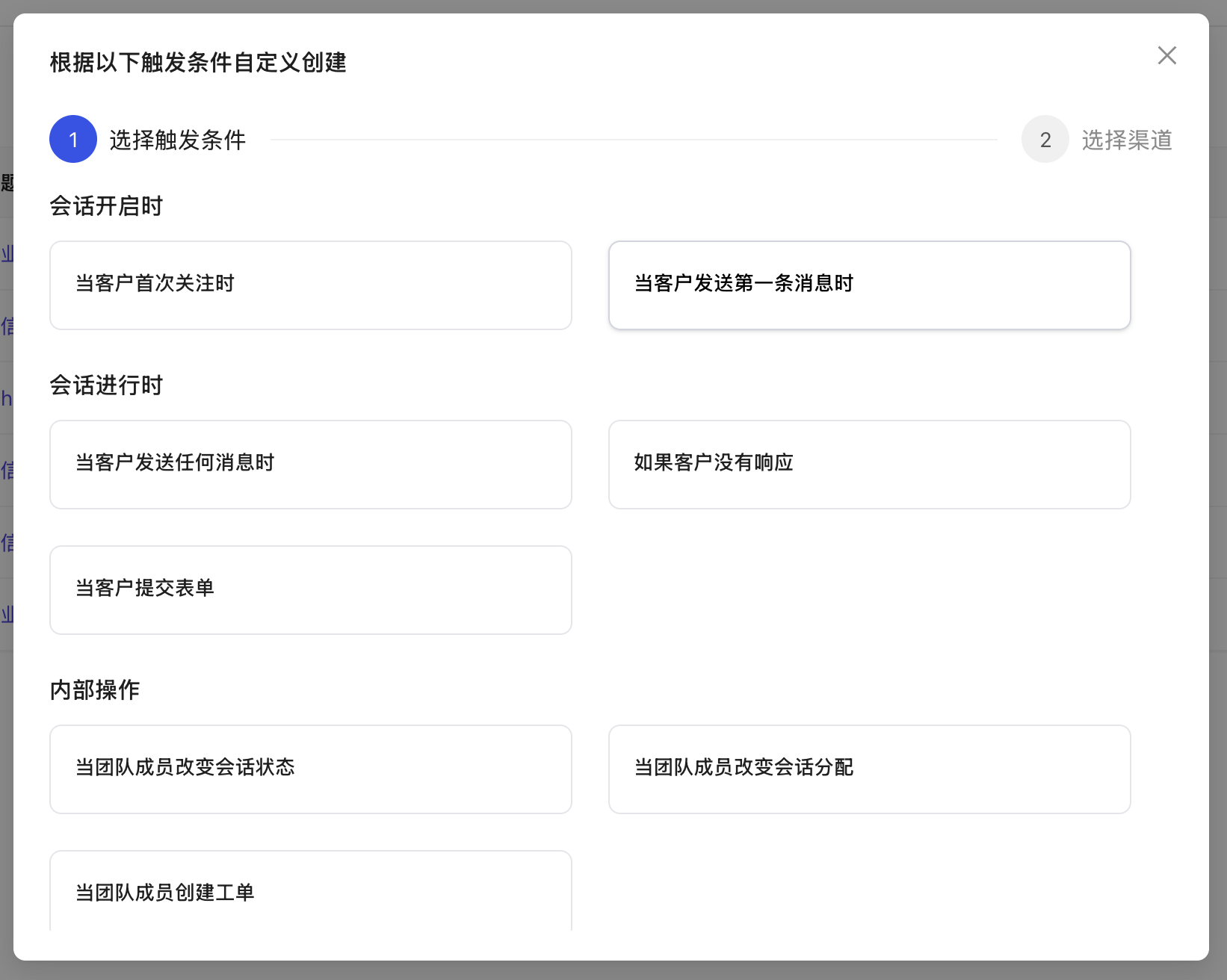
Define Trigger Logic Select a Trigger. For example, you can set it to trigger the assignment action when a "Contact sends the first message."
-
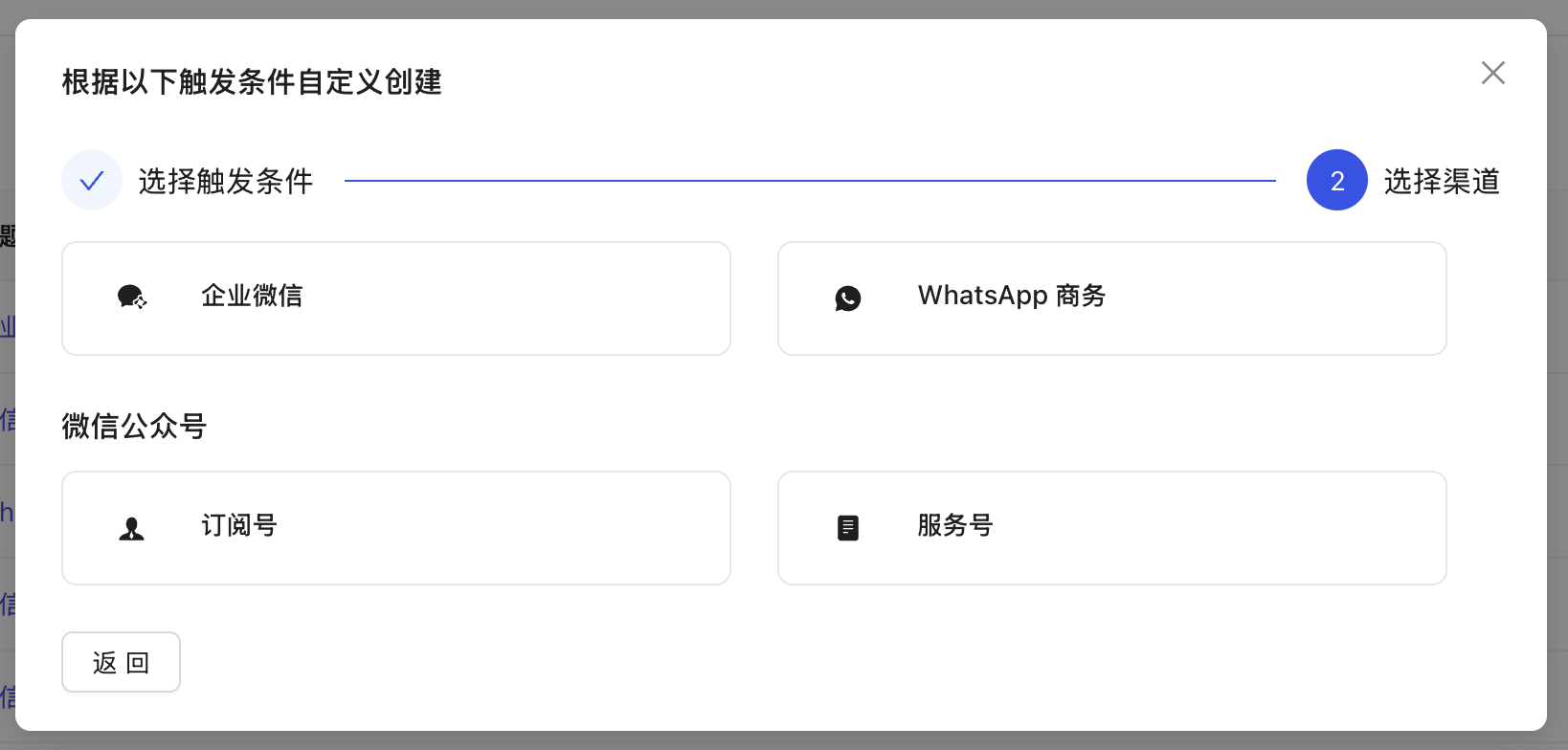
Lock Application Channels Choose the Messaging Channels (e.g., WhatsApp, Xiaohongshu, or WeChat Official Account) where this rule applies.
-
Configure Assignment Action Click "Add Step" and select "Assign to Team" from the action list.
- Tip: If you want to assign a specific person directly, choose "Assign to Member."
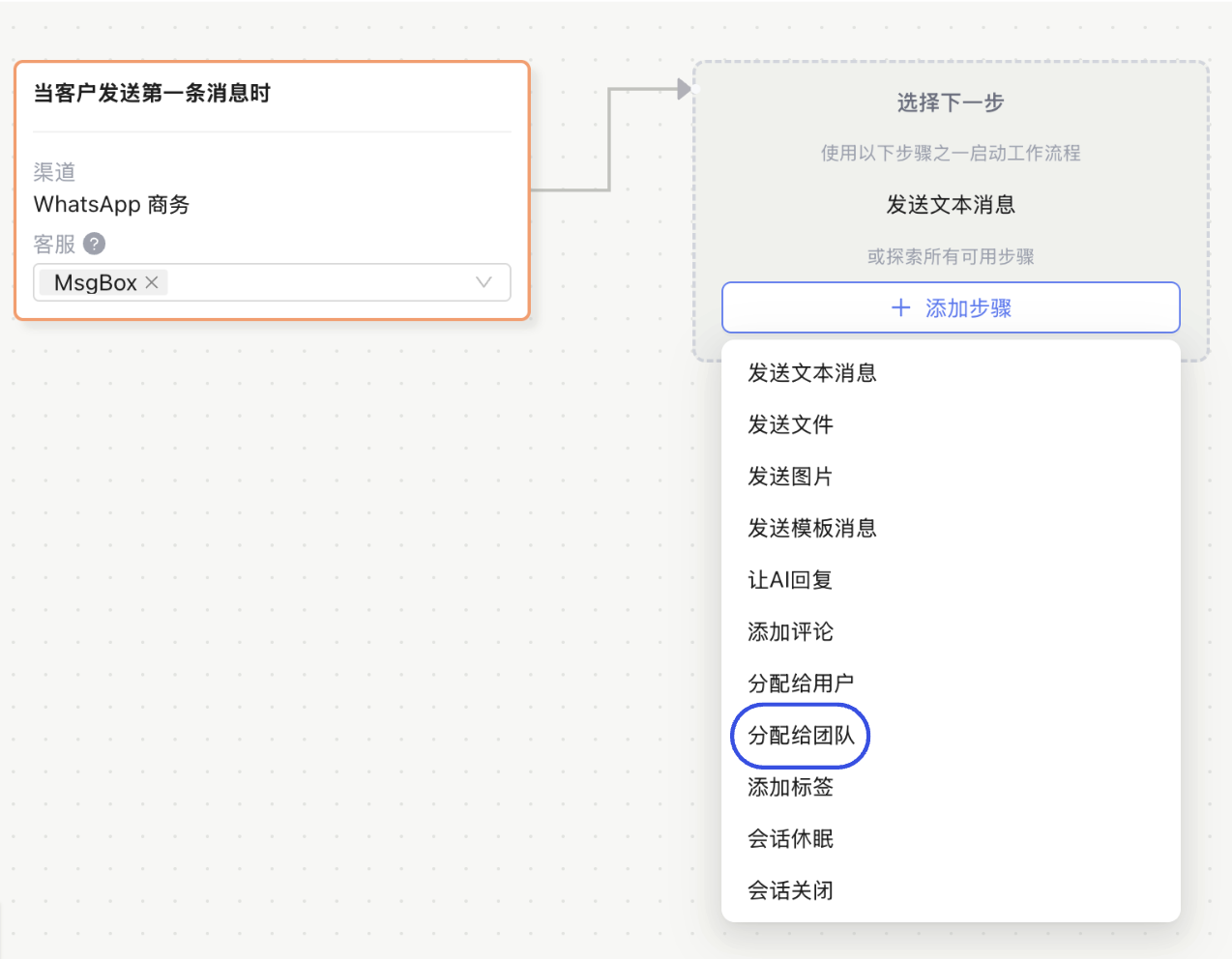
- Tip: If you want to assign a specific person directly, choose "Assign to Member."
-
Select Target Team From the dropdown menu, select the Target Team responsible for handling these inquiries (e.g., "After-sales Support Group" or "East China Sales Dept").
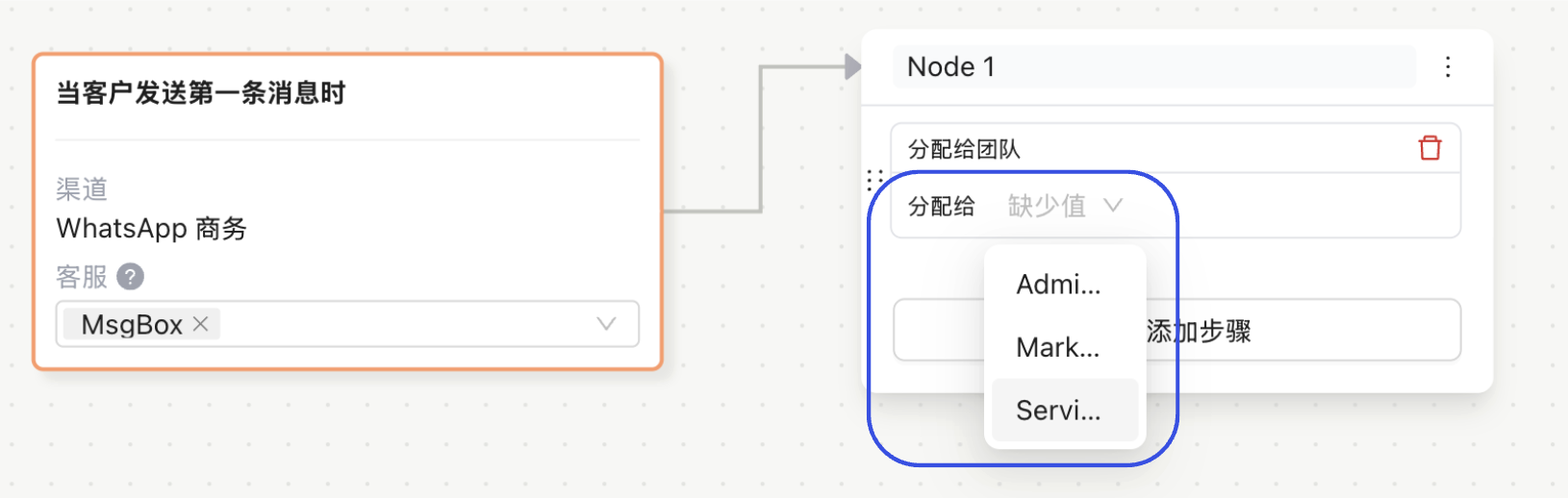
-
Save and Enable Click "Save" once finished. Finally, on the workflow list page, ensure you switch the toggle for this workflow to "On."
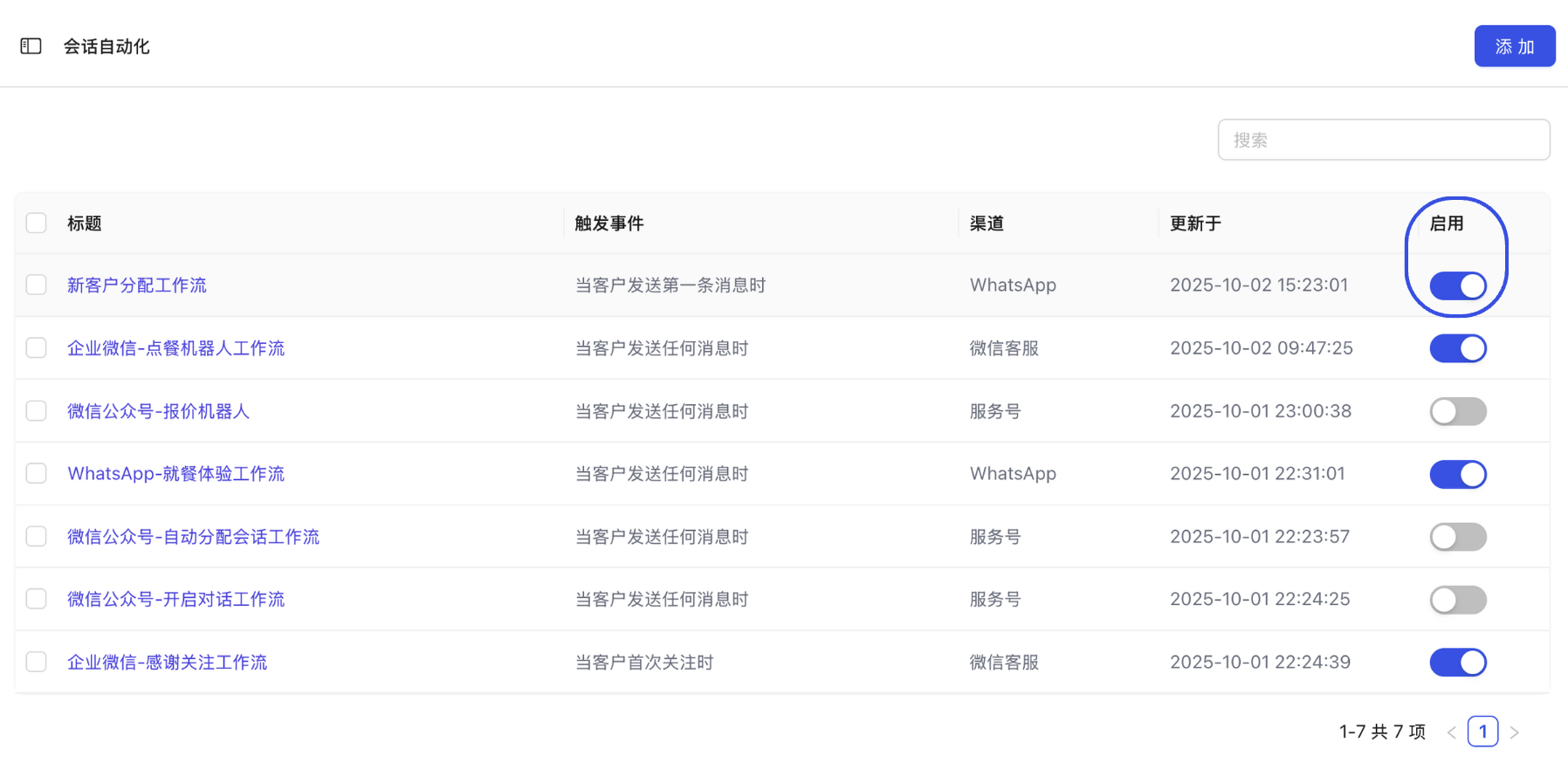
Efficiency Tips
- Assignment by Language: Combine with AI Agents to identify the customer's language and use workflows to automatically route English-speaking customers to the overseas support team.
- Assignment by Time: Set up multiple workflows to route conversations to the on-duty team or trigger auto-replies based on the time of inquiry (e.g., Working Hours vs. Off-hours).
- Assignment by Intent: Use workflows to automatically assign leads to the sales team when a customer selects a "Product Inquiry" option in a form.
Related Guides: