How to Disconnect MsgBox and HubSpot?
If you need to switch HubSpot accounts or temporarily stop data synchronization, you can follow these steps to manually disconnect MsgBox from HubSpot.
- Sync Stop: Bidirectional synchronization of all contact information will stop immediately.
- Feature Restrictions: You will no longer be able to view HubSpot profiles in the inbox or directly create/jump to HubSpot tickets.
- Data Retention: Disconnecting will not delete existing historical data on either platform, but newly generated data will no longer be shared.
Steps
-
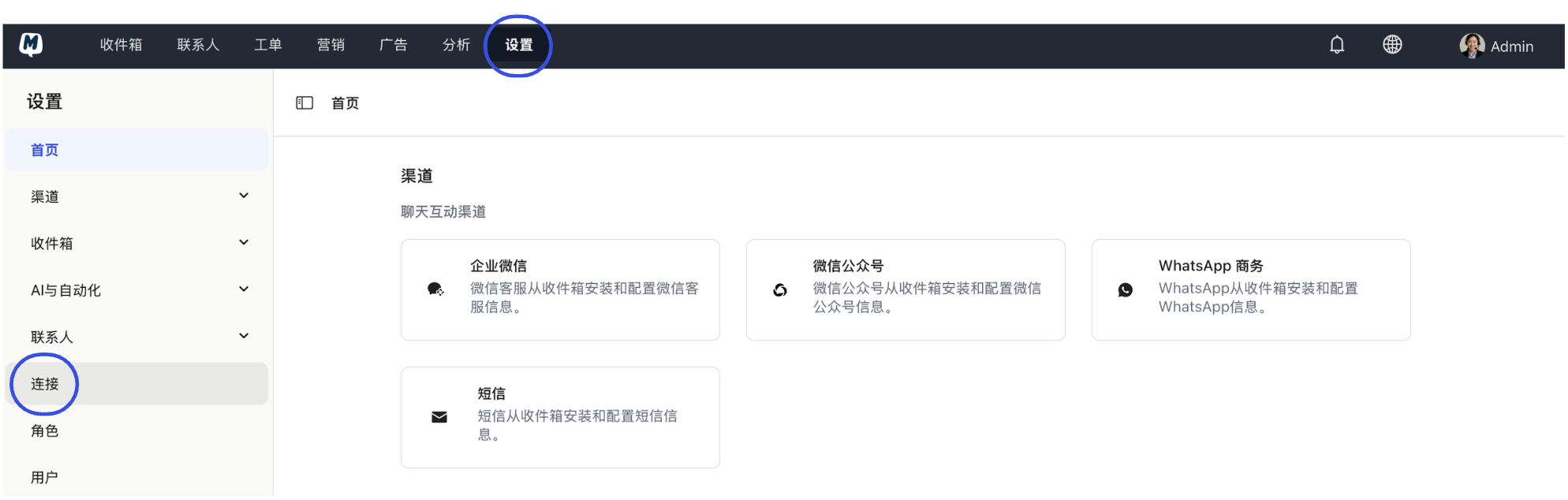
Enter Connection Settings Go to the Settings > Connections page.
-
Initiate Disconnect Request In the HubSpot section, click the red "Disconnect" button on the right.

-
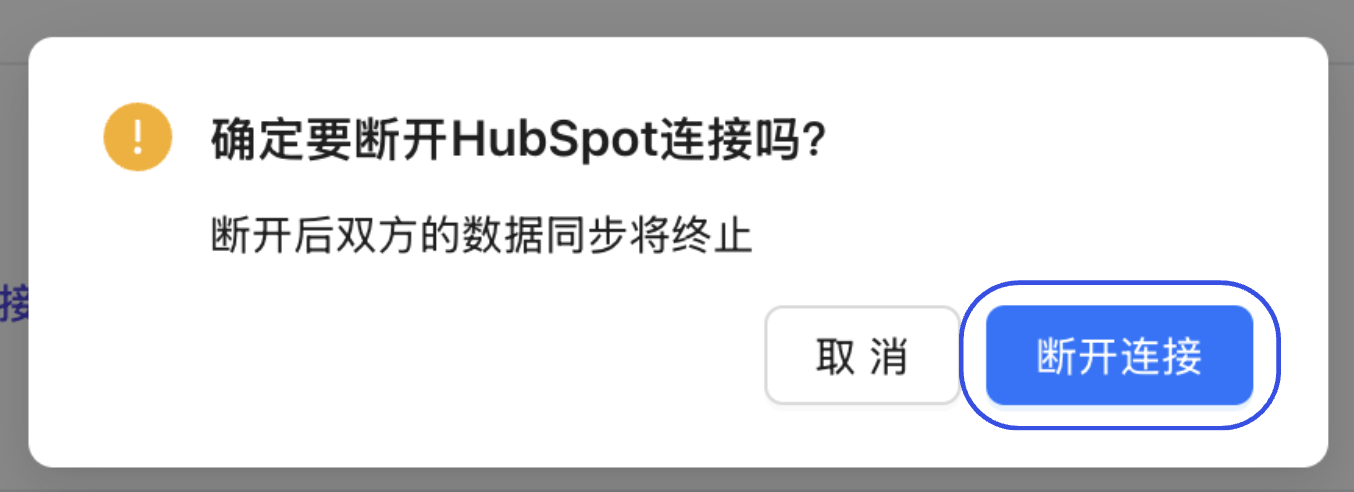
Confirm A confirmation window will pop up. After double-checking, click "Disconnect".
-
Verify Status Once completed, the page will refresh automatically. Confirm that the status in the HubSpot section shows "Not Connected" to ensure the disconnection was successful.

FAQ
Q: If I reconnect after disconnecting, will the data still sync? A: After reconnecting, you can reconfigure your field mappings. The system will attempt to rematch and sync data based on unique identifiers (such as email addresses).
Q: What if I only want to stop ticket synchronization without disconnecting the entire account? A: You do not need to disconnect. Simply go to Settings > Connections > Ticket Form Field Settings and remove all mapped fields, or simply stop initiating ticket creation in your conversations.
Follow-up Guide: