Syncing Contact Information with HubSpot
By connecting MsgBox with HubSpot, you can achieve seamless data interoperability. Whether through AI Auto-extraction or manual entry, contact information in MsgBox can be synchronized to your HubSpot CRM in real-time.
Before configuring sync rules, please ensure you have completed the HubSpot account authorization and connection.
1. Enable Contact Sync Method
You can decide under what circumstances data synchronization is triggered.
-
Enter Connection Settings Go to the Settings > Connections page.
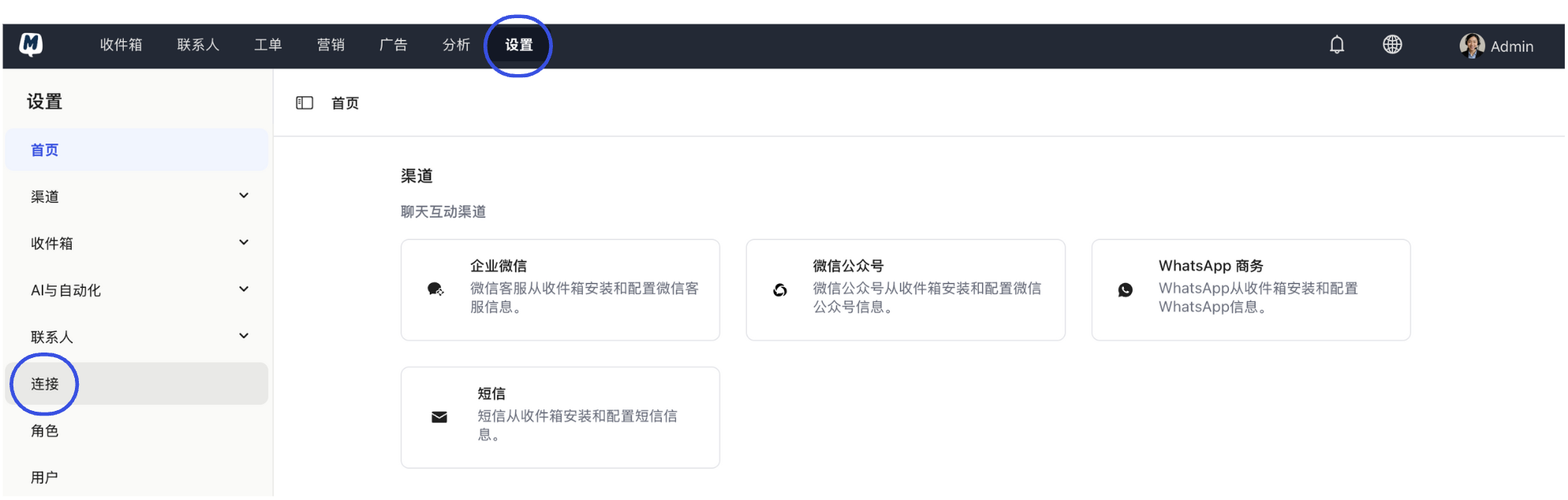
-
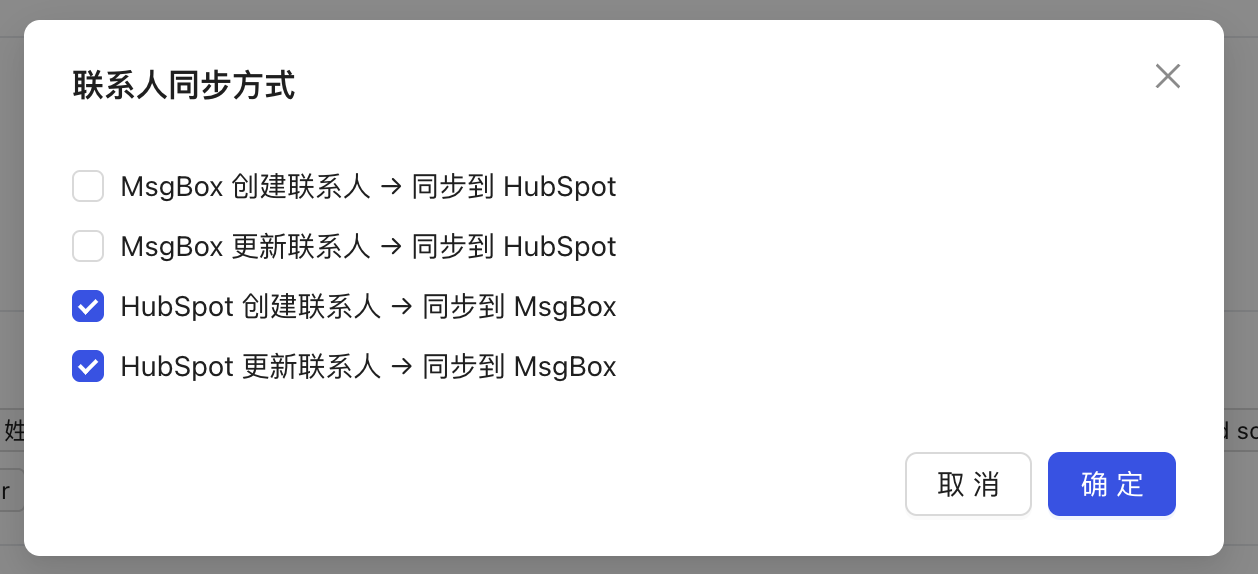
Set Sync Trigger Mechanism In the "Contact Sync Method" section, click "Settings".
-
Choose Sync Logic
- Manual Sync: Triggered only when you manually click to sync.
- Automatic Sync: Automatically push to HubSpot whenever MsgBox contact profile is updated.
Check your preference and click "Confirm".
2. Configure Contact Field Mapping
To ensure data is accurately filled into the corresponding attributes in HubSpot, you need to establish mapping relationships between fields.
-
Enter Field Configuration On the same Settings > Connections page, find the "Contact Sync Fields" section and click "Settings".
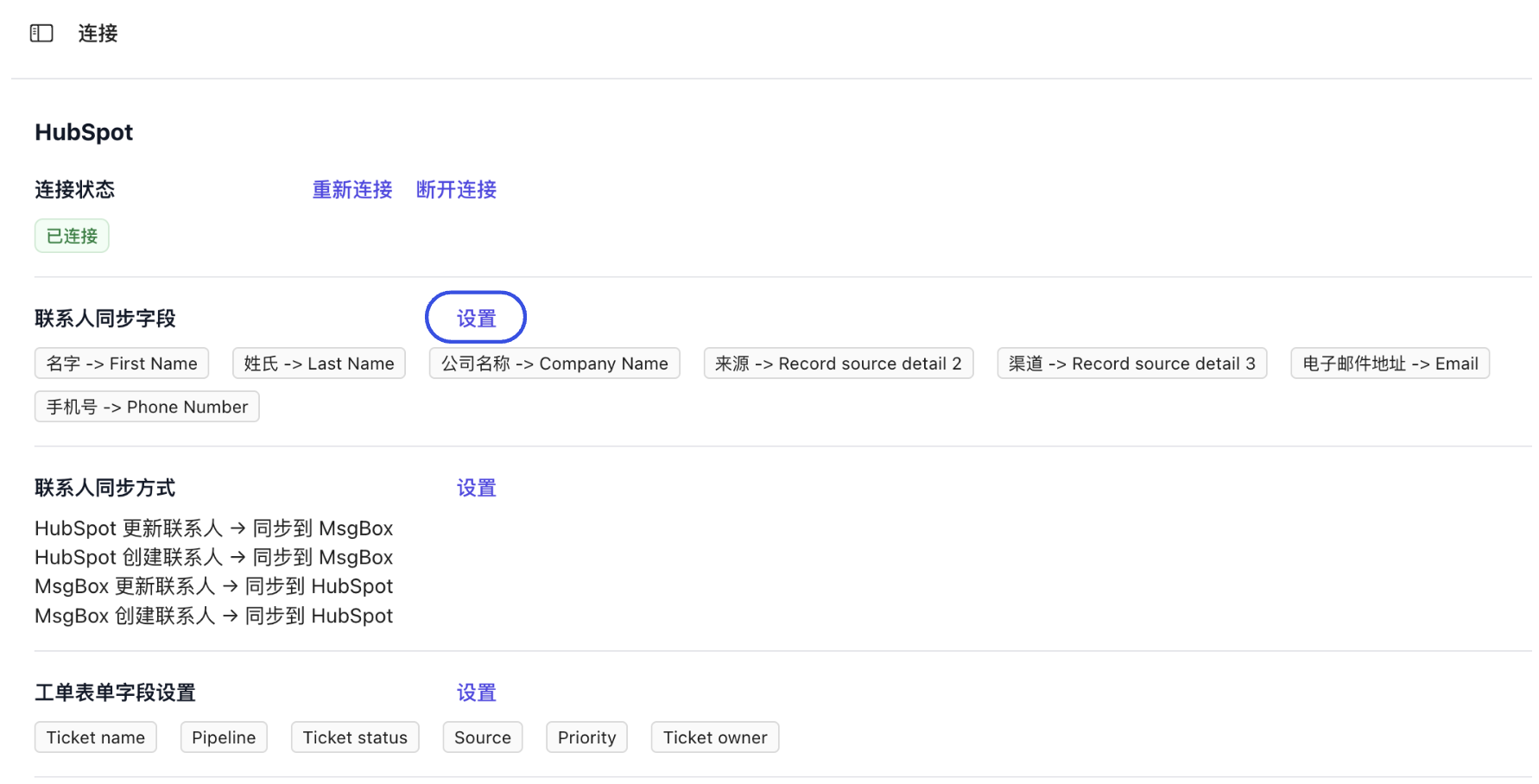
-
Establish Mapping Relationships
- Left Side: Contact fields in MsgBox.
- Right Side: Corresponding attributes in HubSpot.
Please ensure that the field types (e.g., text, number, dropdown) are consistent on both ends.
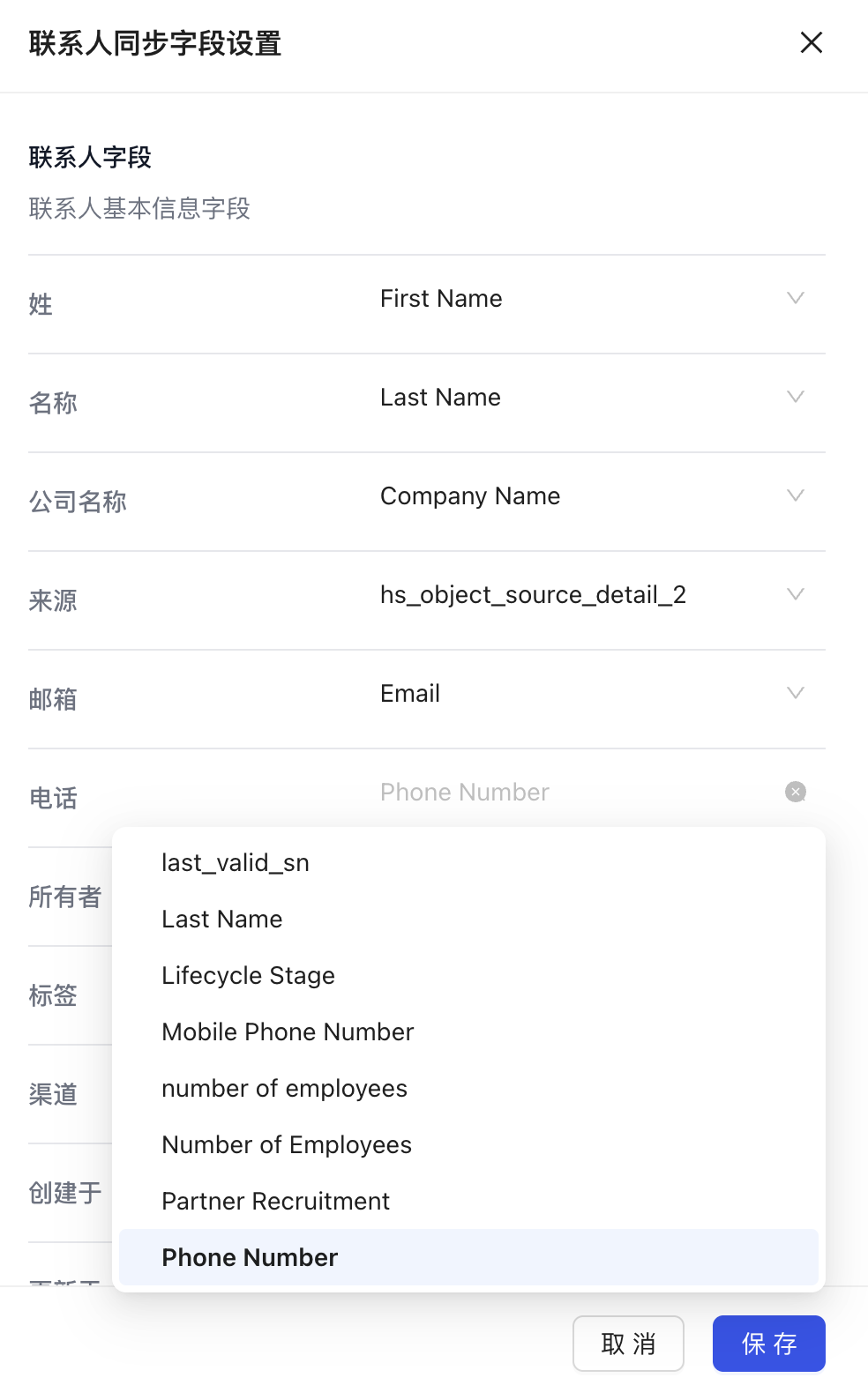
-
Save Configuration After verifying everything is correct, click "Save".
Best Practices
When configuring mappings, please ensure that all "required fields" in HubSpot have a corresponding mapping in MsgBox. If a field is required on the HubSpot side but the data is empty during sync, it may cause the synchronization of that record to fail.
Common Questions:
- Deletion Sync: Please note that contact deletion is not bi-directionally synchronized. Deleting a contact in MsgBox will leave the record in HubSpot intact.
- Unique Identifier: The system defaults to using Email as the unique credential to identify the same contact on both ends; please ensure the accuracy of the email address.
Related Guides: