How to Disconnect WhatsApp Business?
To ensure your account security and completely terminate the communication link, you need to perform a deletion in the MsgBox backend and revoke the application authorization within the Meta Business Suite.
Deleting the channel on the MsgBox side alone will not automatically terminate the API authorization on Meta's end. To prevent data residue or authorization anomalies, please follow these two phases to complete a full unbinding.
Phase 1: Delete the Channel in MsgBox
-
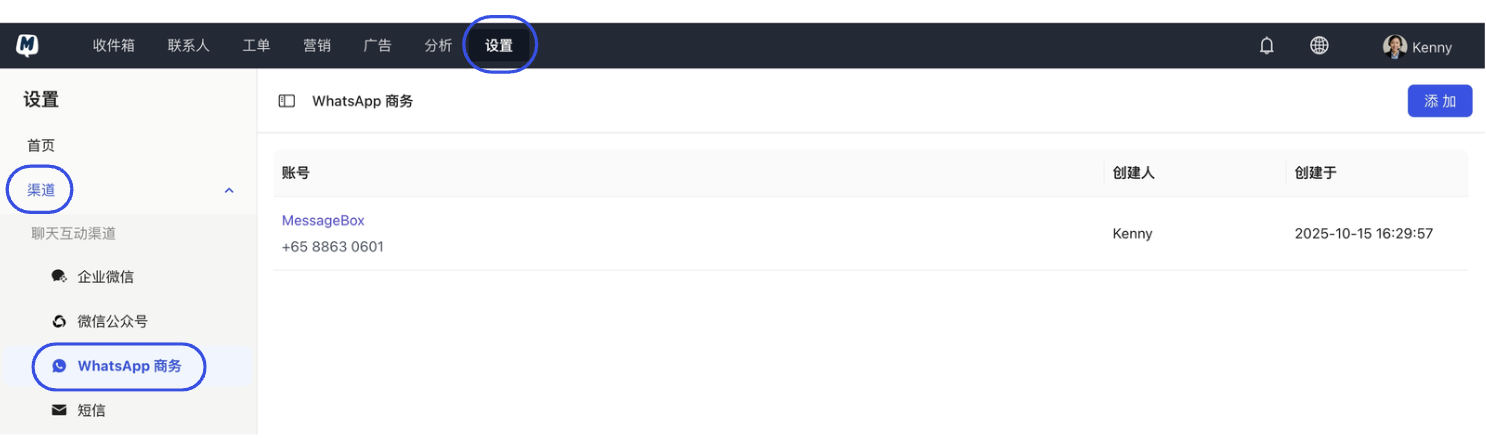
Enter Settings Go to Settings > Channels > WhatsApp Business.
-
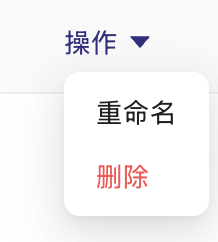
Execute Deletion Click the "Action" button to the right of the target account and select "Delete".
Phase 2: Revoke Authorization on the Meta Platform
-
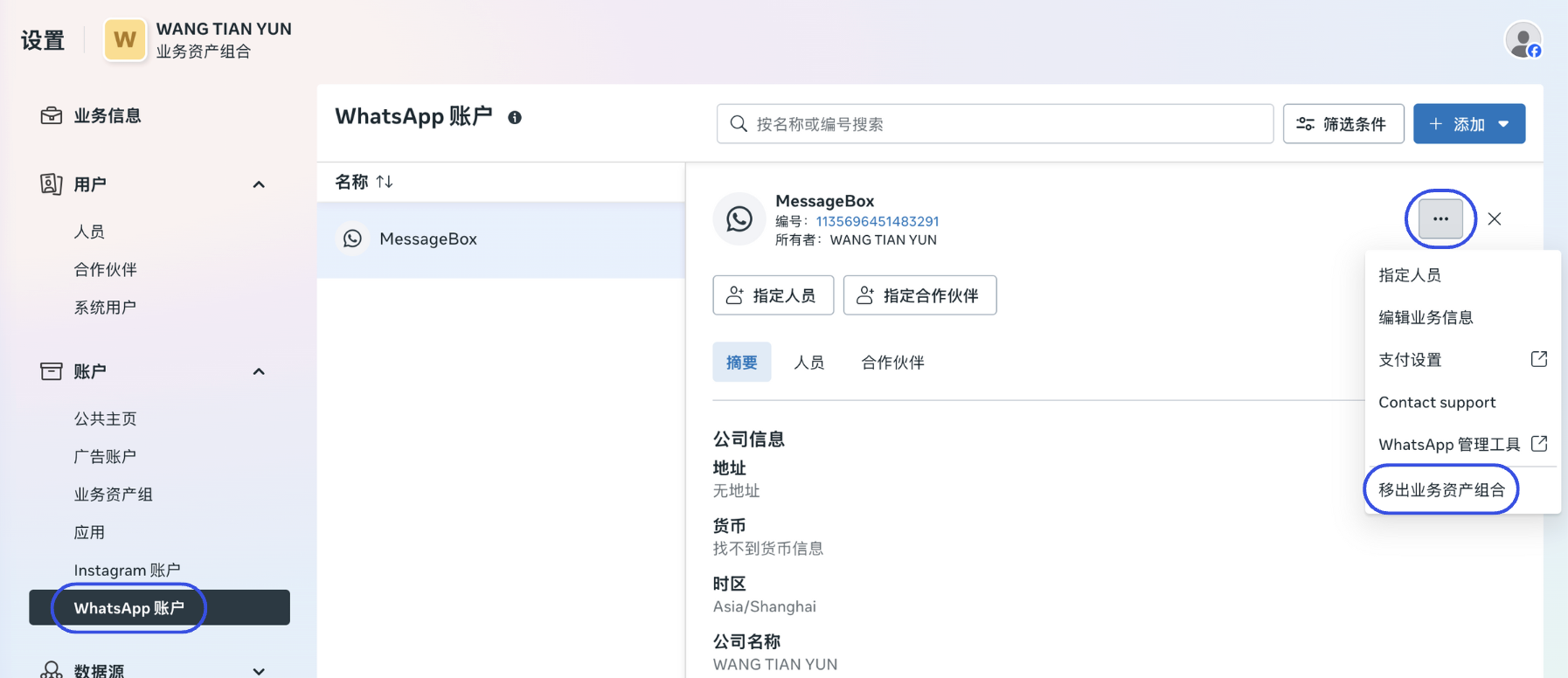
Remove Business Assets Log in to Meta Business Suite, navigate to the WhatsApp Accounts interface, select the corresponding account, and click "Remove from Business Portfolio" and confirm.
-
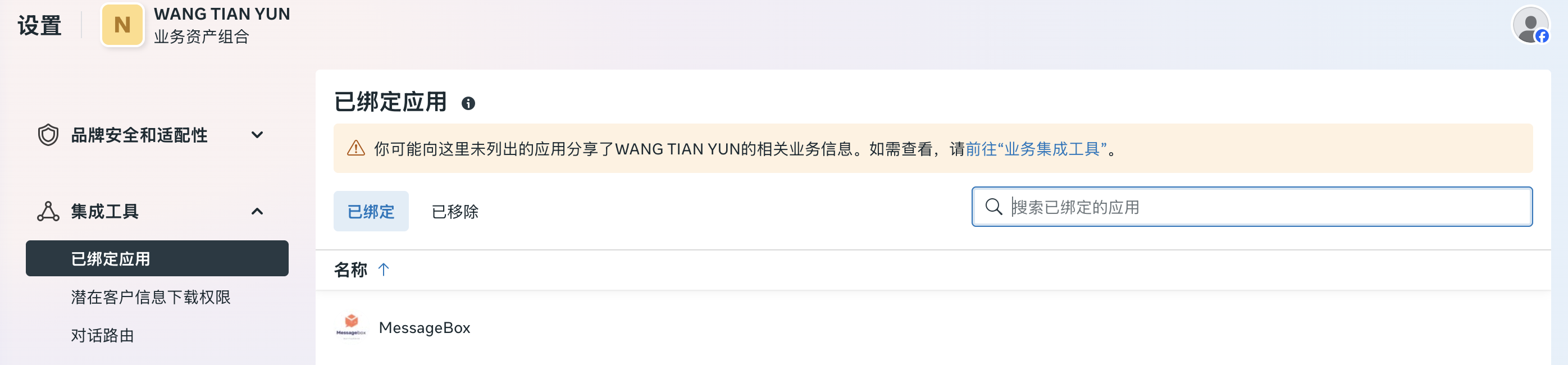
Disconnect Integrated App In the left sidebar, select Integrations > Connected Apps, and find "MessageBox" in the list.
-
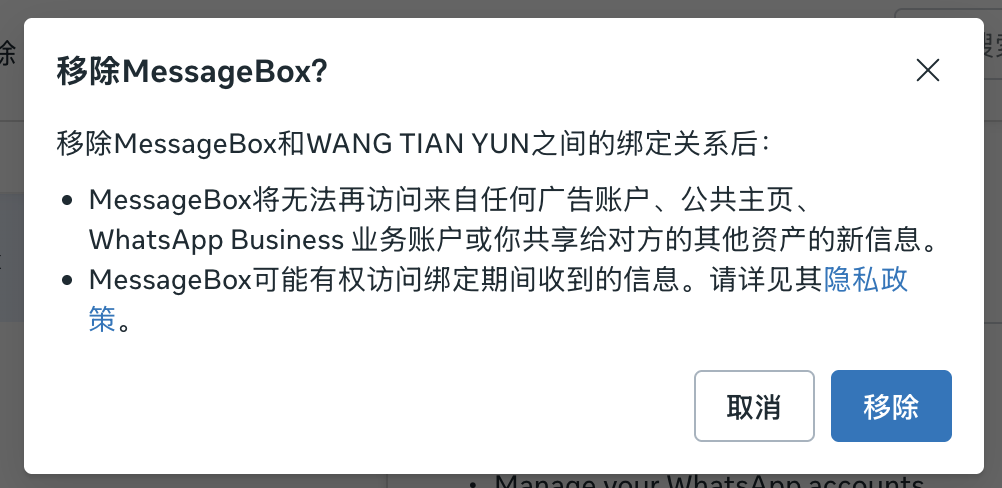
Permanently Remove Authorization Click "Remove", and click "Remove" again in the secondary confirmation pop-up.
Notes
- Administrator Permissions: Performing the removal action in Meta Business Suite requires Admin permissions for the Business Manager (BM).
- Data Backup: Once disconnected, MsgBox will no longer receive new messages or be able to send Template Messages. We recommend exporting essential chat data before unbinding.
- Phone Number Status: This action only disconnects the link with MsgBox; it does not delete your WhatsApp Business number. You can reconnect it to other systems at any time.
Follow-up Guide: