How to View WhatsApp Broadcast Data?
After launching a broadcast, real-time tracking of customer interaction is key to evaluating marketing ROI. MsgBox provides full-link data reports ranging from delivery and read status to clicks.
Steps
-
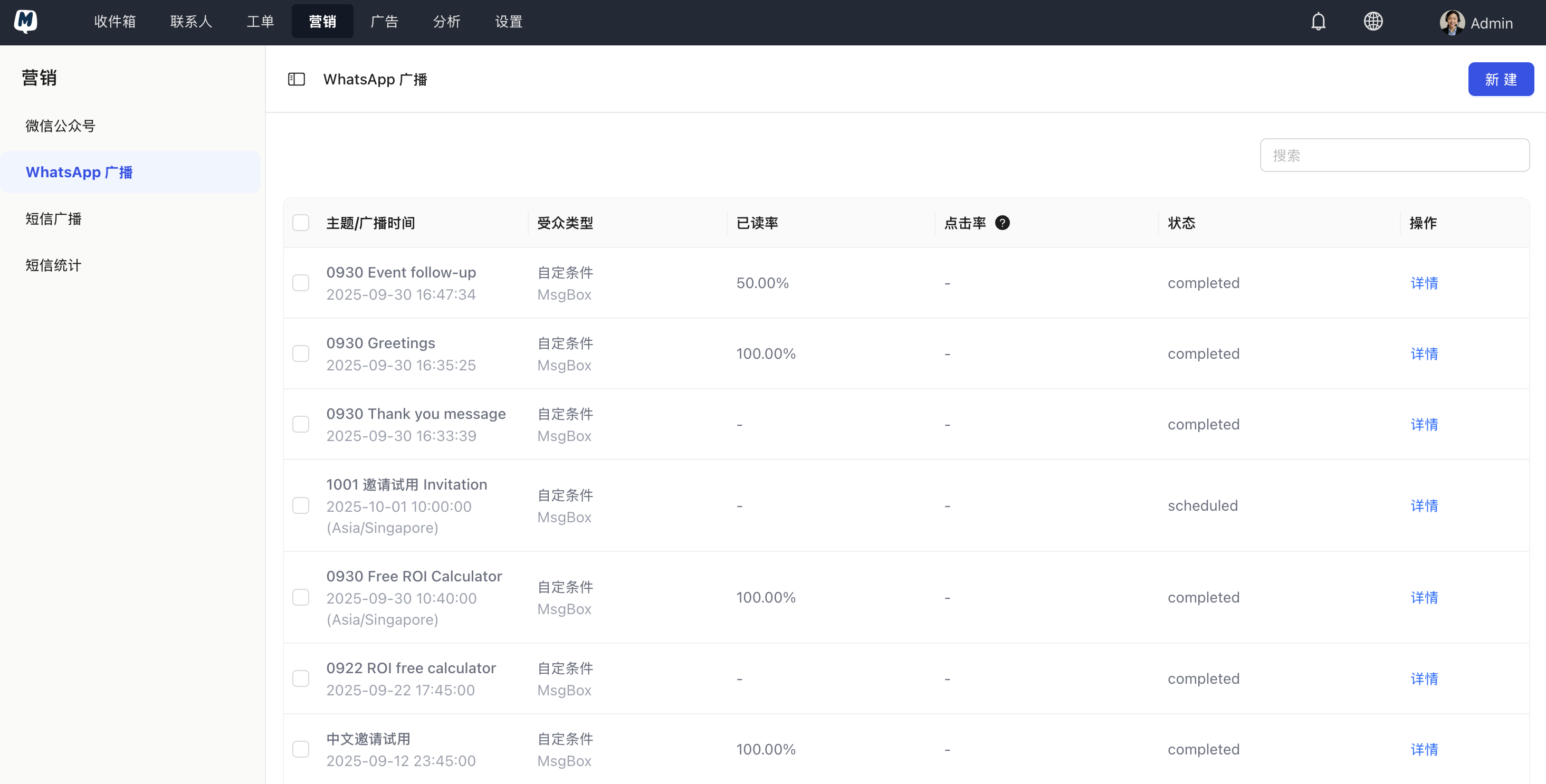
Enter Broadcast List Go to Marketing > WhatsApp Broadcast. On the list page, you can see a preliminary preview of the Read Rate and Click-through Rate for each broadcast.
-
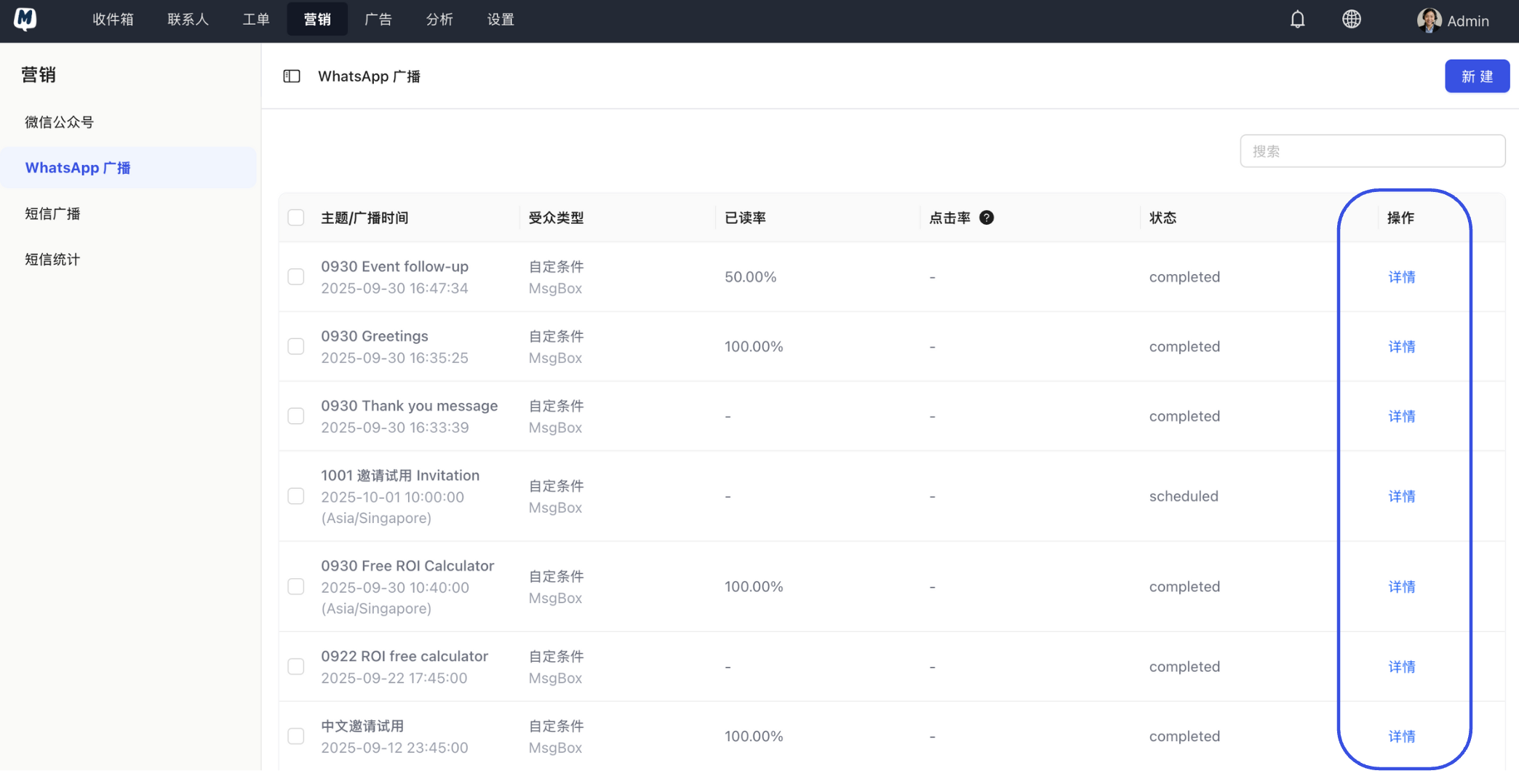
Enter Detailed Report In the action column on the right side of the target broadcast task, click "Details."
-
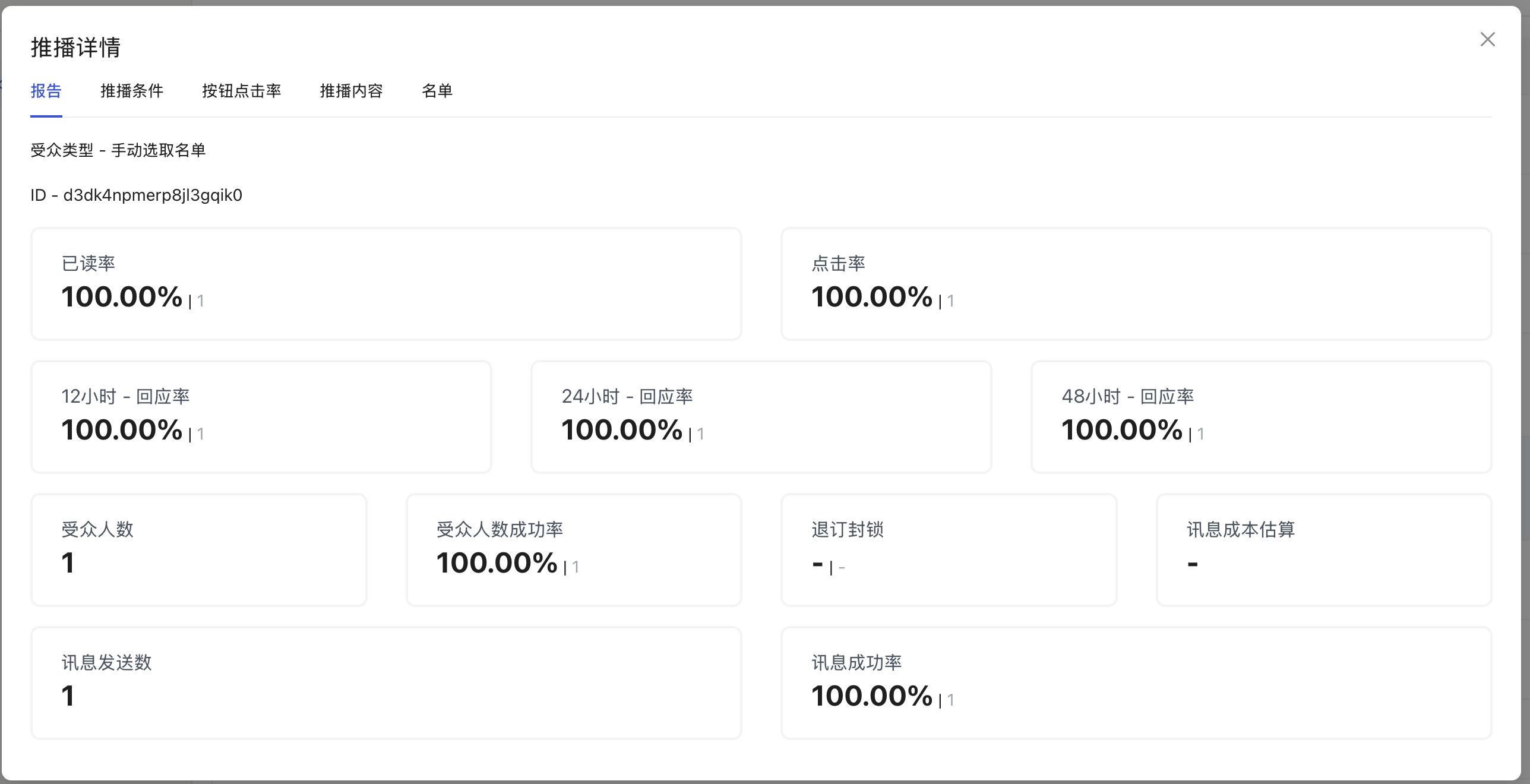
In-depth Data Analysis On the report page, you can view the following core metrics:
- Delivered: The percentage of messages that successfully reached the customer's phone.
- Read Rate: The percentage of customers who opened the message.
- Click-through Rate (CTR): The percentage of customers who clicked buttons within the message.
Note: The small gray text to the right of the percentage indicates the specific number of people reached (e.g., Read Rate 100%, "1" means 1 contact has read it).
Data Analysis Tips
If your WhatsApp Message Template does not contain interactive buttons (such as "Buy Now" or "Reply Keyword"), the system will not be able to track click behavior, and the CTR will show as 0 or "--".
Since WhatsApp status receipts (especially read receipts) can have some network latency, we recommend checking the final statistics 48 hours after the broadcast is completed to obtain the most accurate conversion report.
Related Guides: