How to Test MsgBox AI Agents?
Before officially deploying an AI Agent to your production environment to handle customer inquiries, we recommend thoroughly testing it in "Debug Mode." This ensures its language style aligns with your brand voice and that it accurately answers questions based on your Knowledge Base.
Steps
-
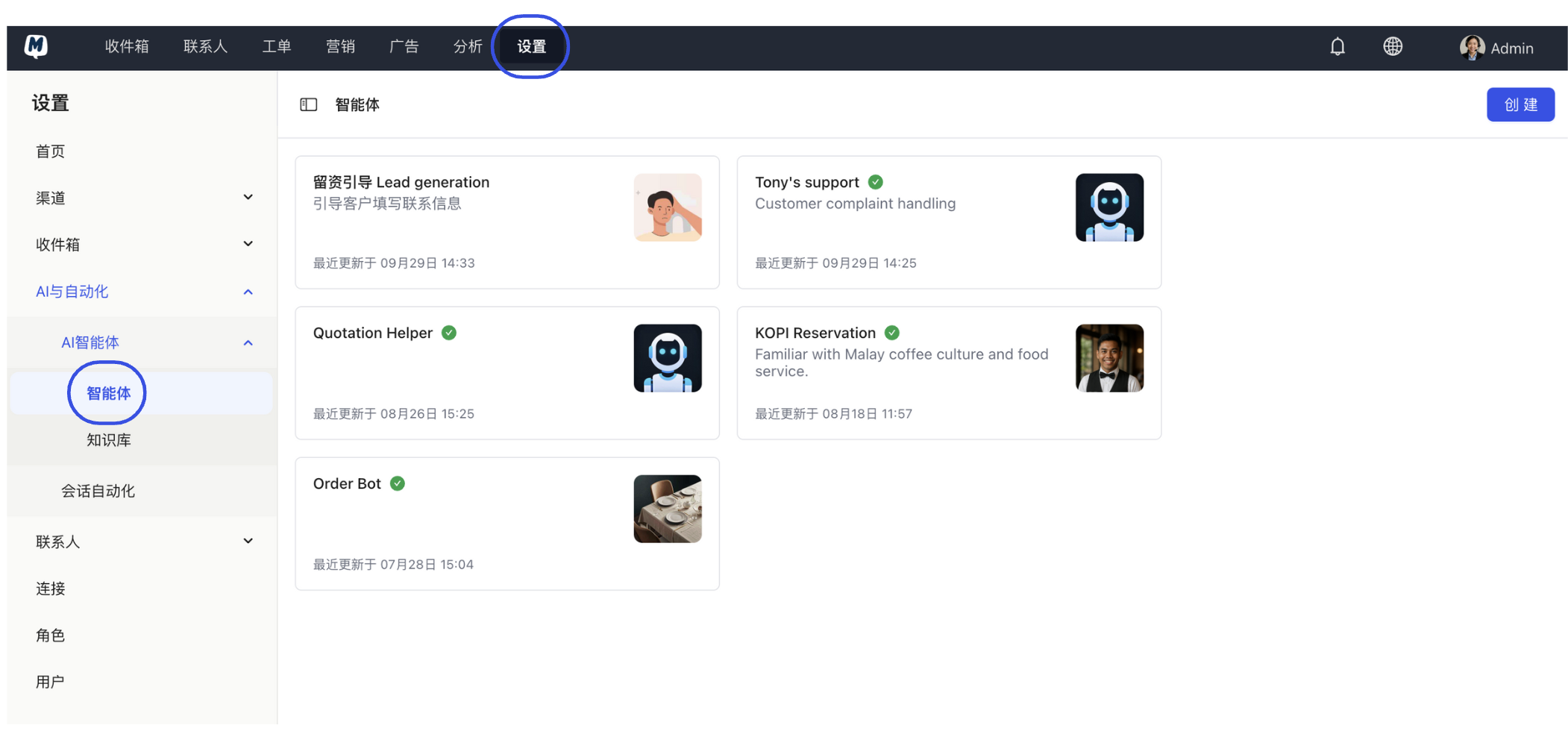
Enter Agent Management Go to Settings > AI & Automation > AI Agent > Agents.
-
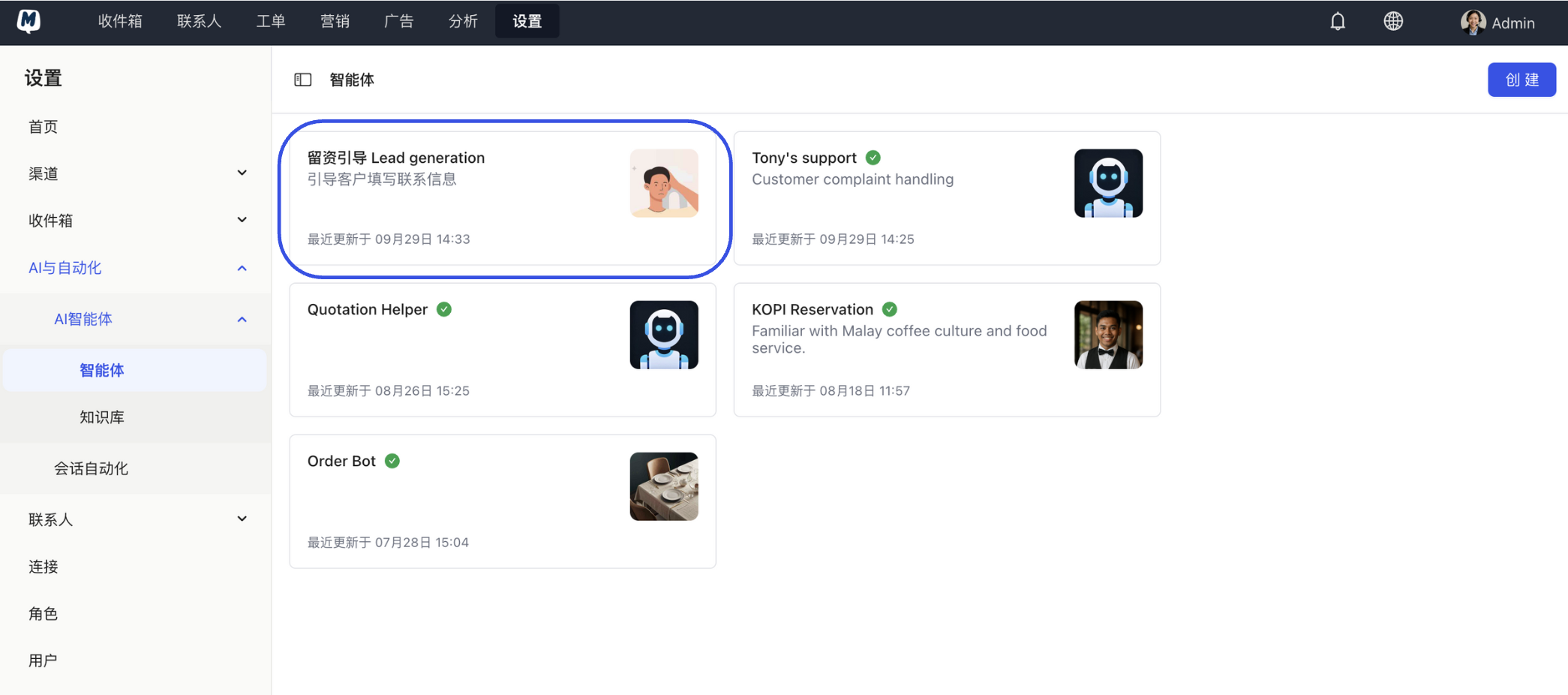
Enter Edit Mode Locate the agent you wish to test in the list and click to enter its configuration details page.
-
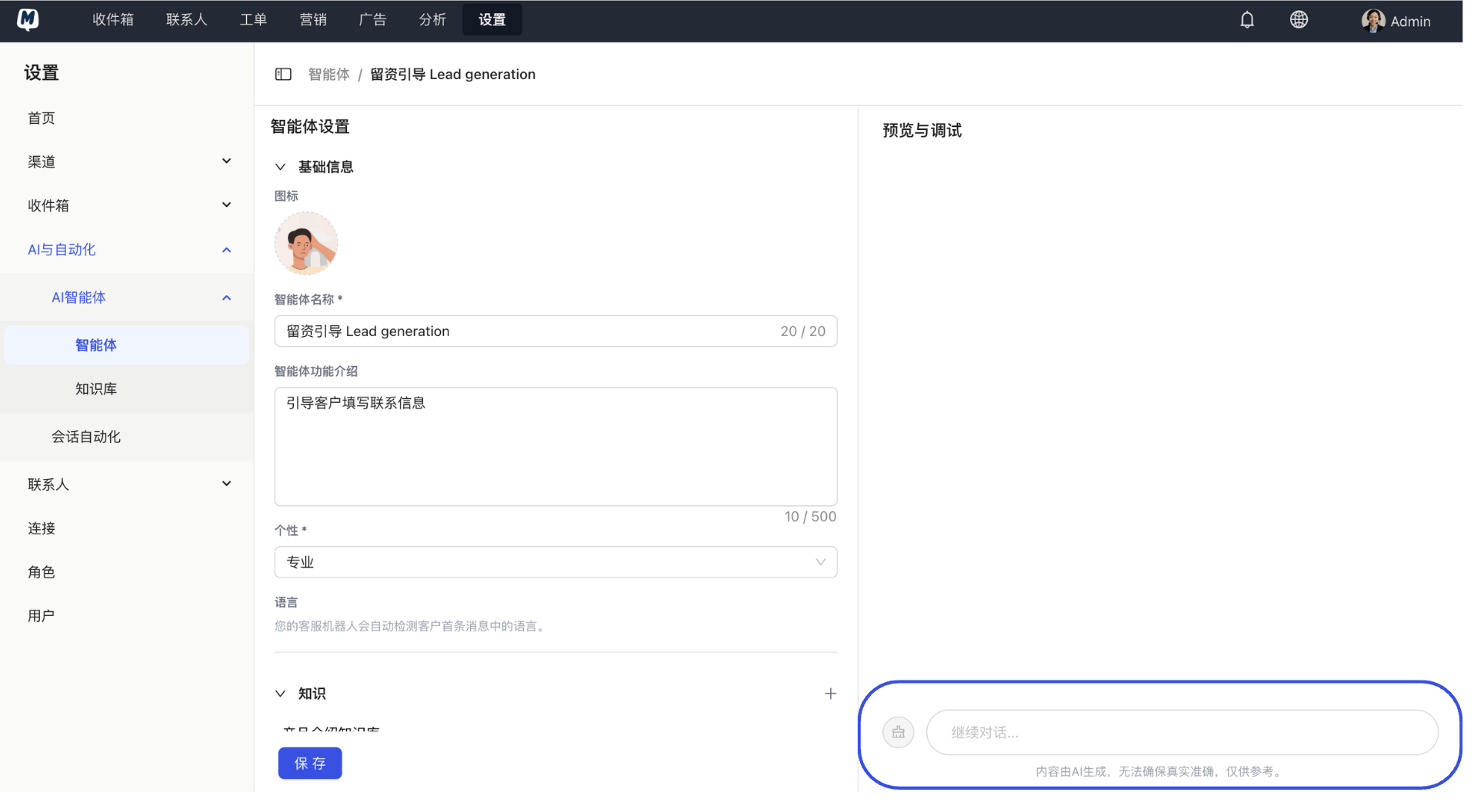
Use "Preview & Debug" for Conversation In the Preview & Debug area on the right (or bottom) of the page, type your questions directly into the chat box.
- Simulate customer inquiries regarding product info, pricing, or after-sales policies to observe the AI's response speed and accuracy.
- Simulate customer inquiries regarding product info, pricing, or after-sales policies to observe the AI's response speed and accuracy.
Debugging Tips
- Simulate Edge Cases: Try asking about topics not covered in your knowledge base to see if the AI politely redirects the customer to a human agent.
- Adjust Personality Style: If replies feel too rigid, go back to the "Personality" section, change it to "Friendly" or "Witty," save, and test again.
- Verify Knowledge Base Coverage: If you just uploaded a new PDF/DOC knowledge base, use testing to confirm the AI has "digested" the new content.
Conversations generated in the Preview & Debug window do not consume your official session quota and will not affect your external channels (like WhatsApp or Xiaohongshu). You can simulate scenarios with peace of mind.
Related Guides: