How to Delete Contact Information?
You can delete contact profiles in either MsgBox or HubSpot as needed.
Deletion is not bidirectionally synchronized. This means that deleting a contact in MsgBox will not remove the corresponding profile in HubSpot, and vice versa. If you wish to completely remove a customer from both systems, you must perform the deletion on both platforms separately.
Deleting Contacts in MsgBox
-
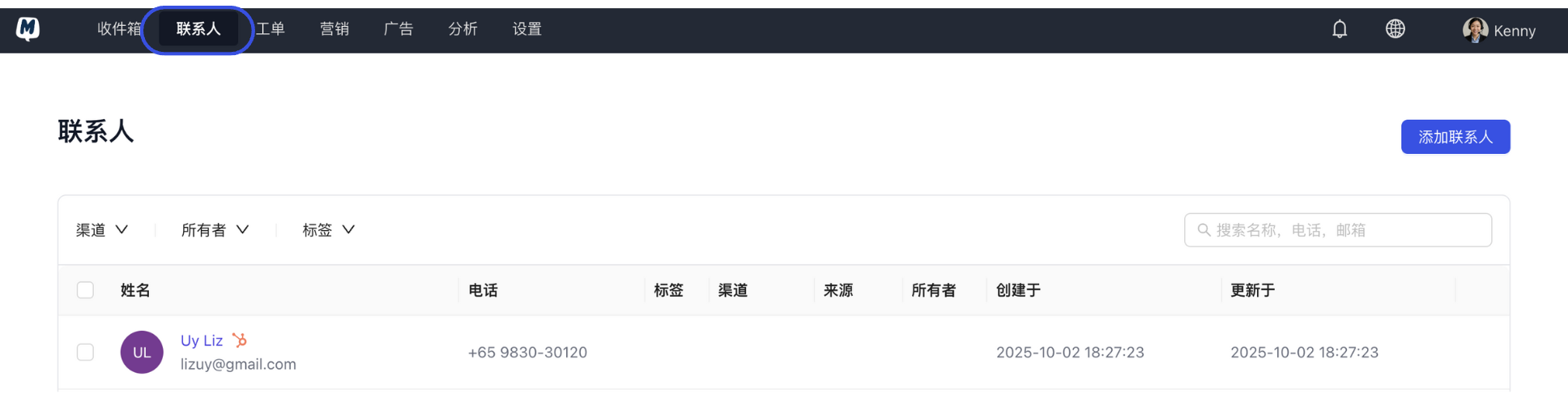
Enter the Contact List Go to the Contacts page in the navigation bar.
-
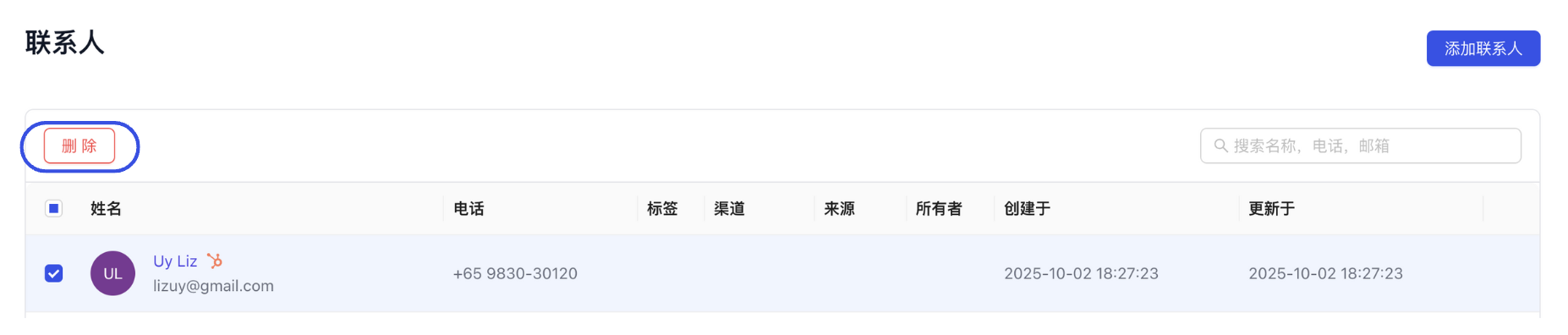
Execute Deletion Locate the target contact in the list, click the action icon on the right, and select "Delete".
-
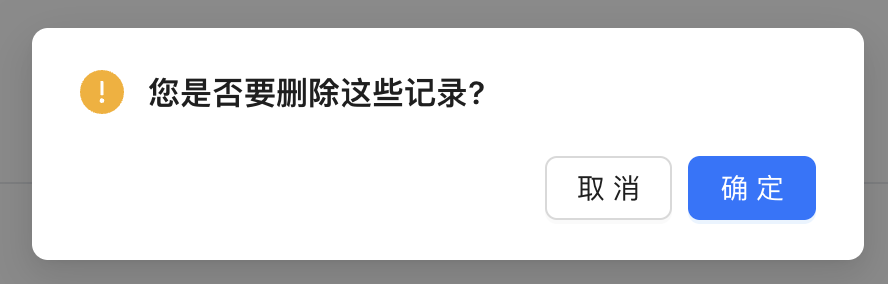
Confirm Secondary Reminder Click "Confirm" in the pop-up window. The contact information and its associated non-chat data will be permanently removed.
Deleting Contacts in HubSpot
-
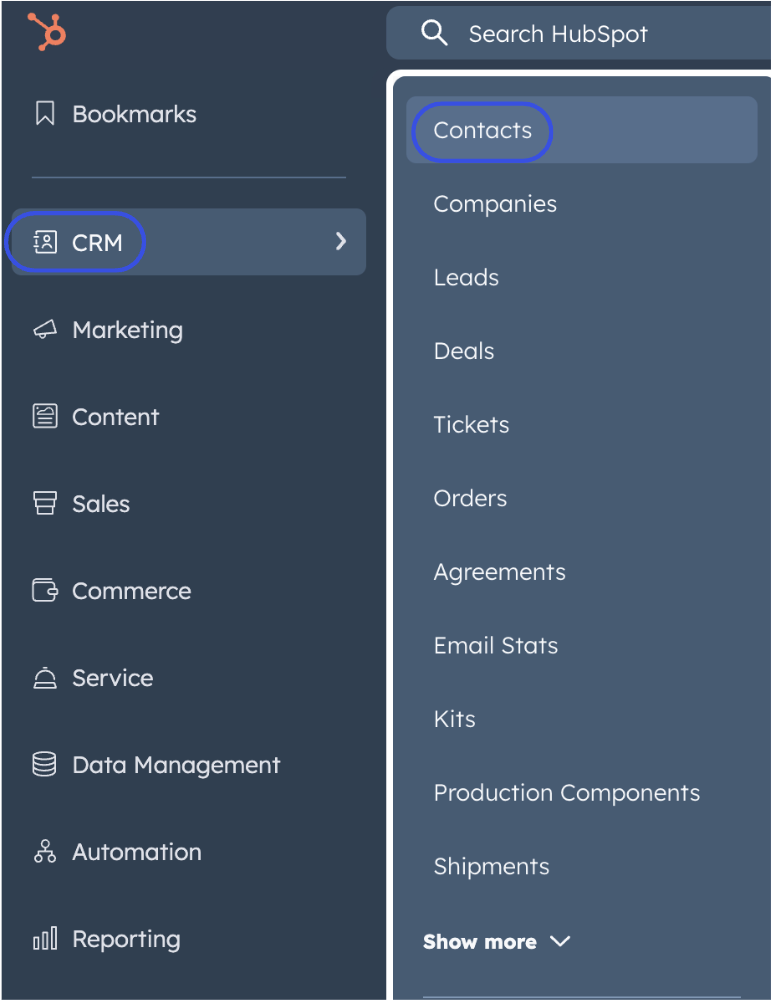
Enter the Contacts Page Log in to HubSpot and go to CRM > Contacts.
-
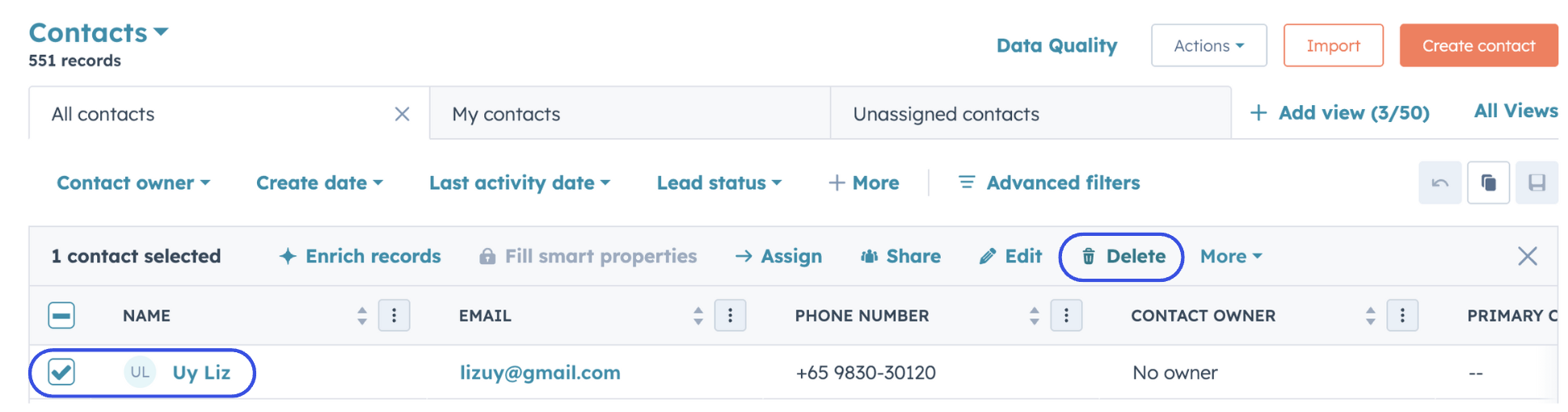
Execute Deletion Action You can delete via two methods:
- List View: Check the box next to the target in the contact list and click "Delete" at the top.
- Details View: Enter a specific contact's profile, click "Actions" below the avatar on the left, and select "Delete".
FAQ
Q: Will previous chat history disappear after deleting a contact? A: In MsgBox, deleting a contact typically only removes their profile attributes (such as name, email, and custom fields). If the contact sends a message again, the system may recreate the contact based on their unique account ID, but historical chat logs are generally retained in the Inbox session history.
Q: Can I bulk delete contacts? A: Yes. By selecting multiple contacts in the MsgBox contact list, you can use the bulk delete function at the top of the page.