Manage Your Subscription
MsgBox provides a flexible subscription management mechanism. You can adjust seats and channel numbers based on your business scale, manage payment methods, and download historical invoices at any time.
1. Access Subscription Management
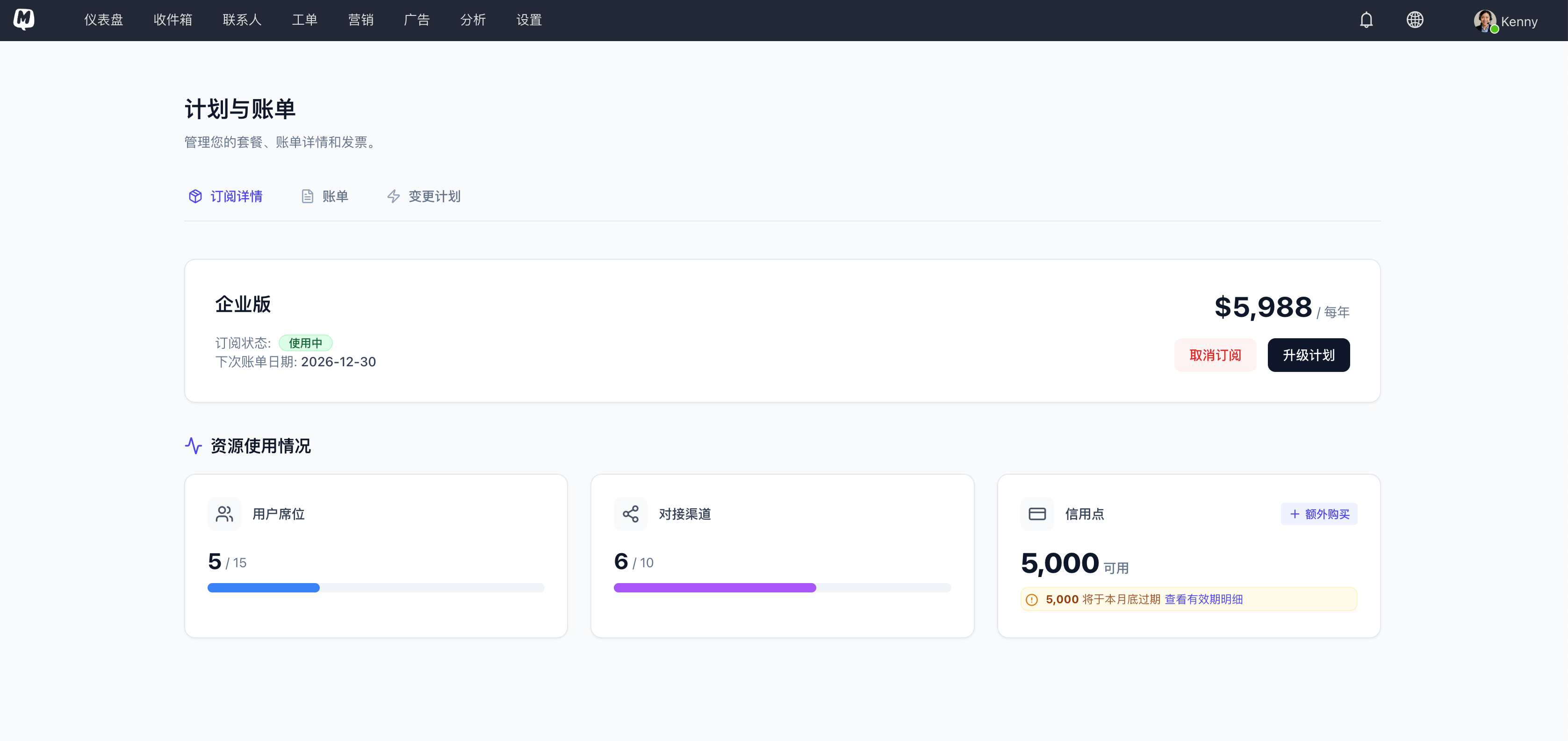
After logging in to MsgBox, click your avatar in the top right corner > Plans & Billing. Here you can view your current active plan, expiration date, and various resource quotas.
2. Plan Adjustments (Upgrade & Downgrade)
On the Subscription Details tab, click the Upgrade Plan button to navigate to the subscription configuration page:
- Upgrade Plan: You can choose a higher-tier version or Add-on user seats and channel quotas to your current version.
- Downgrade Plan: You can select a lower-tier version or reduce your resource quotas.
- Upgrades Take Effect Immediately: We precisely calculate the price difference between the old and new plans based on the remaining days in the current billing cycle. You only need to pay the pro-rated difference to complete the upgrade.
- Downgrades Take Effect Next Cycle: To protect your benefits for the current period, downgrade operations will officially take effect at the start of the next billing cycle.

3. Cancel and Resume Subscription
- Cancel Subscription: If you wish to stop renewals, click Cancel Subscription under Subscription Details. After cancellation, you can still use all features normally until the end of the current cycle.
- Resume Subscription: You can resume your subscription with one click at any time before it expires to maintain service continuity.
4. Payment and Billing Management
All payment receipts and billing details are managed under the Billing tab.
Payment Methods & Billing Address
Before making any subscription purchases, you need to complete the following in the Billing tab:
- Bind Payment Card: Supports major credit/debit cards.
- Set Billing Address: Used to generate compliant invoice information.
View Invoices & Receipts
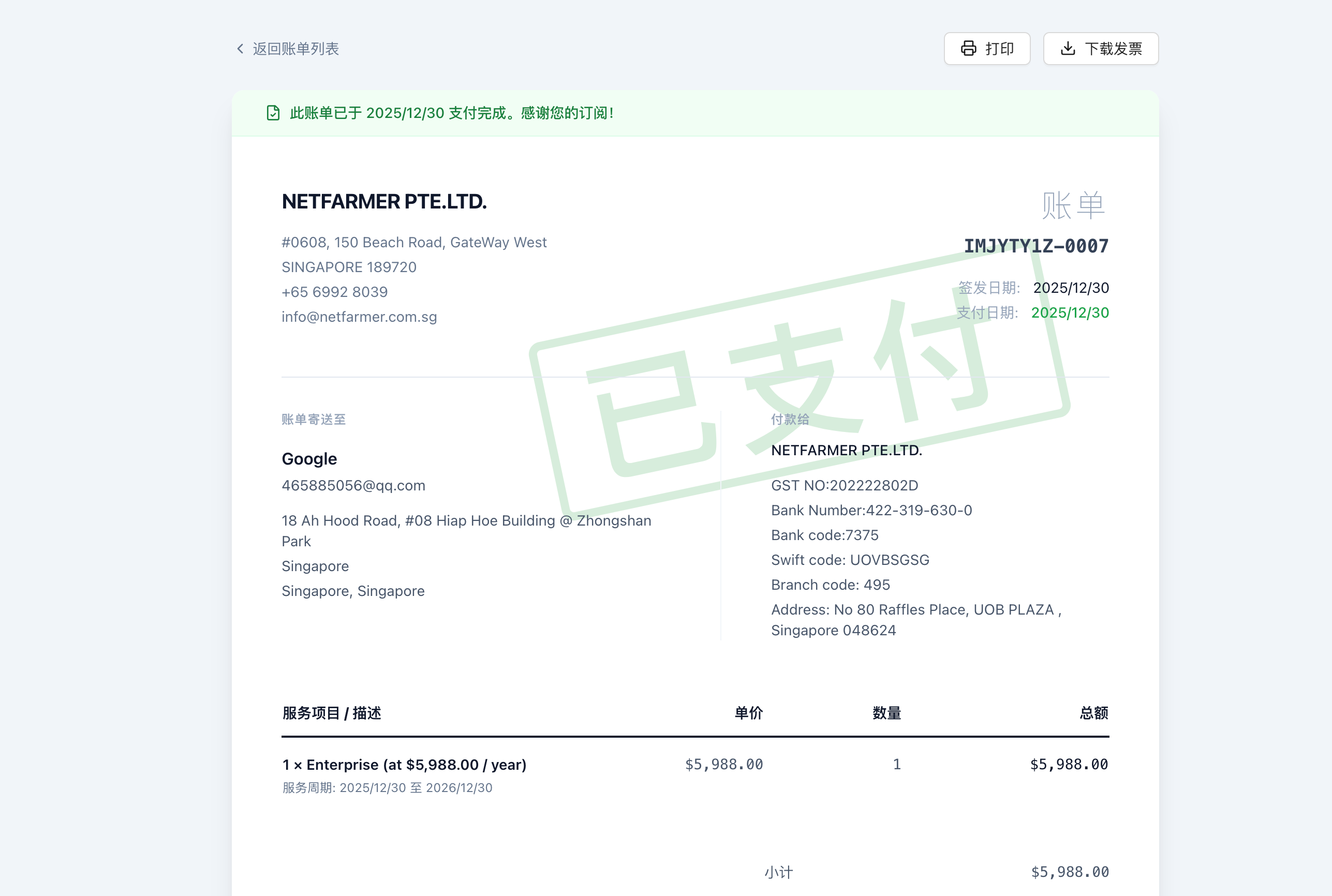
You can view all historical transaction records. On the transaction details page, click the corresponding order to download the PDF invoice file.
5. Billing Period & Service Suspension Policy
Please pay close attention to your billing status to prevent business interruption due to failed payments.
| Subscription Cycle | Grace Period | Overdue Impact |
|---|---|---|
| Annual Billing | 15 Days | If payment still fails after the grace period, all system functions will become inaccessible. |
| Monthly Billing | 3 Days | If payment still fails after the grace period, all system functions will become inaccessible. |
- Payment Failure: If a payment fails due to insufficient balance or an expired card, the system will automatically enter the grace period mentioned above.
- Manual Cancellation: If you manually choose "Cancel Subscription," the service will stop immediately on the expiration date, and no additional grace period will be provided.
Related Guides: