Tags
Tags are core tools used to categorize and label contacts. By flexibly using tags, you can achieve:
- Refined Operations: Categorize customers based on their interests or level of intent.
- Quick Search: Filter target audiences among massive contacts with one click using tags.
- Efficient Follow-up: Mark the lifecycle stage of customers to ensure no follow-ups are missed by the team.
How to Manually Add Tags in a Conversation?
During customer communication, you can tag contacts in real-time.
-
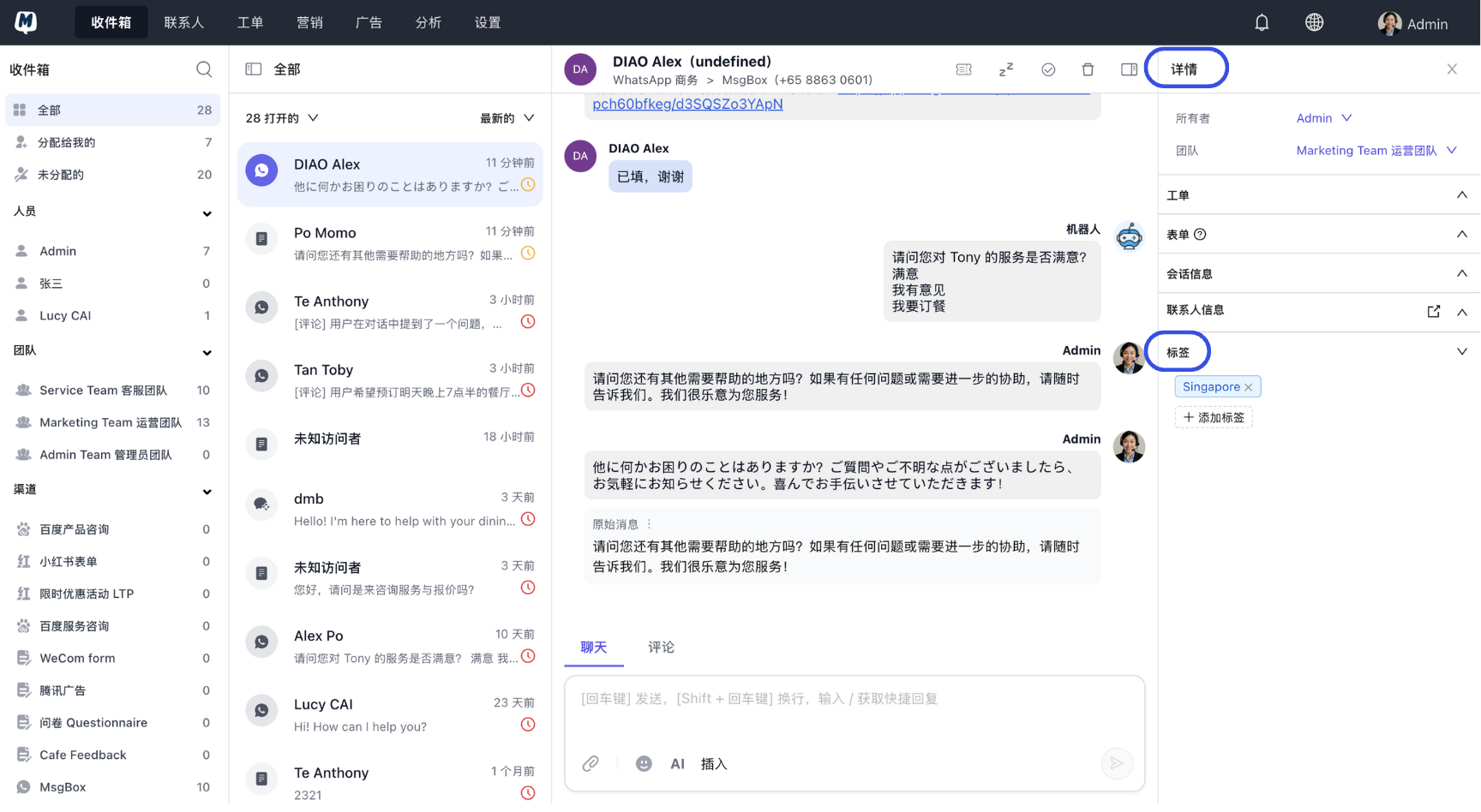
Enter the Inbox Open the conversation window for the target contact.
-
Locate the Tag Section In the details panel on the right, find the "Tags" section.
-
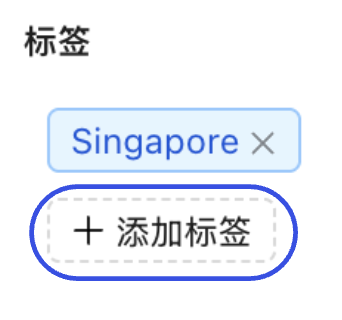
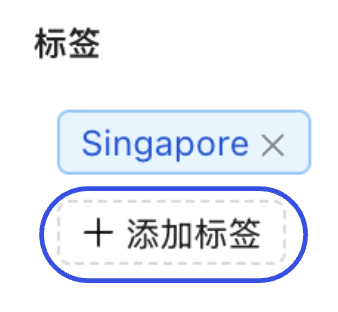
Add and Type Click "Add Tag", type the tag name, and press Enter to complete.
In addition to manual tagging, you can use Workflow Automation to automatically tag customers based on specific behaviors (such as submitting a form or clicking a menu).
How to Add Tags in the Contact List?
If you need to manage stored contacts, you can operate within the Contacts module.
-
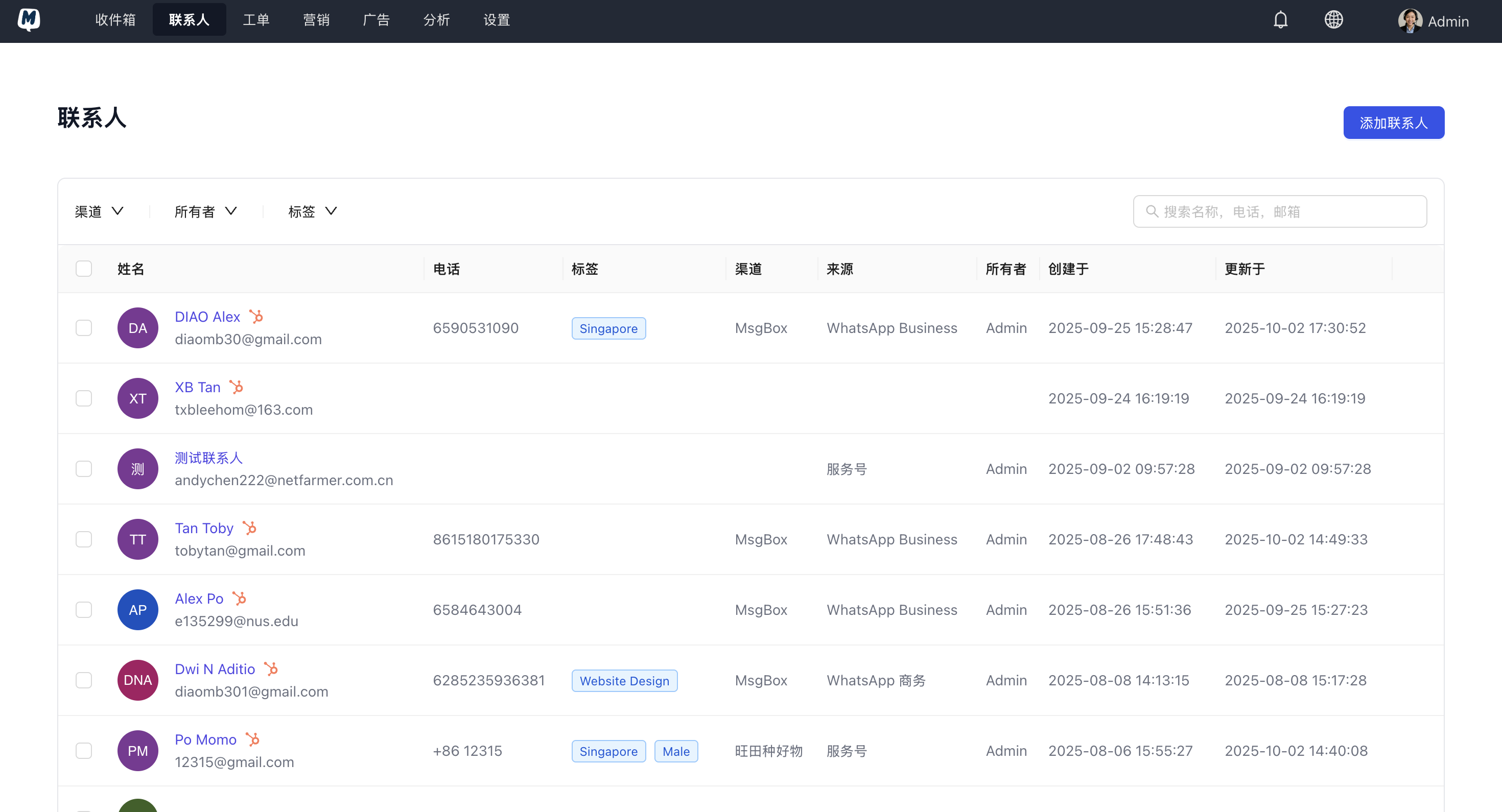
Select a Contact Go to the Contacts page and click to enter the details page of the target contact.
-
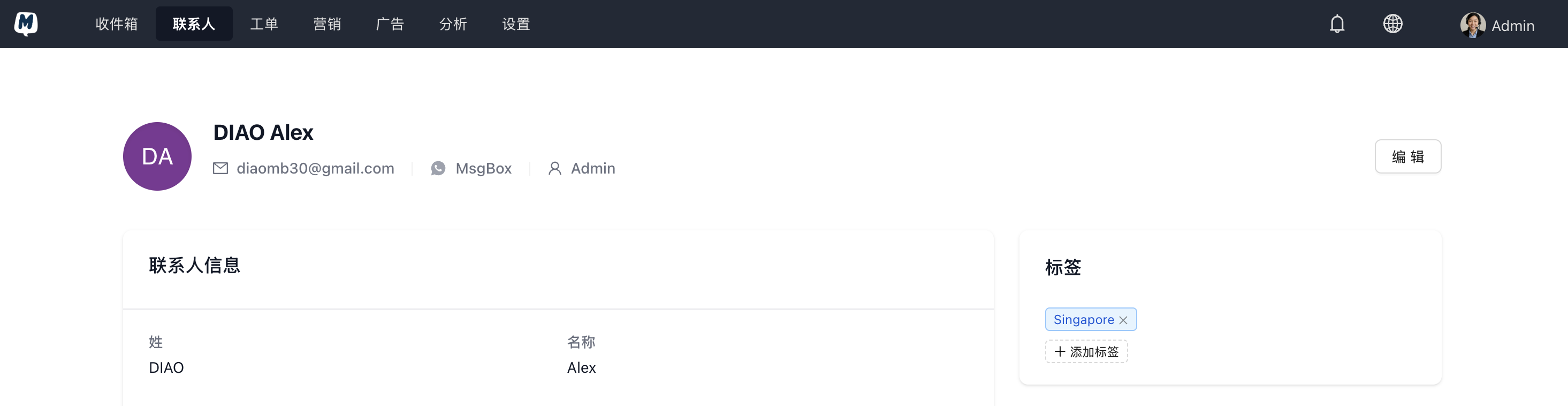
Manage Tags In the "Tags" area of the contact details page, click the "Add Tag" icon.
-
Save Tags Enter new tag content or select an existing tag; the system will save it automatically.
Next Steps: