How to Collect Contact Information via Forms?
MsgBox provides multiple flexible ways to deploy forms. You can share them as standalone marketing links or insert them in real-time while communicating with customers.
1. Proactive Sharing: As a Standalone Lead Entry
Suitable for social media bios, website buttons, SMS broadcasts, or offline marketing materials.
-
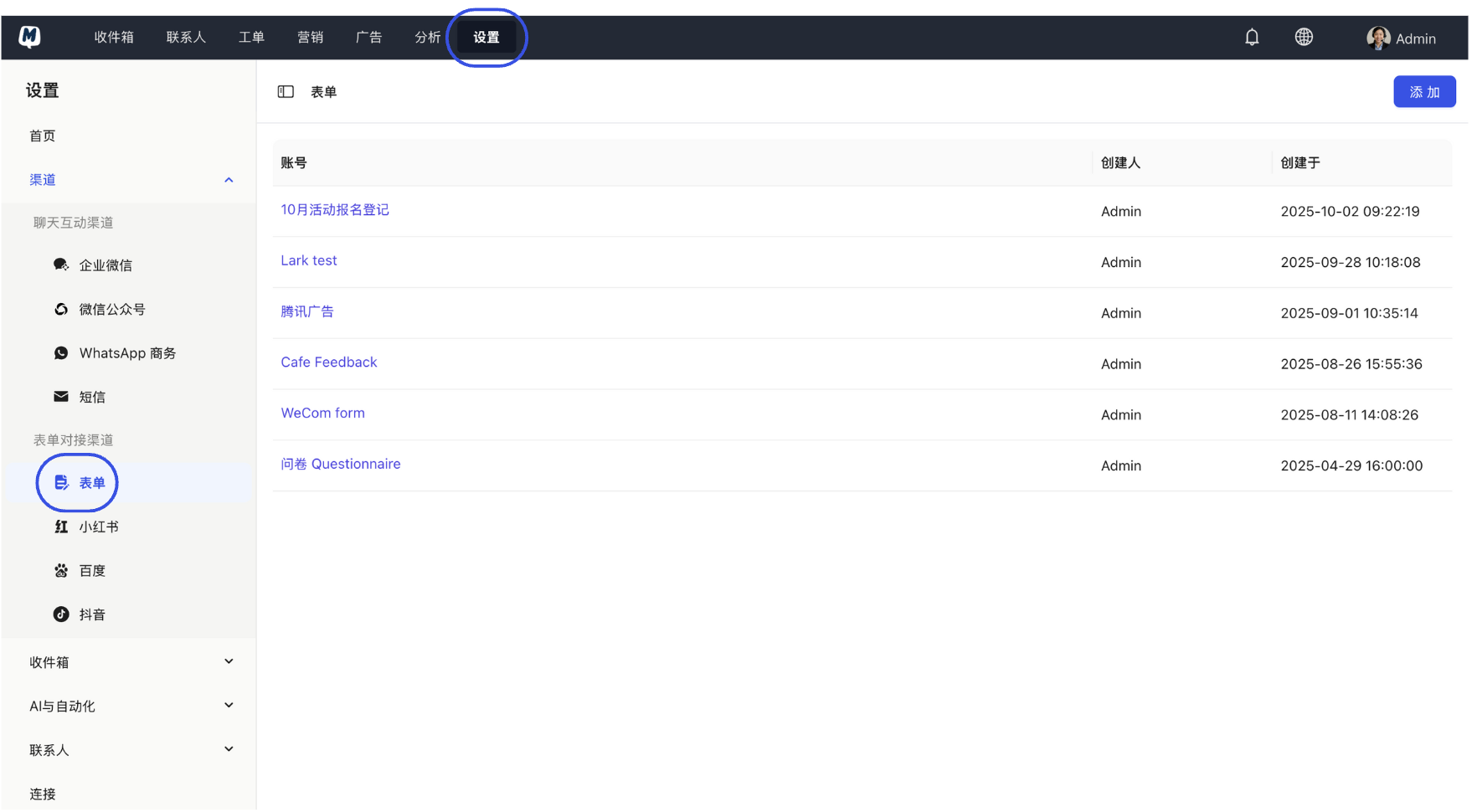
Enter Form Settings Go to Settings > Channels > Forms.
-
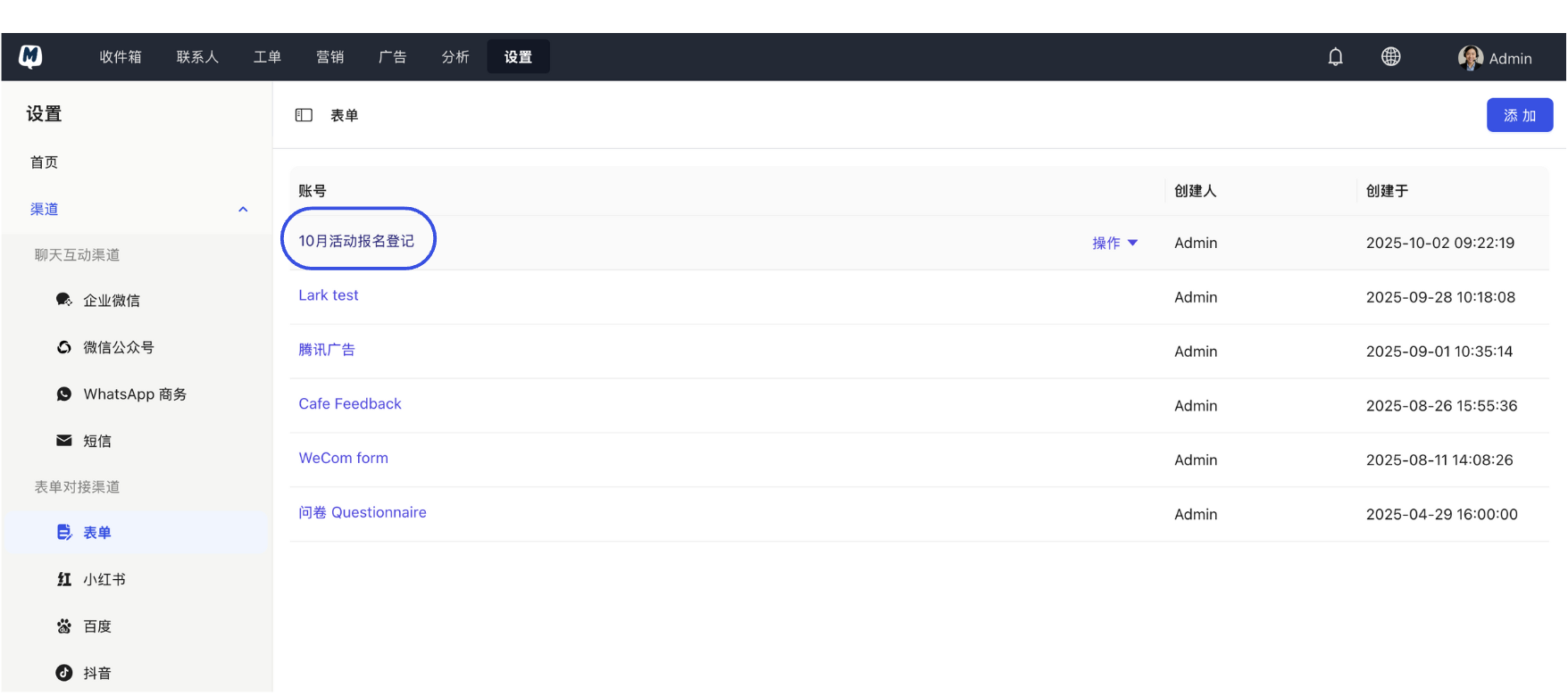
Select Target Form Click on the form you wish to use from the list.
-
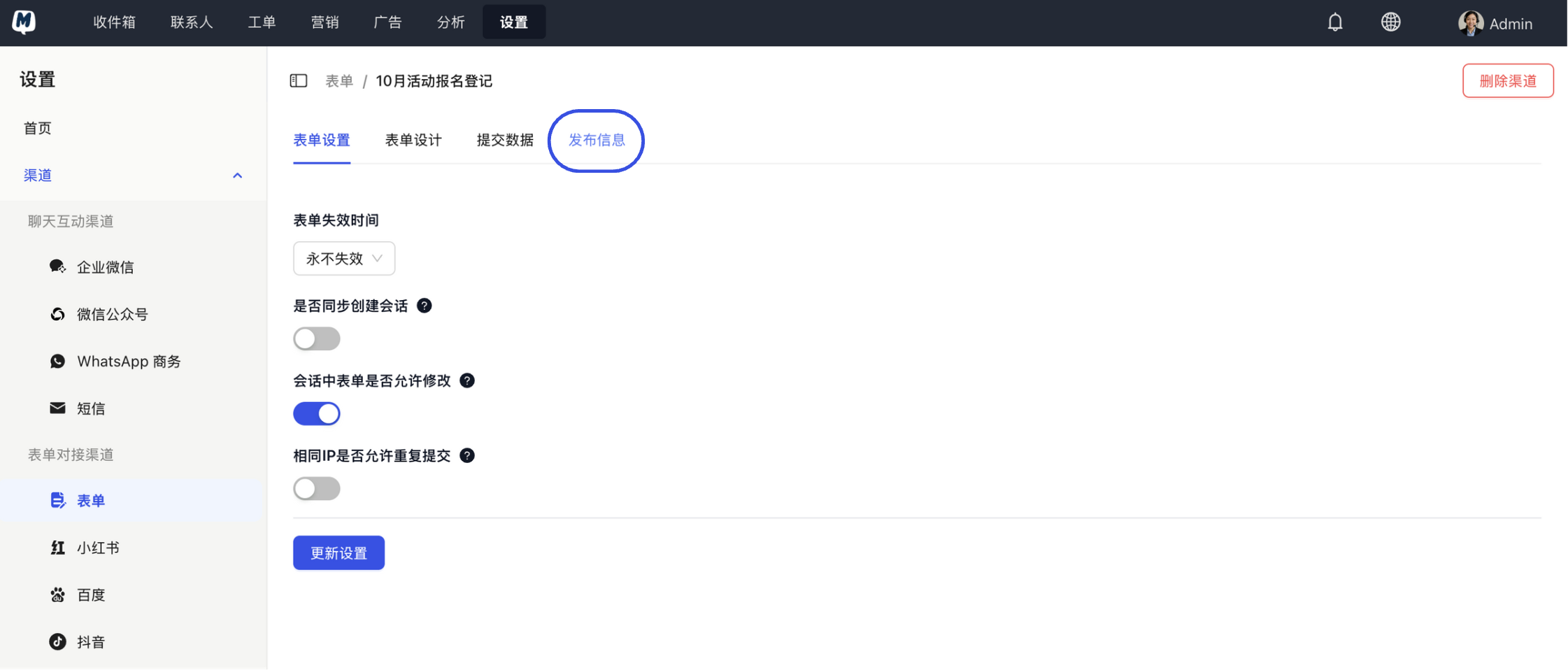
Publish Form Click "Publish Information" in the top right corner of the page.
-
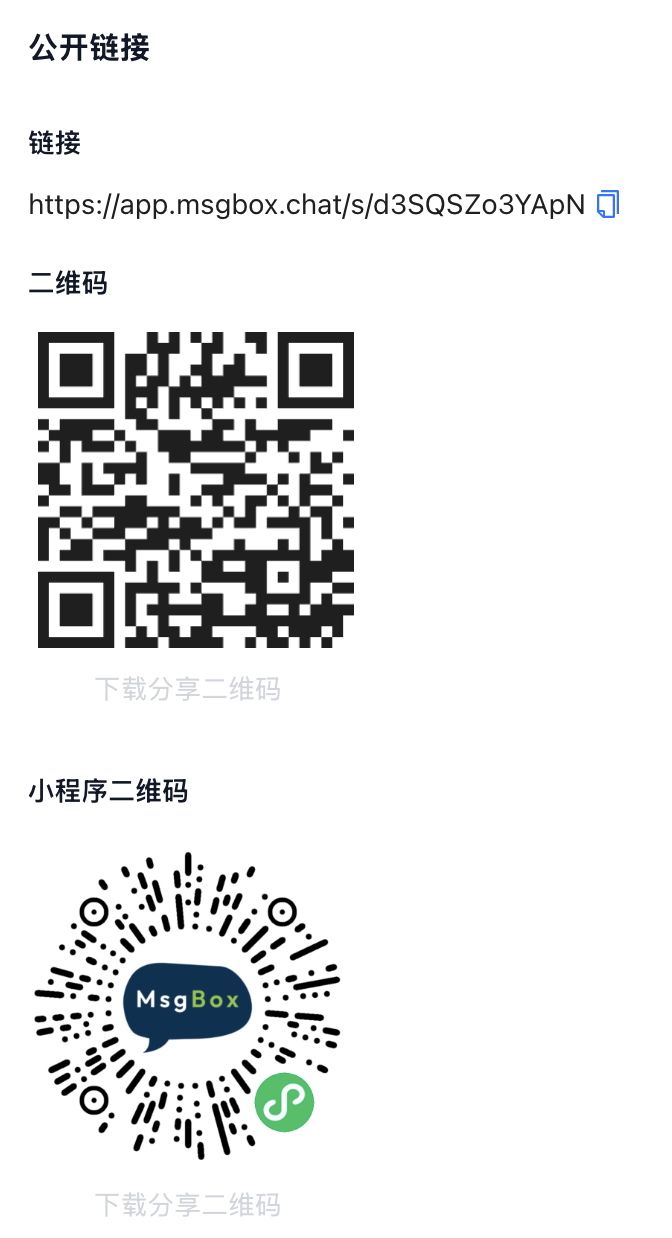
Get Promotion Methods
- Public Link: Copy the link to send to customers, or download the QR code to print on promotional materials.
- API Push: If you need to sync data to third-party applications (such as Xiaohongshu JuGuang Platform), obtain the API interface here.
2. Interactive Collection: Inserting Forms in Conversations
Suitable for scenarios where customer service agents need customers to provide detailed information (such as after-sales applications or product interest surveys) during a dialogue.
-
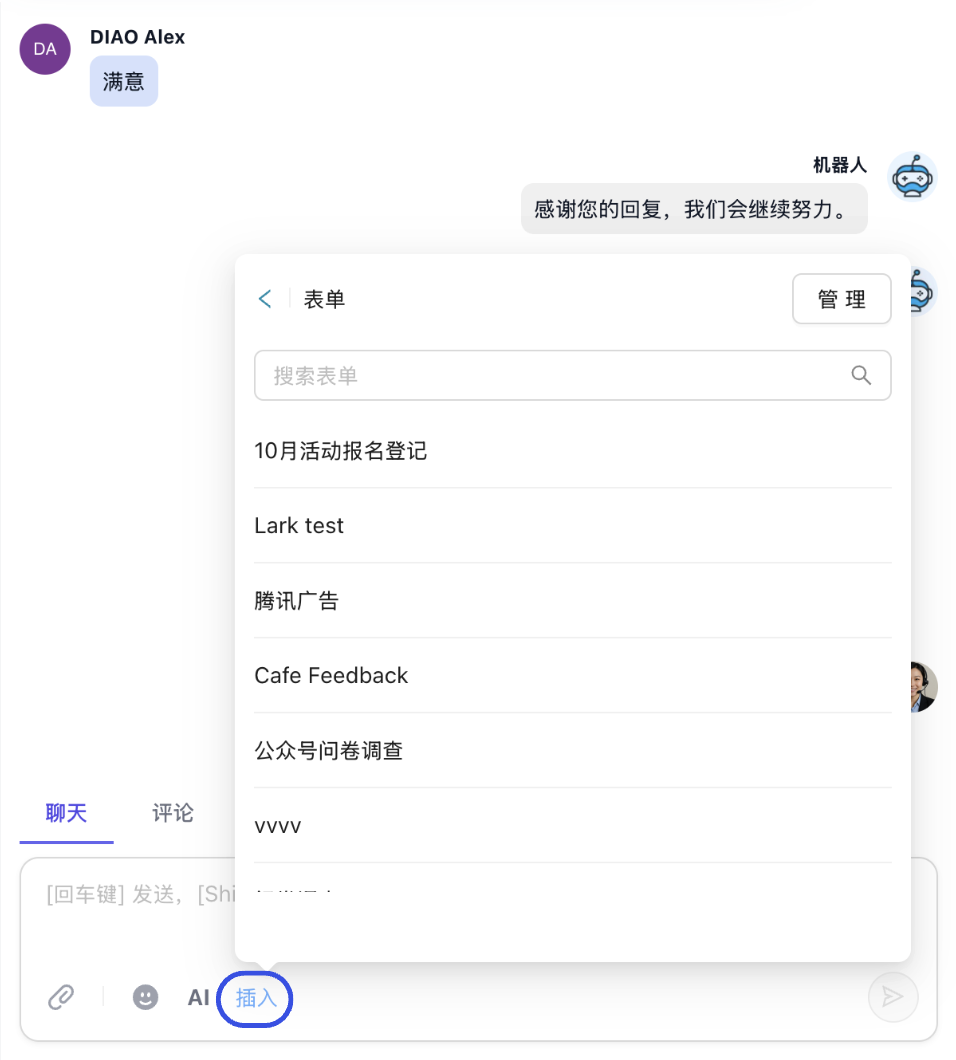
Select Feature Entry In the Inbox conversation toolbar, click "Insert" and select "Form".
-
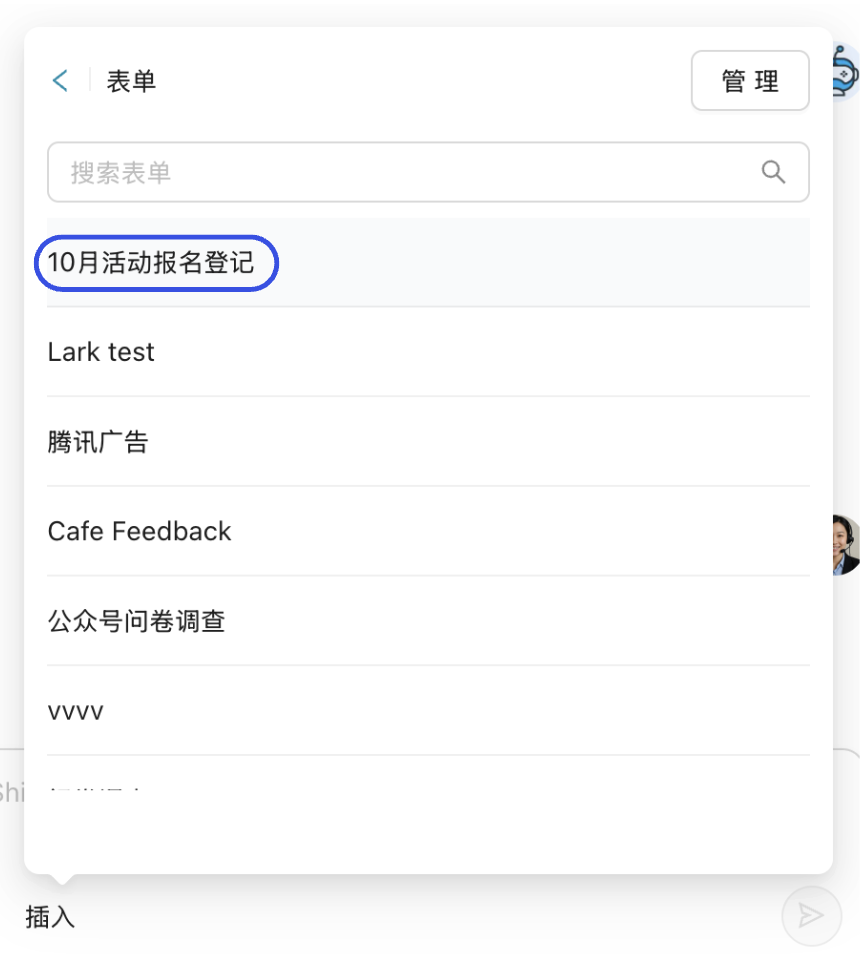
Select Form Check the corresponding form from the list. A preview window will pop up for you to verify the fields.
-
Send Link Click "Confirm" after verification. The form will appear in the input box as a card link. Click the "Send" button to deliver it to the contact.
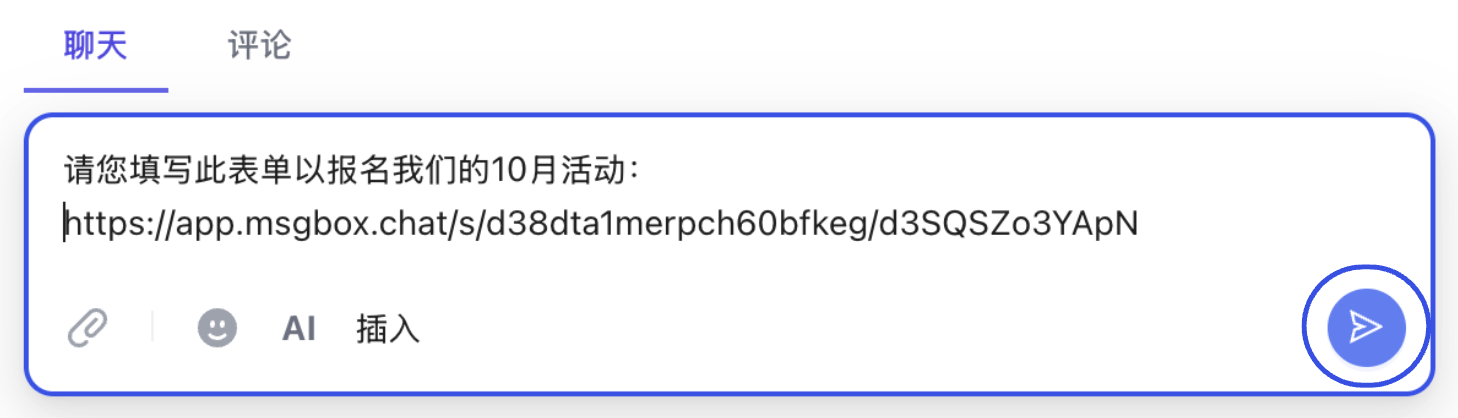
When a contact submits information via a form you sent, if you have enabled Sync Form to Contact settings, the system will automatically update the customer's profile without requiring manual entry.
Related Guides: