How to Delete Ticket Information?
You can delete service tickets that are no longer needed in either MsgBox or HubSpot, depending on your business requirements.
Ticket deletion is bidirectionally synchronized. Unlike contact information, if a ticket is deleted in either MsgBox or HubSpot, the associated ticket on the other platform will also be automatically deleted and cannot be undone. Please confirm carefully before performing this action.
Deleting Tickets in MsgBox
-
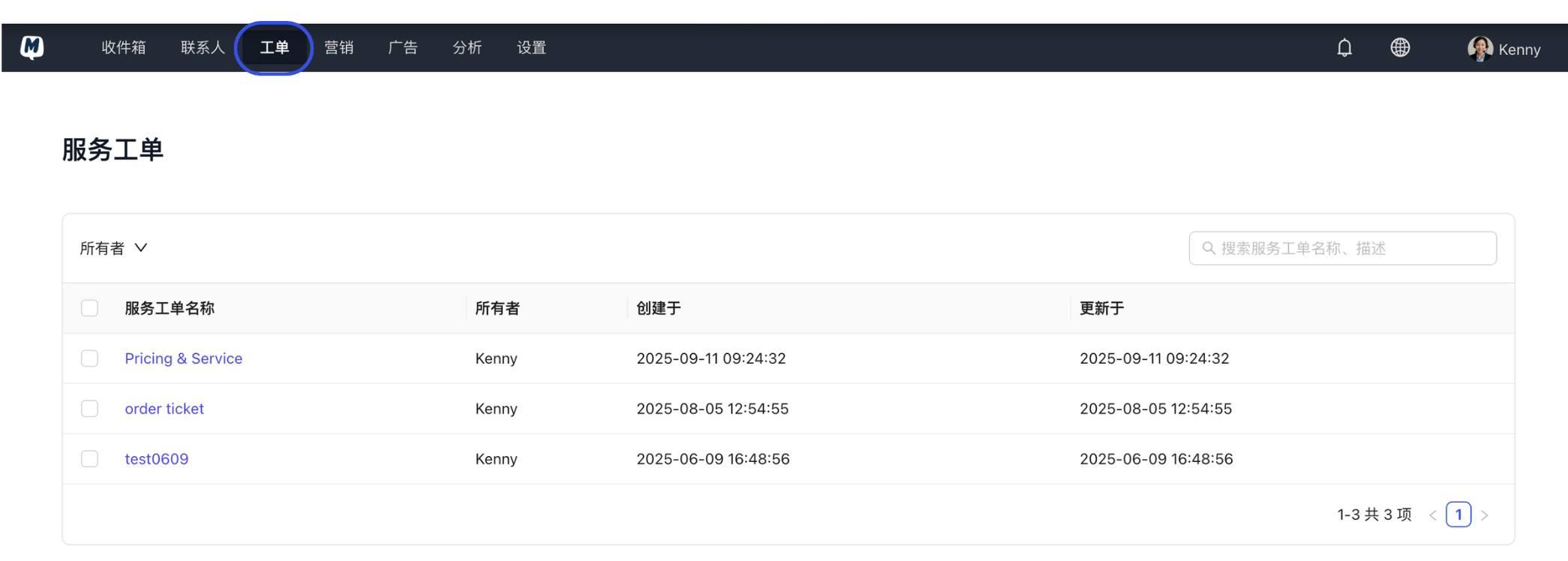
Enter the Tickets List Go to the Tickets page in the navigation bar.
-
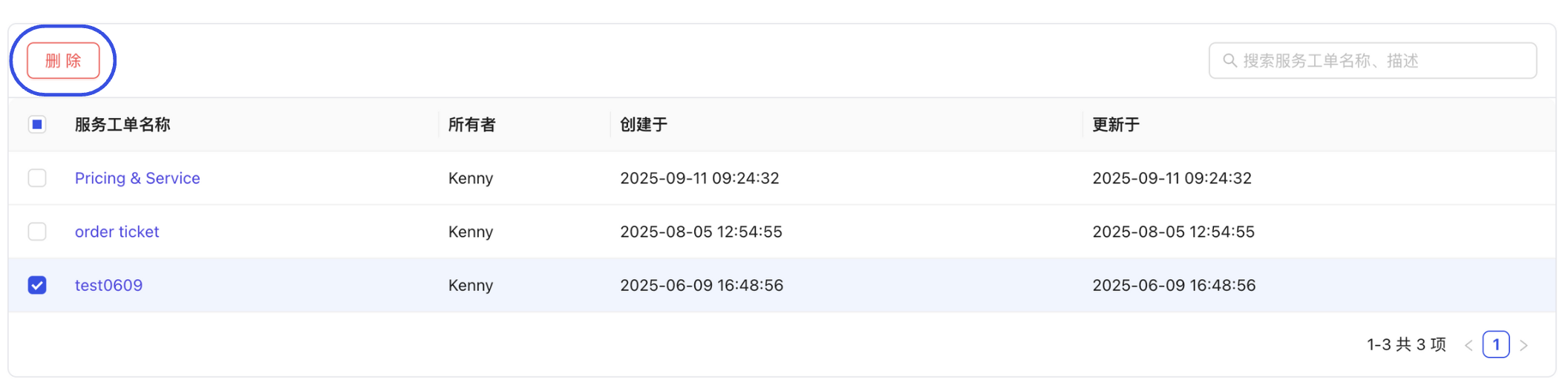
Execute Deletion Locate the target ticket in the list, click the action icon on the right, and select "Delete."
-
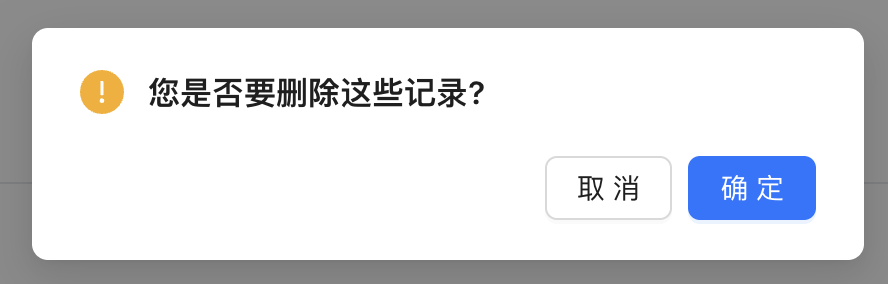
Confirm the Warning Click "Confirm" in the pop-up window. The ticket will be permanently removed from both MsgBox and the linked HubSpot account.
Deleting Tickets in HubSpot
-
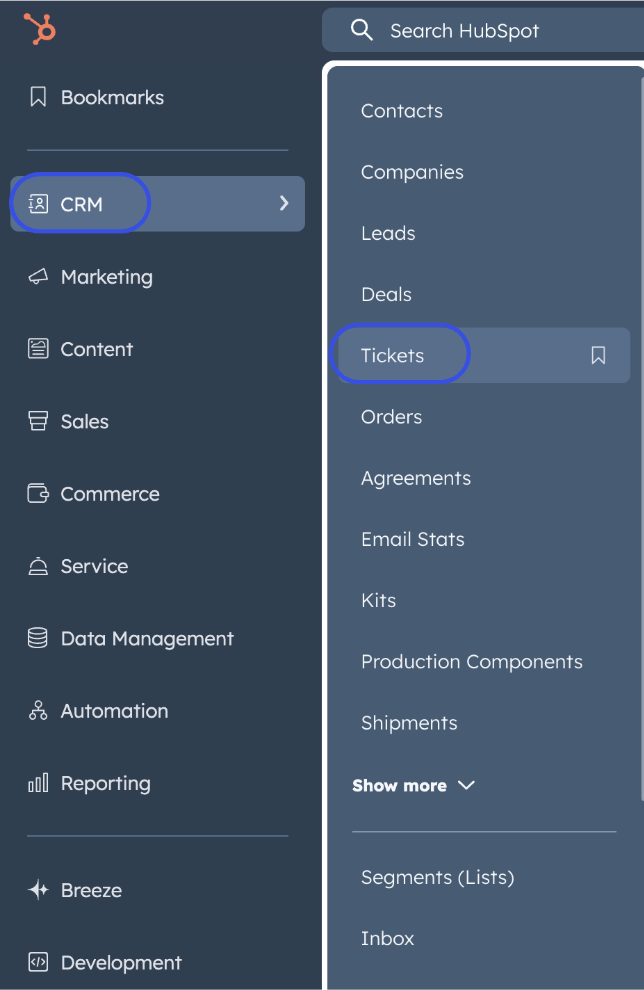
Enter the Tickets Page Log in to HubSpot and go to CRM > Tickets.
-
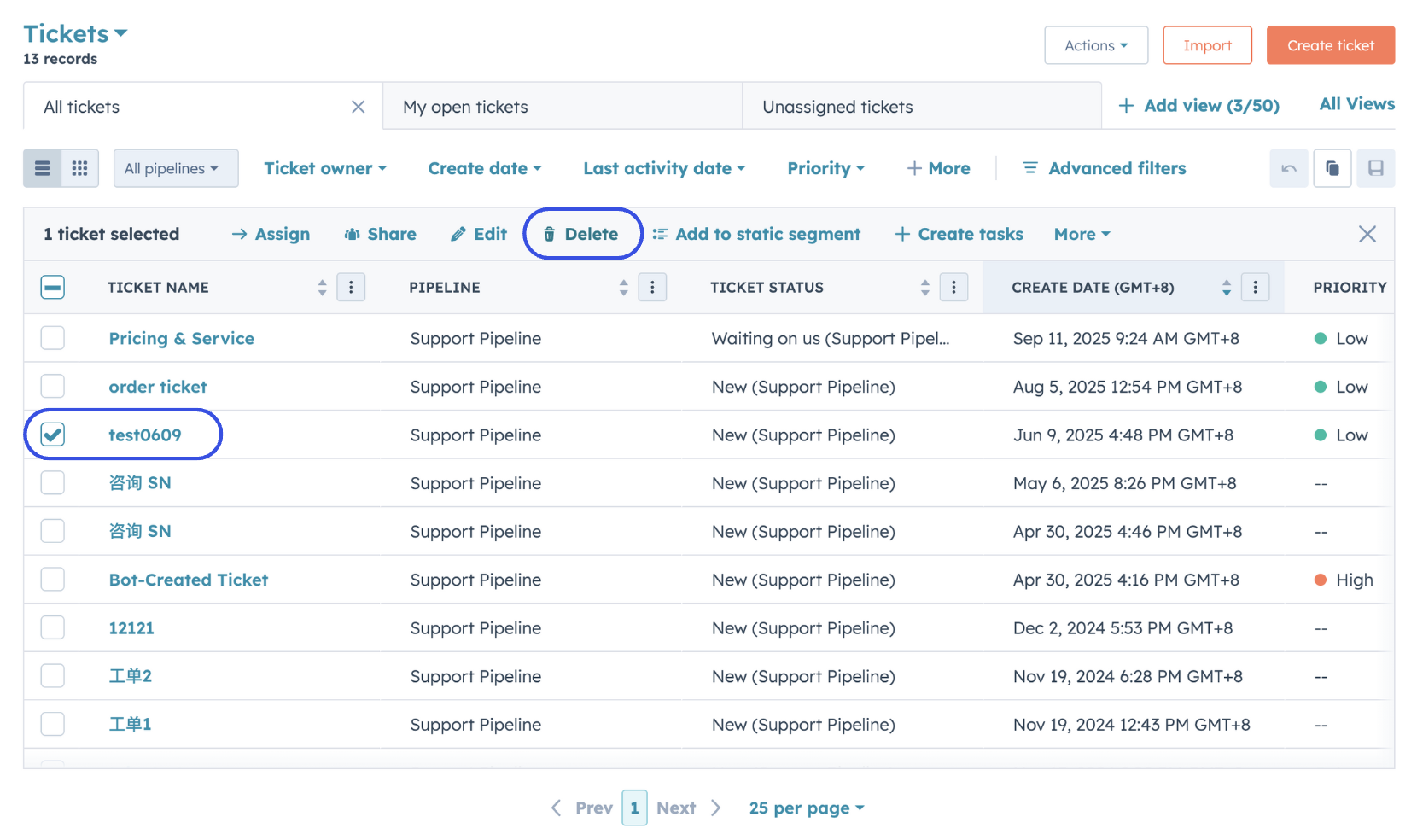
Execute Deletion You can choose either of the following methods:
- List View (Bulk or Single) Deletion: Check the target(s) in the ticket list and click "Delete" above the list.
- Details Page Deletion: Enter a specific ticket details page, click the "Actions" button below the avatar on the left, and select "Delete."
FAQ
Q: Does deleting a ticket remove the associated contact or chat history? A: No. Deleting a ticket only removes the service entry itself. The contact profile and chat history in the Inbox will remain intact.
Q: Can I recover a ticket if I accidentally delete it? A: Once a ticket is deleted via API synchronization, it cannot be recovered from the MsgBox side. You can try checking the "Trash" feature in HubSpot to see if recovery is possible; if successfully restored in HubSpot, the data may sync back to MsgBox.
Related Guides: