How to Invite New Users?
By inviting team members to join your MsgBox space, you can enable multi-seat collaboration, conversation transfers, and granular permission management.
Invitation Steps
-
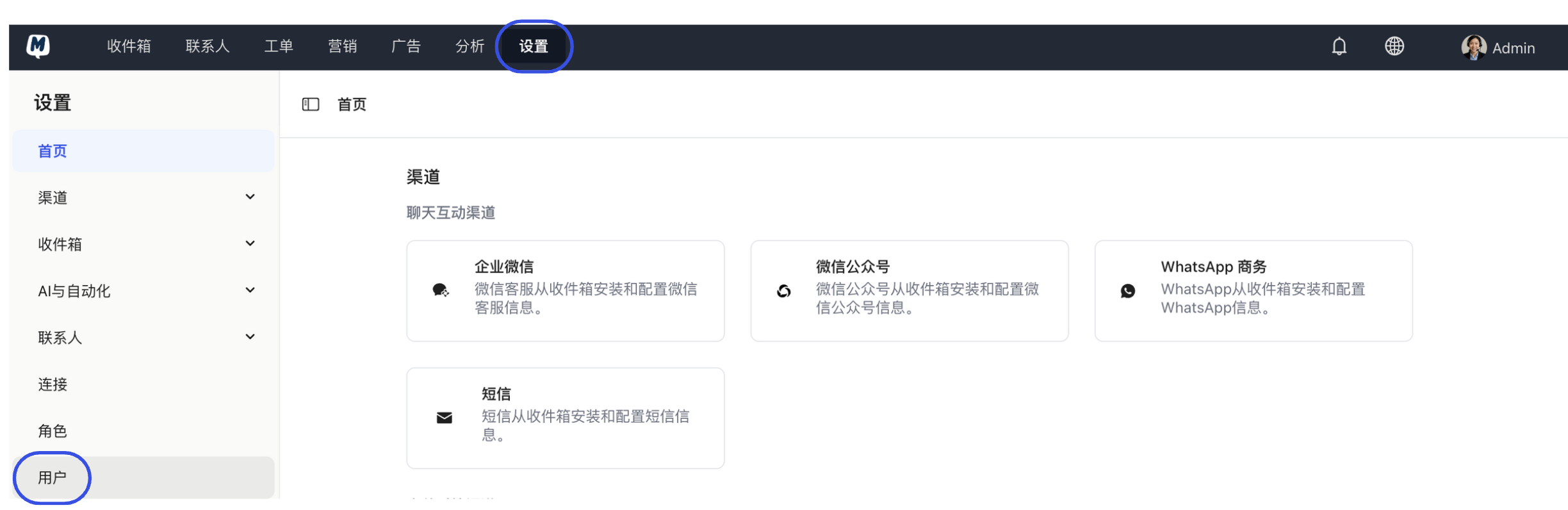
Enter User Management Go to the Settings > Users page.
-
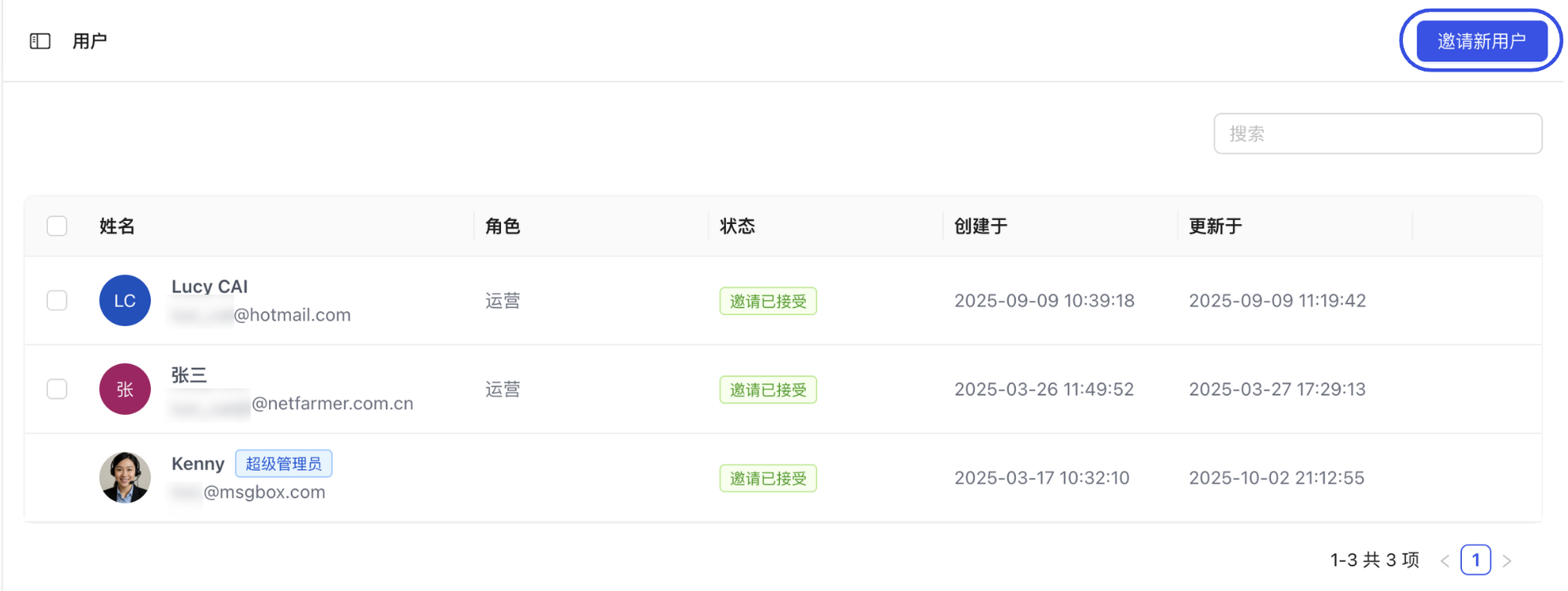
Initiate Invitation Click the "Invite New User" button in the top right corner.
-
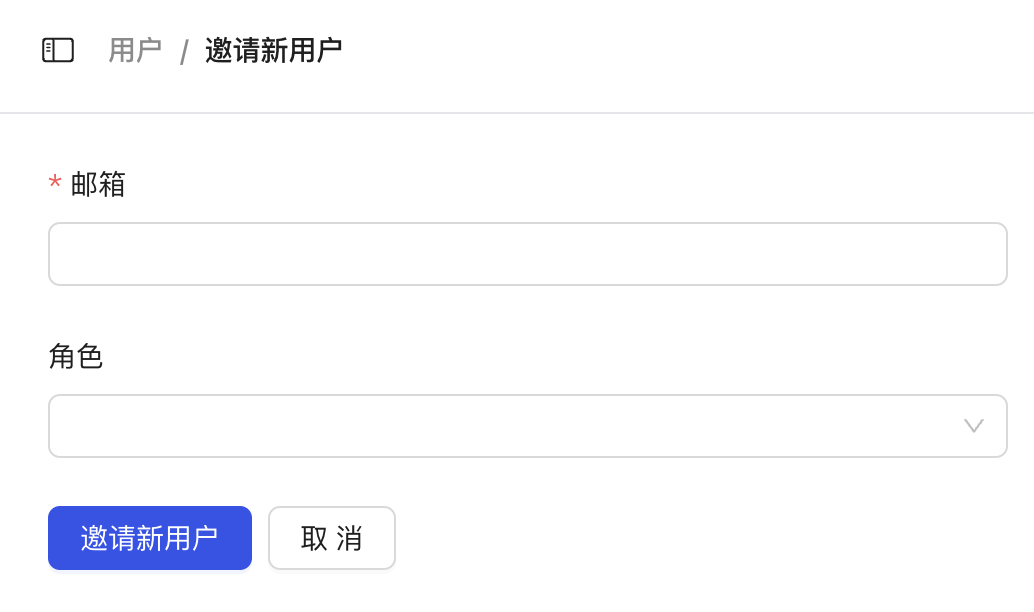
Configure User Info and Permissions
- Fill in Email: Enter the email address of the member you wish to invite.
- Assign Role: Select the corresponding permission group based on their responsibilities (e.g., Administrator, Member, etc.).
-
Confirm and Send After verifying the information, click "Invite New User." The system will automatically send an invitation email to that address.
Invitation Status Descriptions
- Pending: Indicates the email has been sent, but the user has not yet clicked the link in the email to activate.

- Accepted: The user has completed login or registration and officially joined your space.

Guide for the Invitee
- Check Email: The invitee will receive an email with the subject "Invitation to join space."
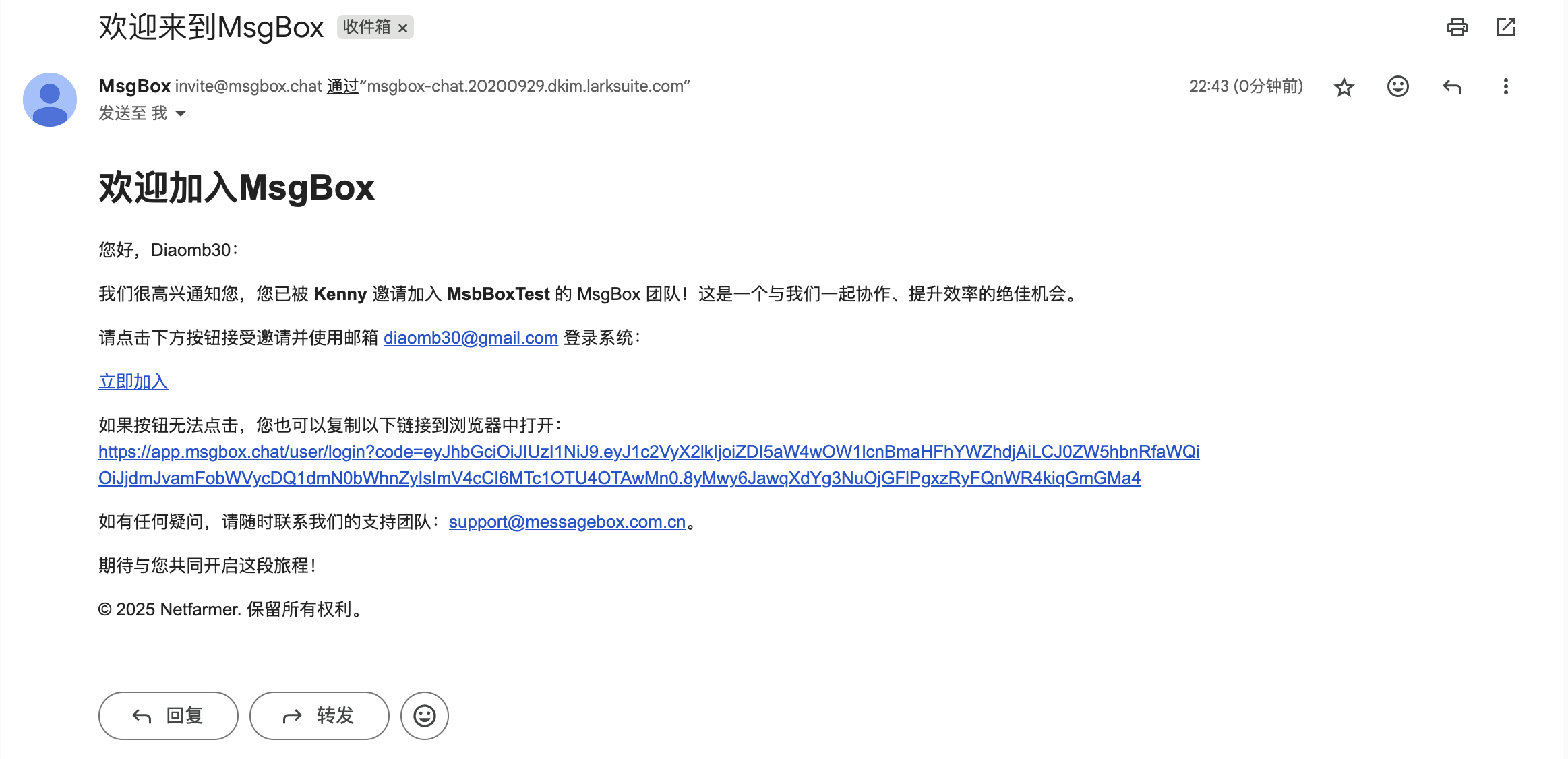
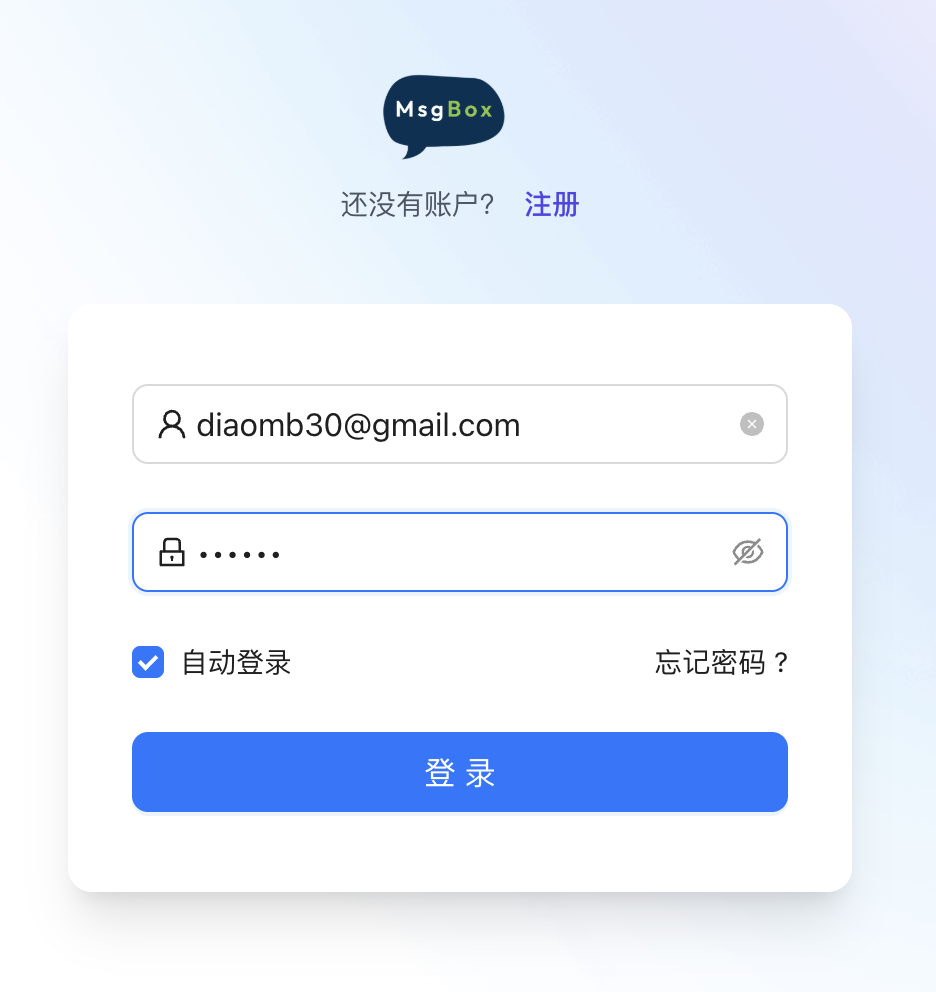
- Accept Invitation: Follow the email instructions to enter the login page, then set a password or use a third-party quick login.
Each subscription plan includes a fixed number of User Seats.
- View Quota: Please refer to the Detailed Pricing Plans.
- Insufficient Seats: If you need to invite more members but the seats are full, go to Plans & Billing > Change Plan > Custom Usage to purchase additional seats.
When inviting, always assign roles based on the "Principle of Least Privilege." For example, colleagues responsible only for replying to messages should be assigned the "Member" role to protect critical channel configurations from accidental changes.
Related Guides: