How to Sync WhatsApp Message Templates?
To proactively reach out to customers in MsgBox, you must use "Message Templates" approved by Meta. After you create or modify templates in the Meta Business Suite, you need to perform a sync to pull them into MsgBox for use.
Steps
-
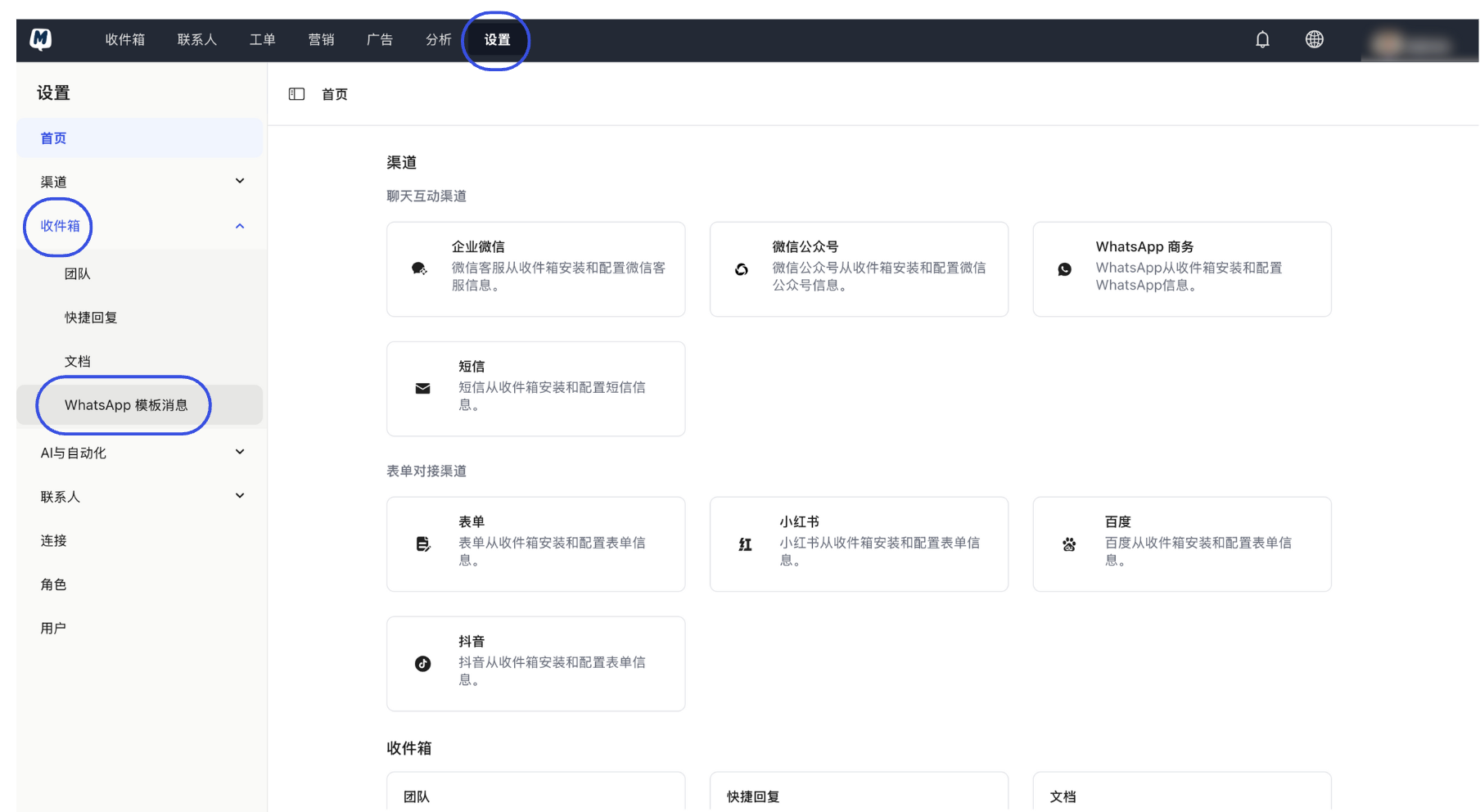
Enter Template Management Go to Settings > Inbox > WhatsApp Template Messages.
-
Trigger Sync Command Click the "Sync" button in the top right corner. The system will connect to the Meta API to fetch the latest template list and statuses.
-
Refresh List Status Once the sync is complete, click the "Refresh" button. You will see the latest template names, languages, and current approval statuses (e.g., Approved, Pending, etc.).
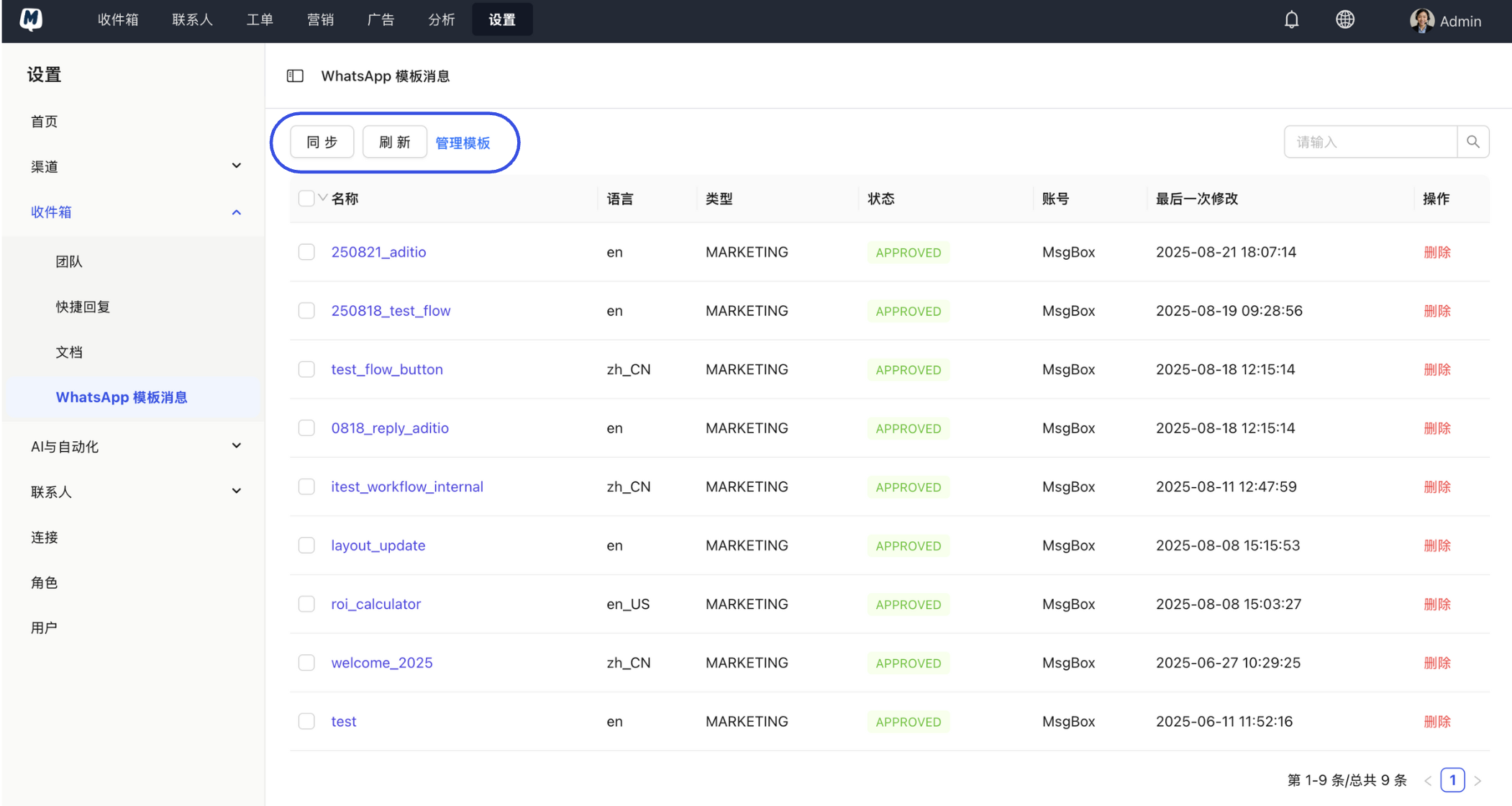
MsgBox does not directly provide a "Create" function for templates. Please click the "Manage Templates" button on the page to jump directly to the Meta Business Suite backend to design, submit, or appeal templates.
- Status Updates: If your template was just approved in the Meta backend, the status in MsgBox might not update immediately. Clicking "Sync" manually will fix this.
- Variable Matching: Synced templates will automatically identify variables like
{{1}},{{2}}, etc. When Initiating a Broadcast, you can map these variables to contact names or order numbers.
Related Guides: