Documents
Documents is the shared corporate resource library provided by MsgBox. You can upload frequently used product manuals, price lists, contract templates, or operation guides to the system, allowing team members to call them with one click when handling customer inquiries without the need to search locally repeatedly.
- Storage Space: Uploaded documents will consume your file storage (GB) quota.
- Usage Management: If storage space is insufficient, please refer to How to add usage for expansion.
How to Upload Documents
-
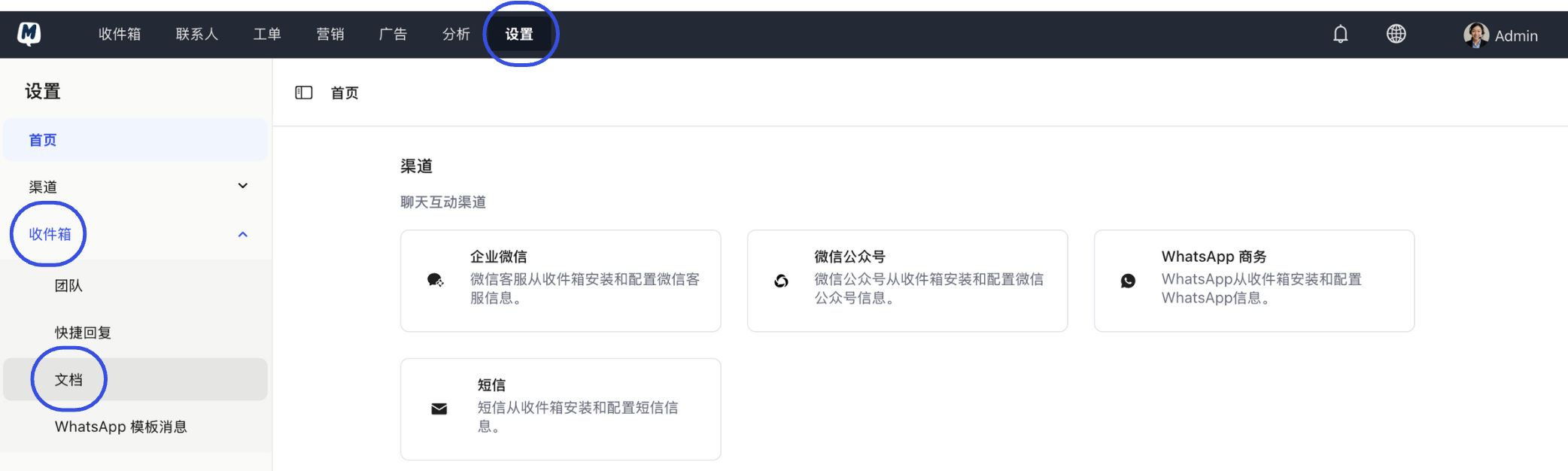
Enter Document Settings Go to Settings > Inbox > Documents.
-
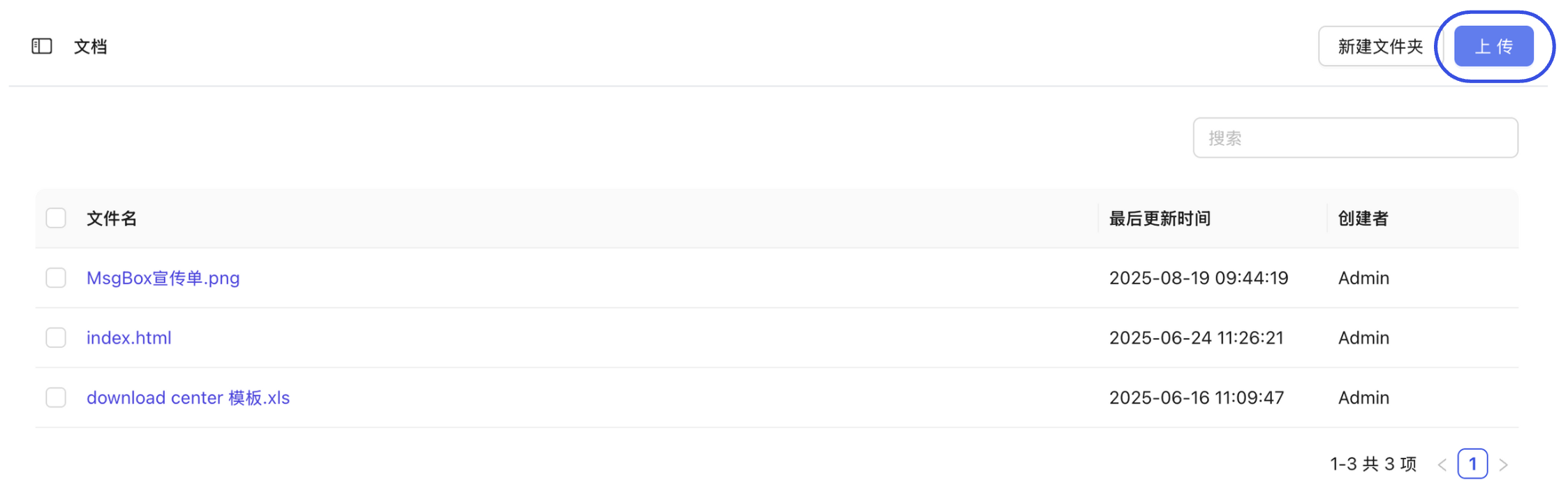
Execute Upload Click the "Upload" button in the top right corner.
-
Select and Store Choose a file from your local computer. The system supports PDF, Word, Excel, PPT, Zip, and common image formats.
- Note: Upload time depends on file size; please wait for the progress bar to complete.
How to Use Documents in Conversations
You can manually send documents to customers or implement automated triggers through Workflow Automation.
Steps for Manual Sending:
-
Enter Target Conversation Go to the Inbox and open the customer conversation where you want to send the file.
-
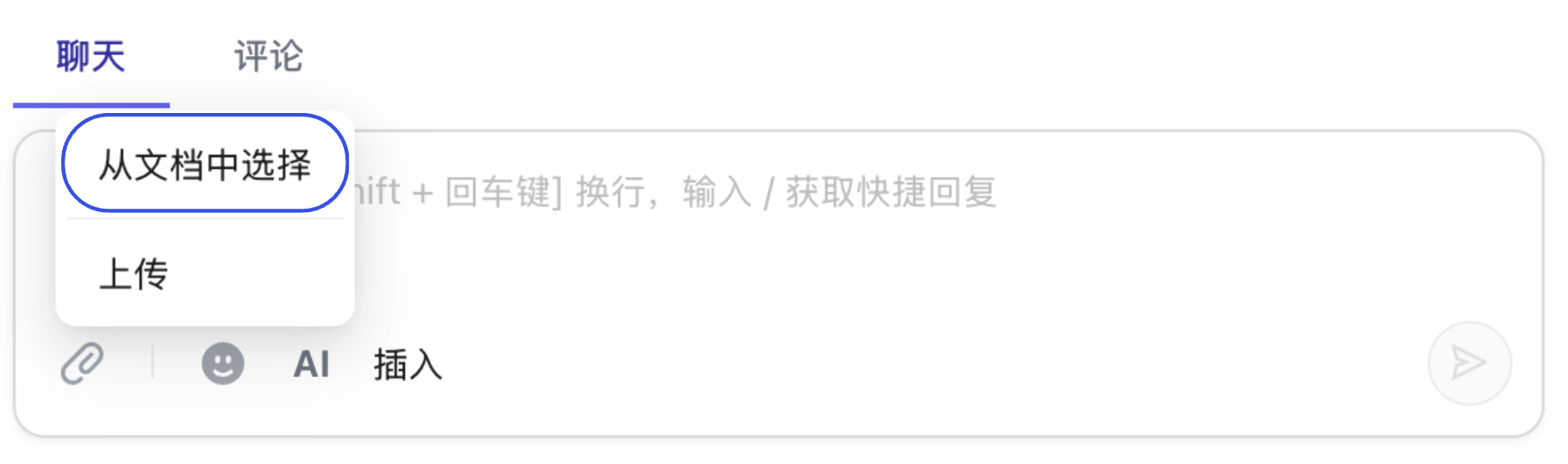
Access Document Library Click the "File" icon in the chat input toolbar and select "Select from Documents".
-
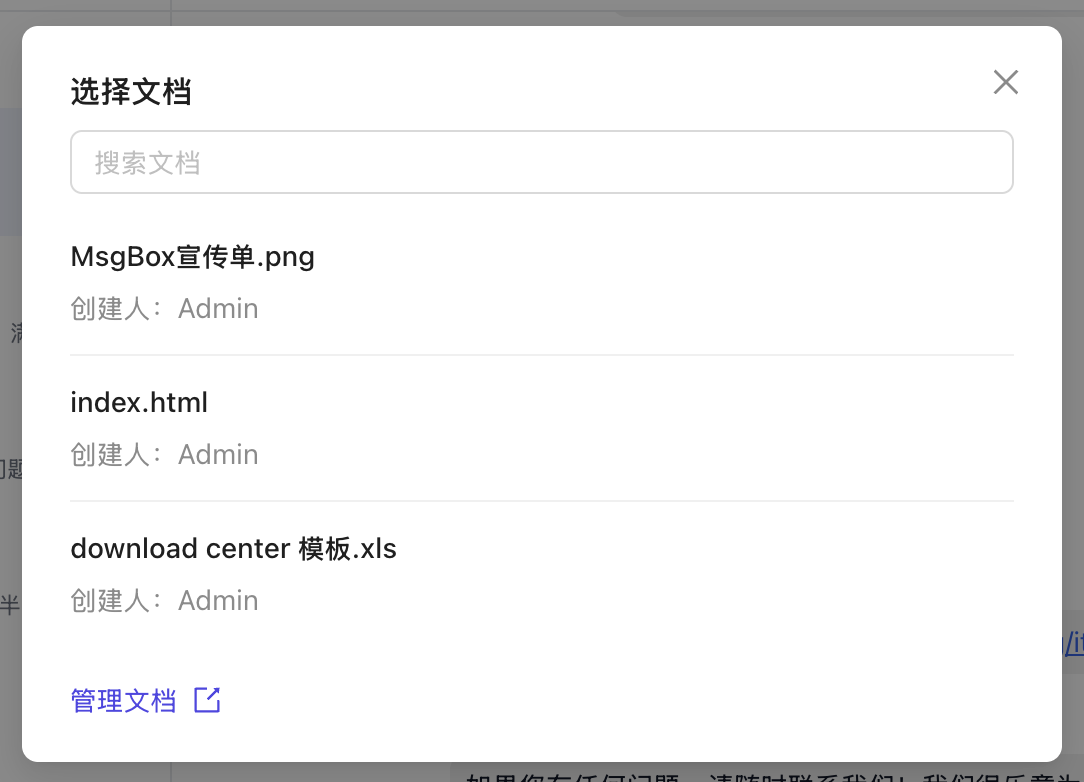
Check the Target File Find and check the box for the file you need in the pop-up resource library.
-
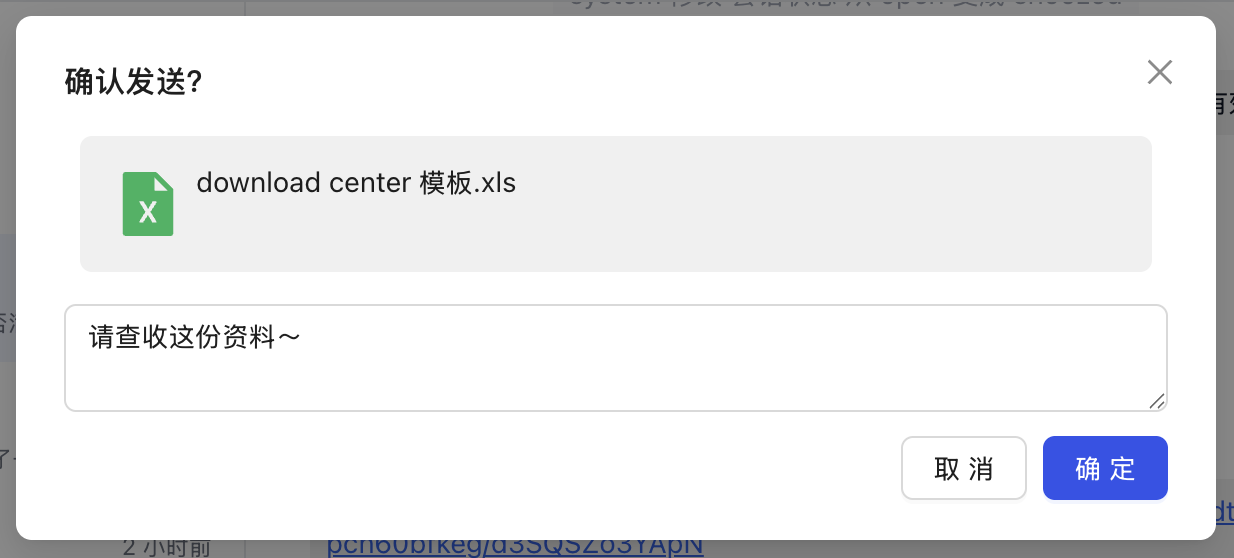
Confirm and Send You can (optionally) enter a text description before sending. After confirming, click "Confirm" to send.
Due to restrictions from third-party platforms (such as WhatsApp, WeChat Official Account, Xiaohongshu, etc.), some channels may not support receiving specific formats or sizes:
- WhatsApp: Generally supports PDFs and documents up to 100MB.
- WeChat Official Account: Has strict limits on attachment types; using PDF format is recommended.
- If you encounter a sending failure, try compressing the file or changing the format.
Related Guides: