Team Management
In MsgBox, a Team is the core organizational unit used to group members by department (e.g., Sales, Customer Service, Tech Support), function, or business line. Through team management, you can achieve precise conversation routing, ensuring every customer inquiry is handled by the most professional group.
1. How to Create a Team?
-
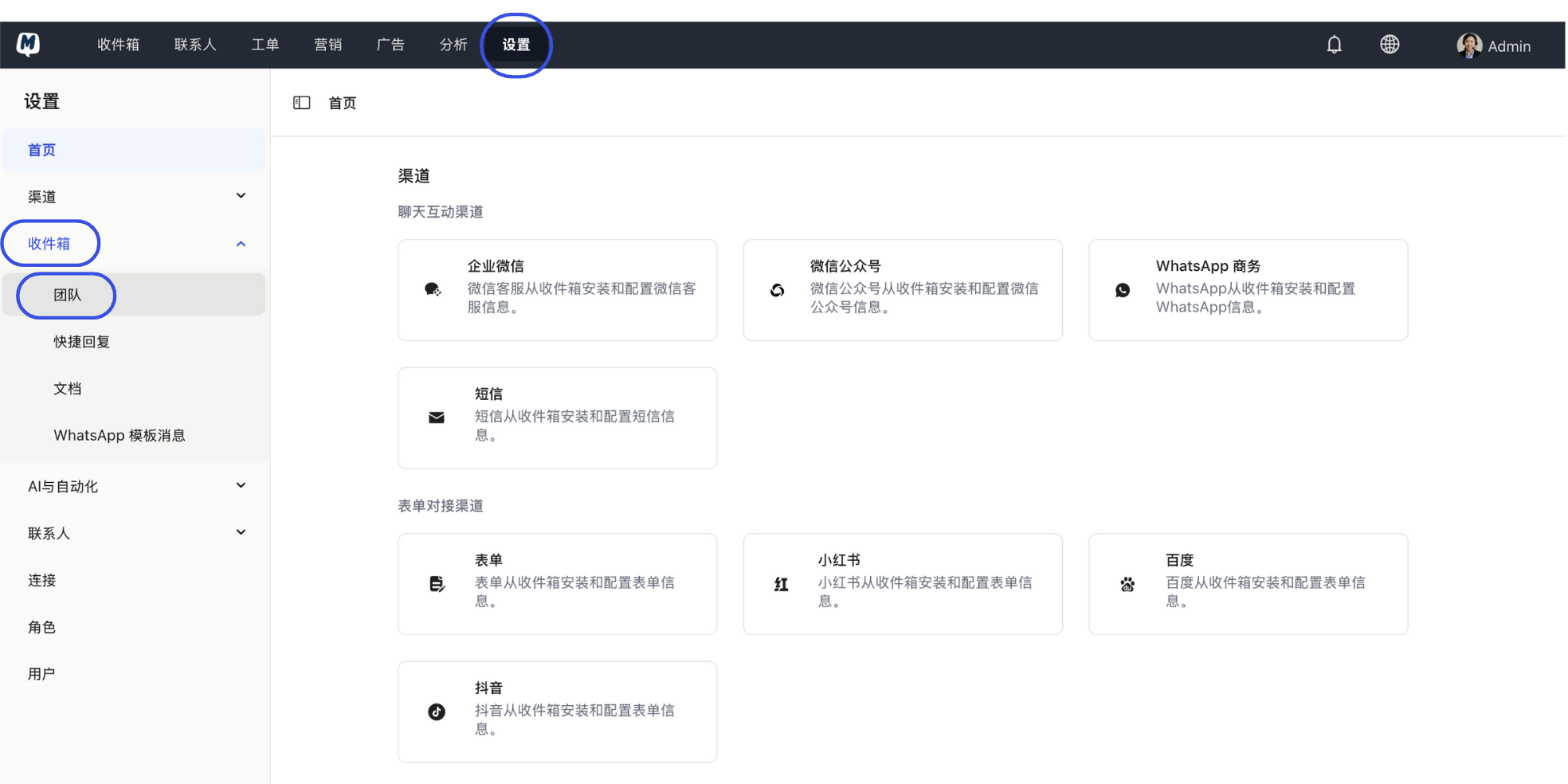
Enter Settings Go to Settings > Inbox > Teams.
-
Add Team Click the "Add Team" button in the top right corner.

-
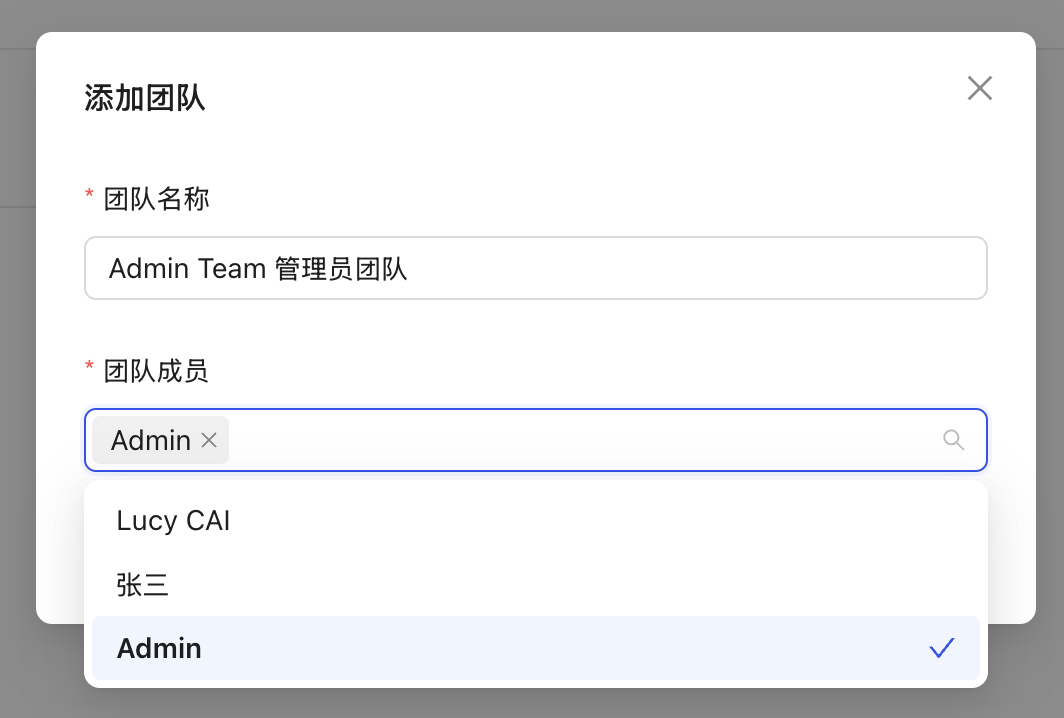
Configure Information Fill in the team name (e.g., "After-sales Support") and check the members from the list who belong to this team.
-
Complete Creation Click "Confirm" to successfully create the team.
2. How to Edit Team Members?
If team functions shift or personnel change, you can update the team composition at any time.
- Go to Settings > Inbox > Teams.
- Click the "Edit" icon to the right of the target team.
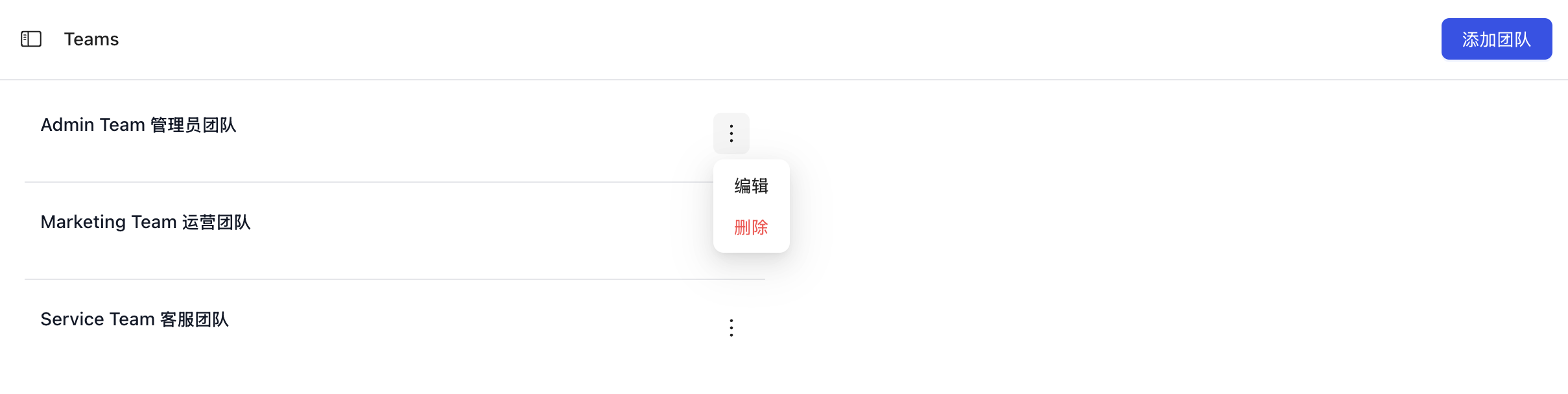
- Modify the team name or re-select members, then click "Confirm".
3. How to Assign Conversations to a Team?
MsgBox provides both "Manual" and "Automatic" assignment methods to suit different business scenarios.
A. Manual Assignment (For flexible scheduling)
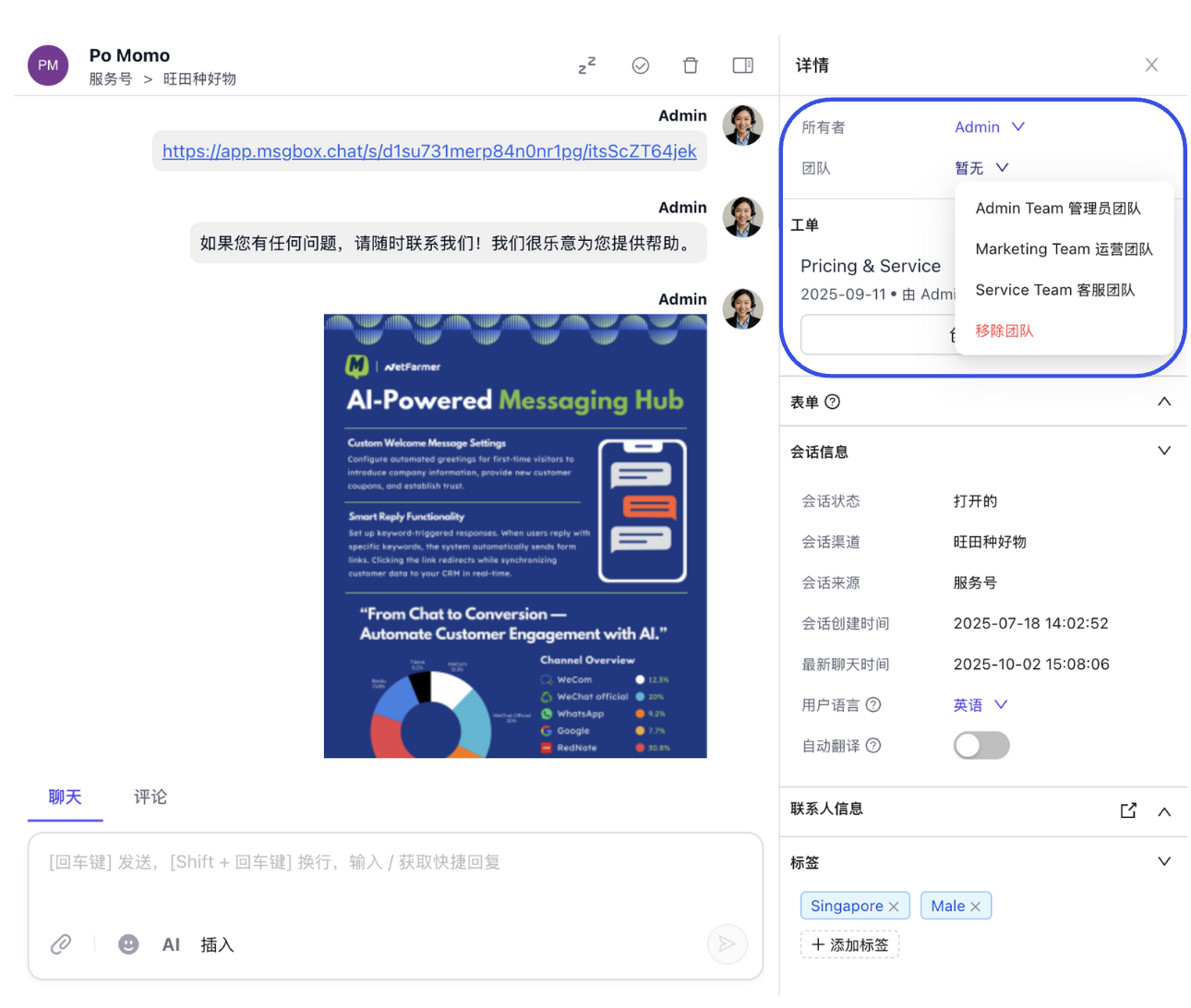
- In the Inbox, select the conversation you want to assign.
- In the "Details" panel on the right, find the "Team" section and click the arrow icon.
- Select the target team from the dropdown menu to complete the transfer.
B. Automatic Assignment (For high-efficiency routing)
Through Conversation Automation, you can set rules (e.g., inquiries from WhatsApp are automatically assigned to the "Overseas Team").
- Go to Settings > AI & Automation > Conversation Automation.
- Click "Add", set the Trigger (e.g., New conversation started), and select the corresponding Messaging Channel.
- Click "Add Step", choose "Assign to Team", and select the target team.
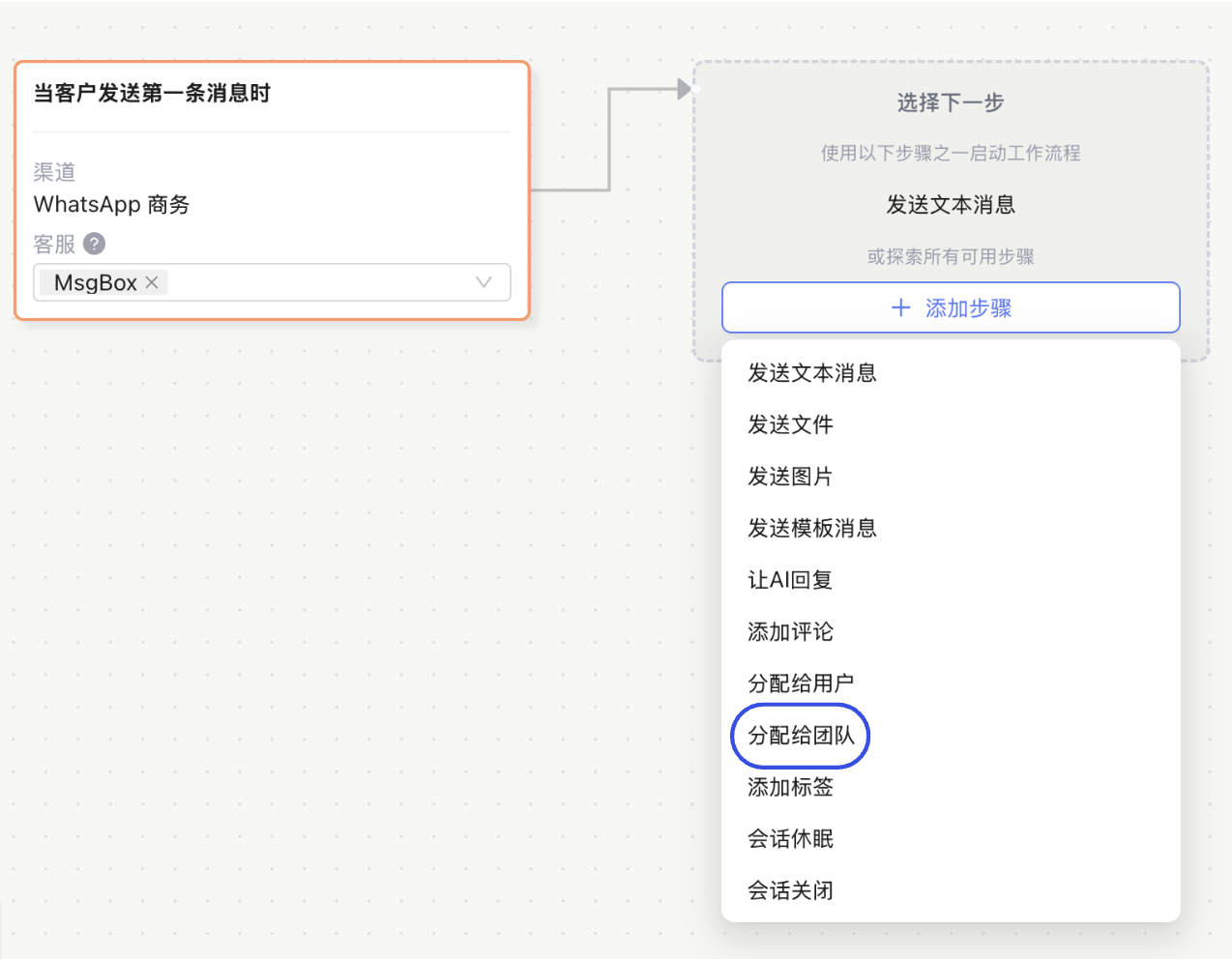
- Click "Save".
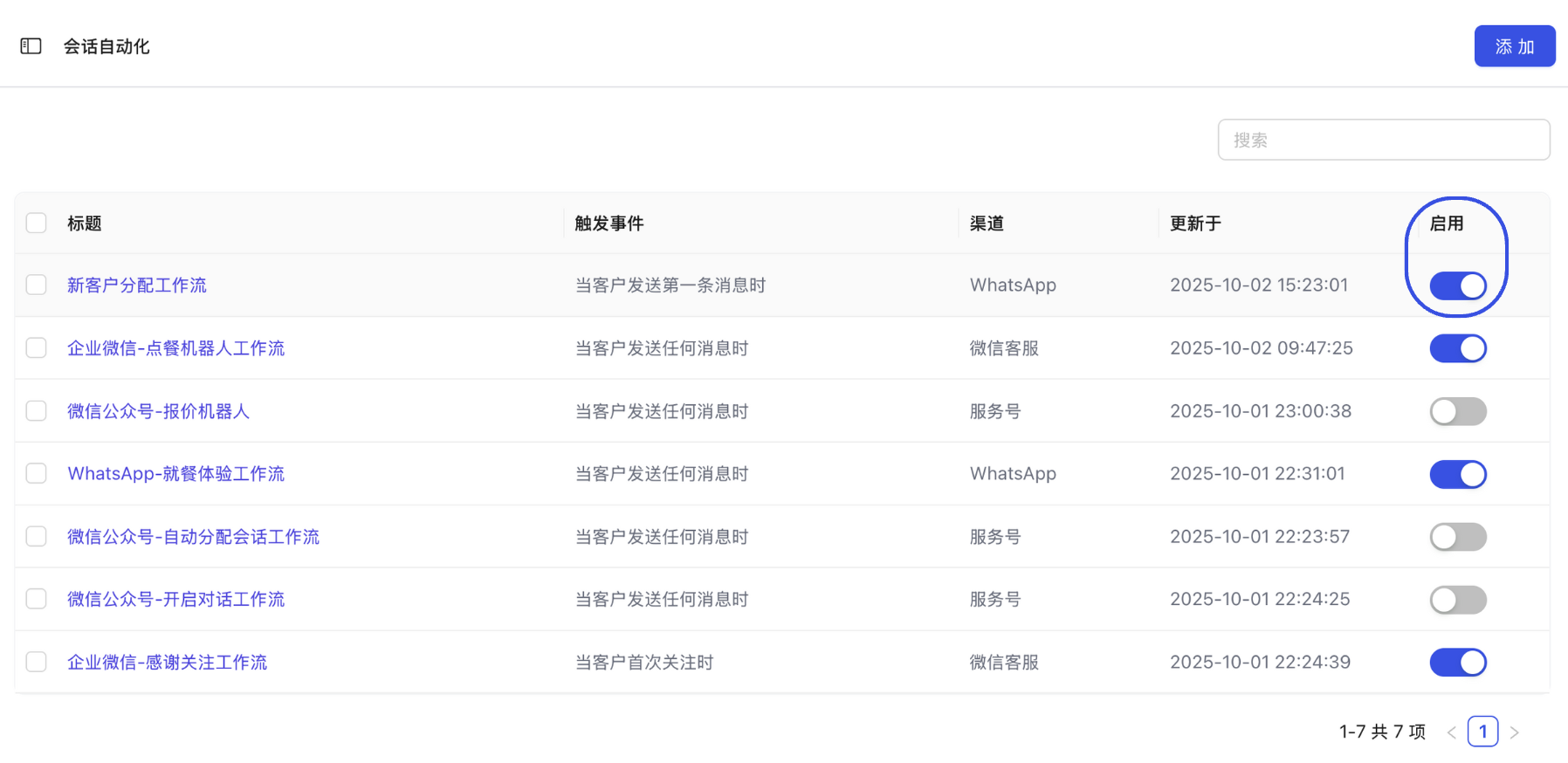
- Important: Switch the toggle for this workflow to "On" in the list view.
Try using this in conjunction with AI Agents. Let the AI handle the initial reception, and once it identifies a customer's intent to purchase, use a workflow to automatically hand off the conversation to the "Sales Team."
Related Guides: