Creating Tickets
A Ticket is a core tool used to record and follow up on customer requests, issues, or tasks. Through tickets, your team can centrally manage customer needs, clarify responsible parties, and track progress to ensure every problem is resolved in a closed-loop manner.
Deep Integration
The MsgBox ticket system is directly connected to HubSpot CRM. Tickets created in MsgBox will automatically sync to HubSpot, ensuring data consistency across platforms.
How to Create a Ticket from a Conversation?
- Select Target Conversation Go to the Inbox page and click to open the customer conversation you want to process.
- Initiate Creation
Locate the "Tickets" section in the Details panel on the right and click "Create Ticket".

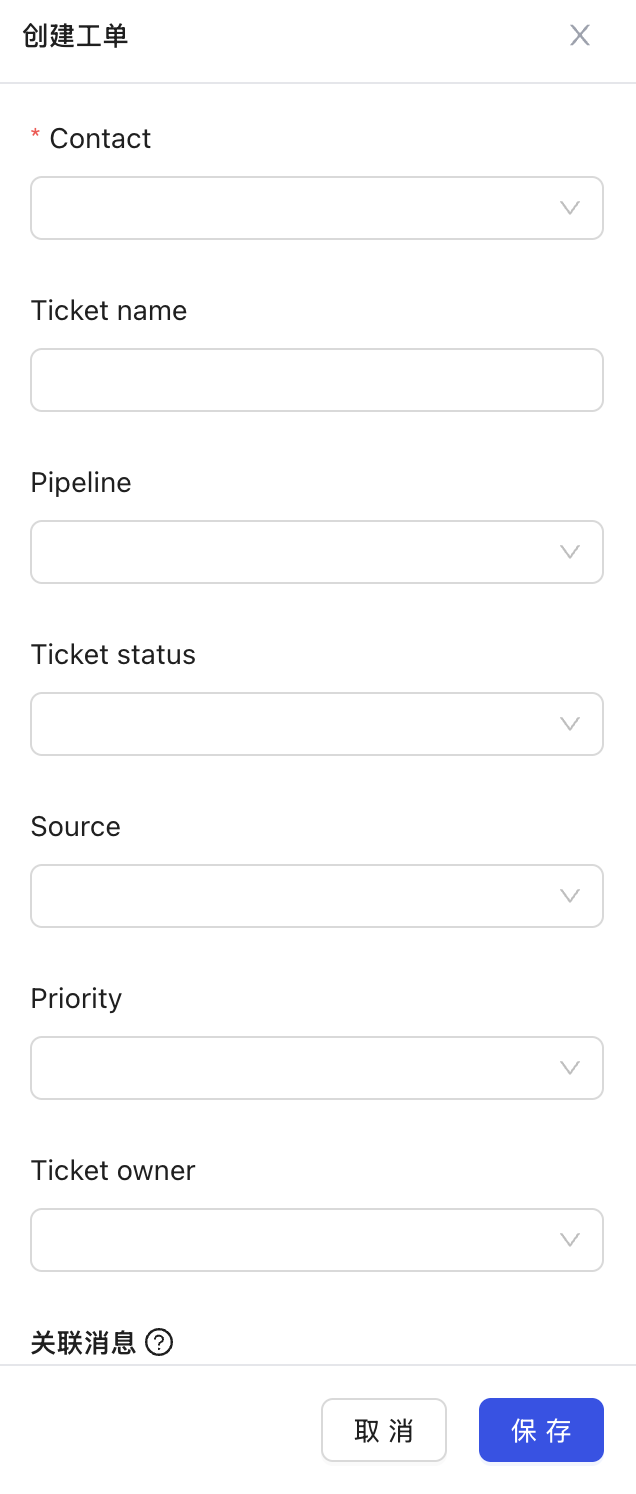
- Fill in Ticket Details
Select the contact associated with the ticket and fill in the ticket title, status, priority, and other information.
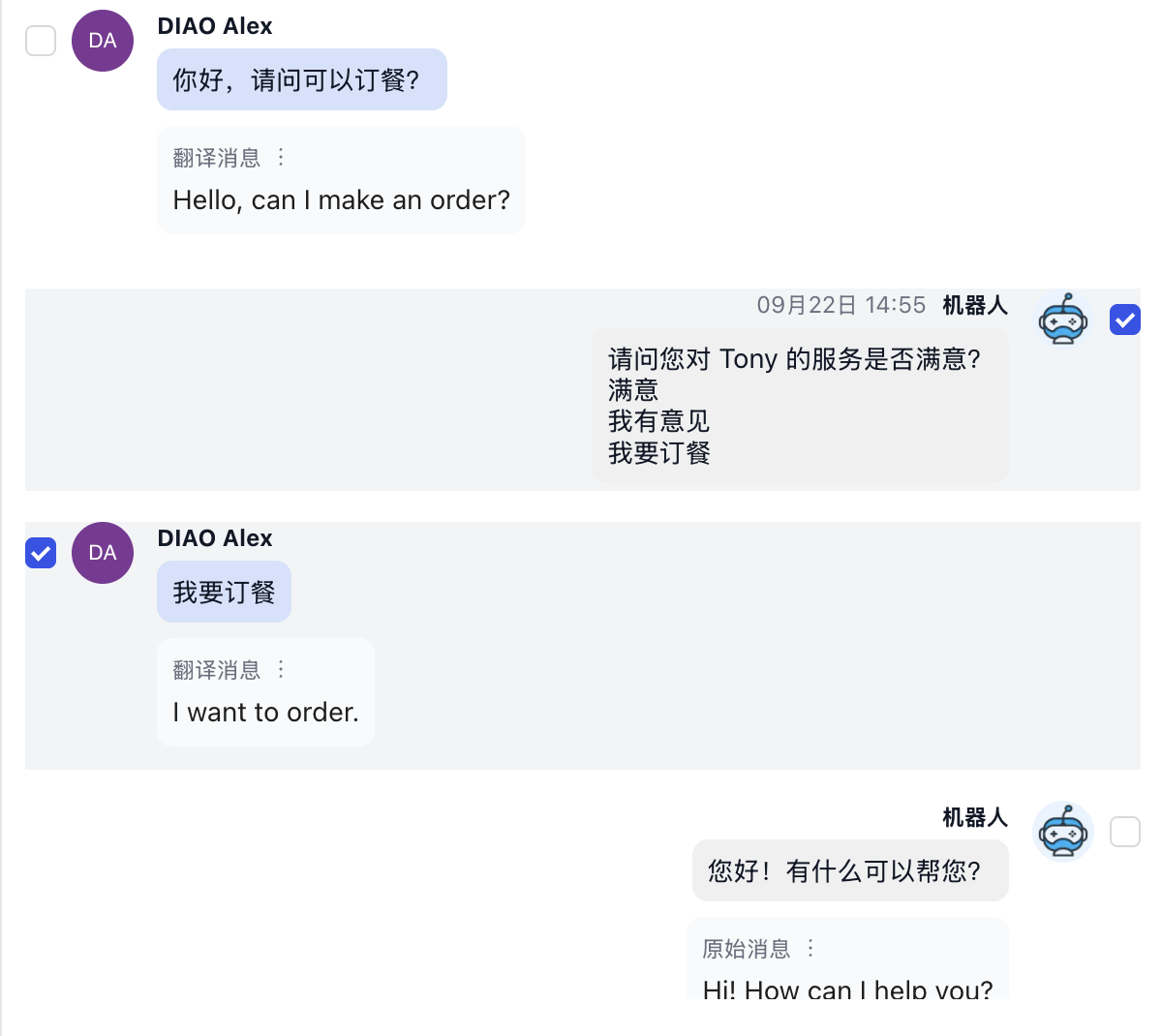
- Select Related Messages
You can check specific messages from the chat history to associate them with the ticket. These messages will be intuitively displayed in the right-hand card of the HubSpot ticket details page for easier investigation.
- Save and Sync Click "Save". The ticket is created successfully and automatically synced to your HubSpot.
How to View and Track Tickets?
- Locate the Ticket In the Details panel of an Inbox conversation, expand the "Tickets" section.
- Jump to View
Click on the ticket entry you wish to view.
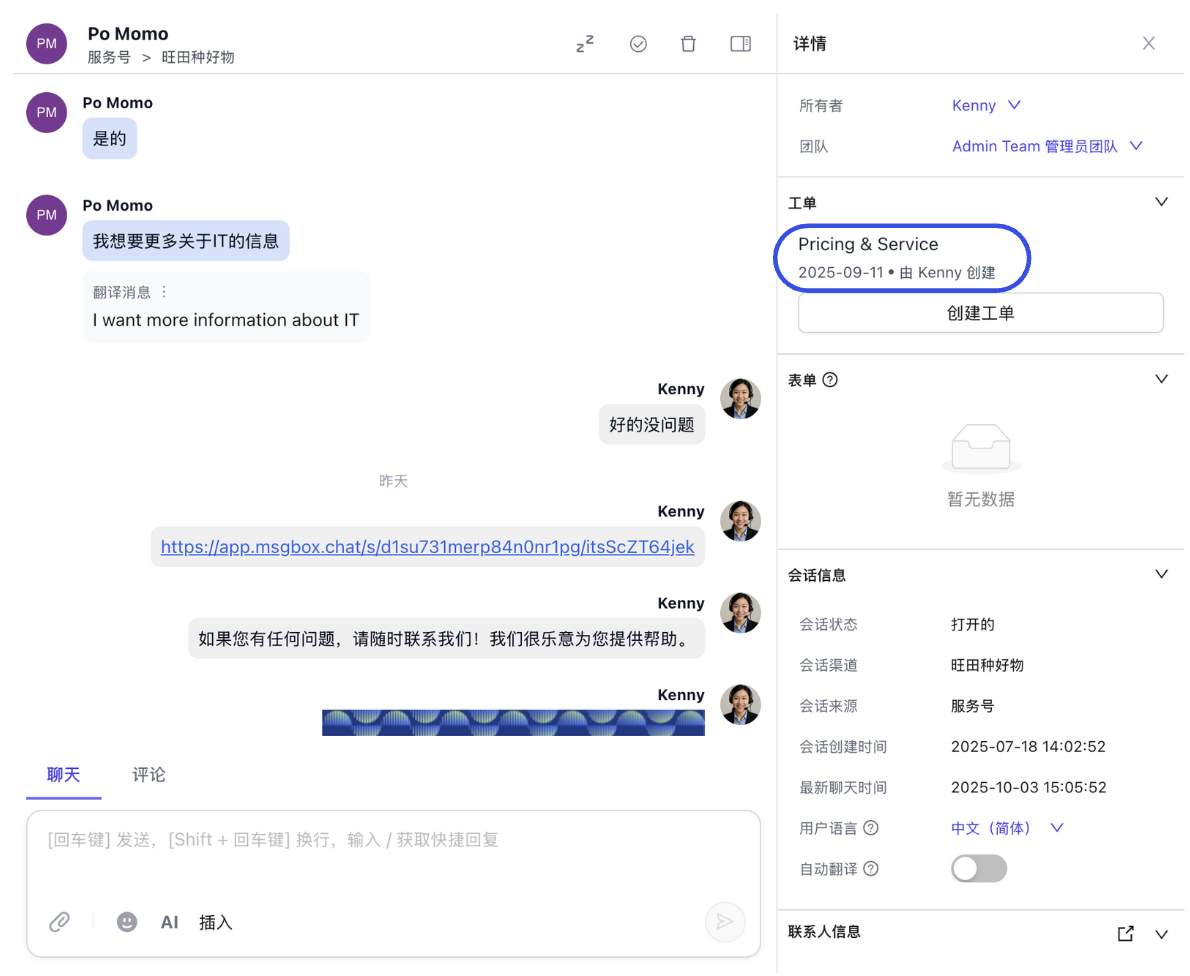
- Process in CRM The system will automatically redirect you to the corresponding page in HubSpot, showing the full lifecycle and history of the ticket.
Efficiency Tip
Through the ticket association feature, sales or after-sales teams can view the original MsgBox chat context directly within HubSpot, eliminating the need to toggle between two systems to find background information.
Prerequisite Guides: