How to Use WhatsApp Message Templates?
WhatsApp Message Templates (WhatsApp Business Templates) are the primary way for businesses to reach out to customers. Their most important feature is: Even after the 24-hour conversation window has closed, you can still use approved templates to proactively message your contacts.
In addition to one-on-one messaging in the inbox, templates are frequently used for WhatsApp Broadcast Marketing.
Using Templates in Inbox Conversations
Step 1: Locate the Send Entry
The entry point varies slightly depending on the current state of the conversation:
- Scenario A: Session Timed Out (No interaction for over 24 hours)
Click the "Send Template" button directly in the center of the chat window.
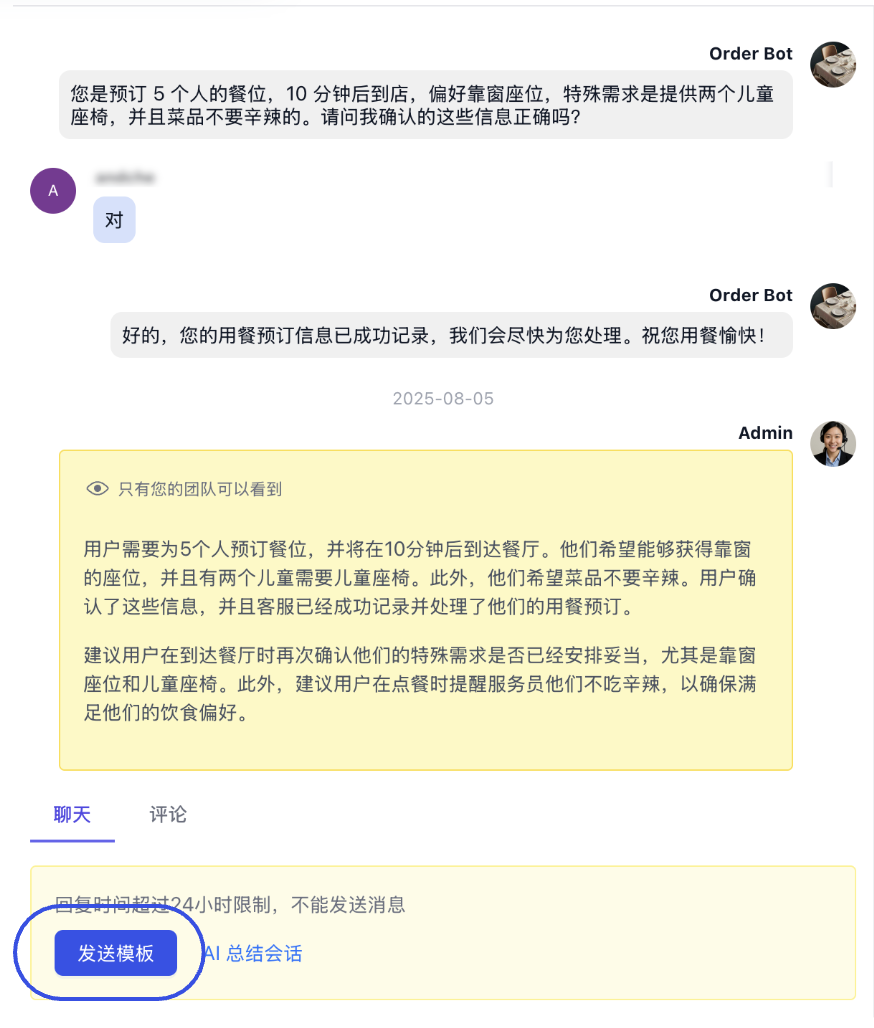
- Scenario B: Session Active (Ongoing conversation)
Click "Insert" in the chat toolbar and select "Message Template" from the menu.
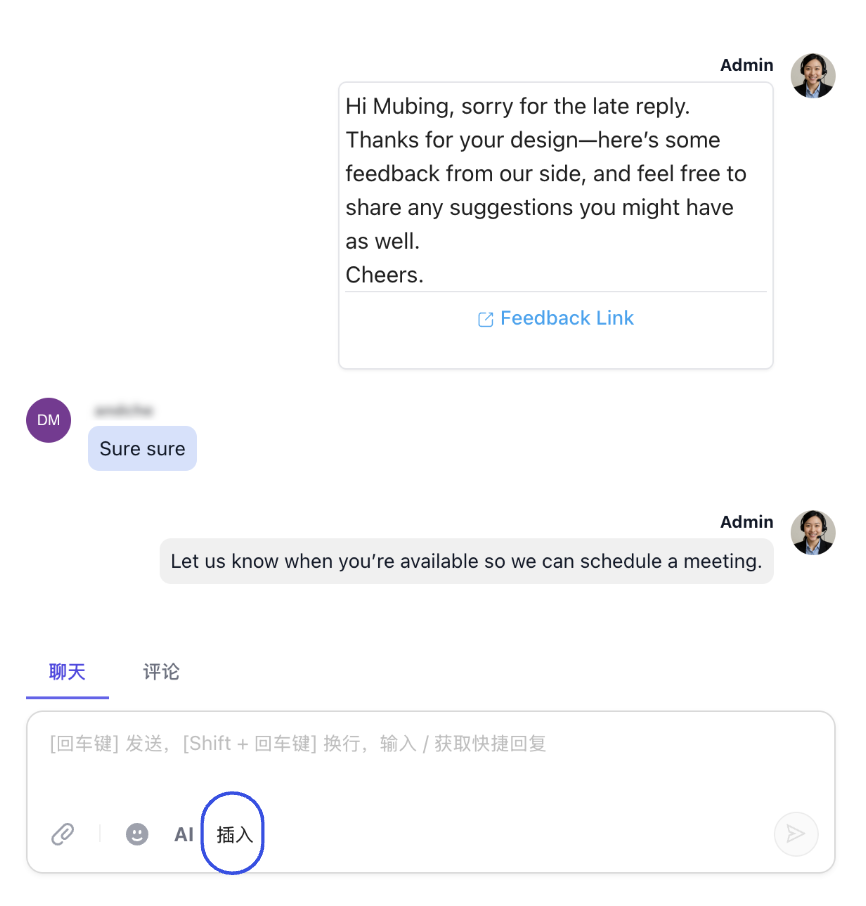
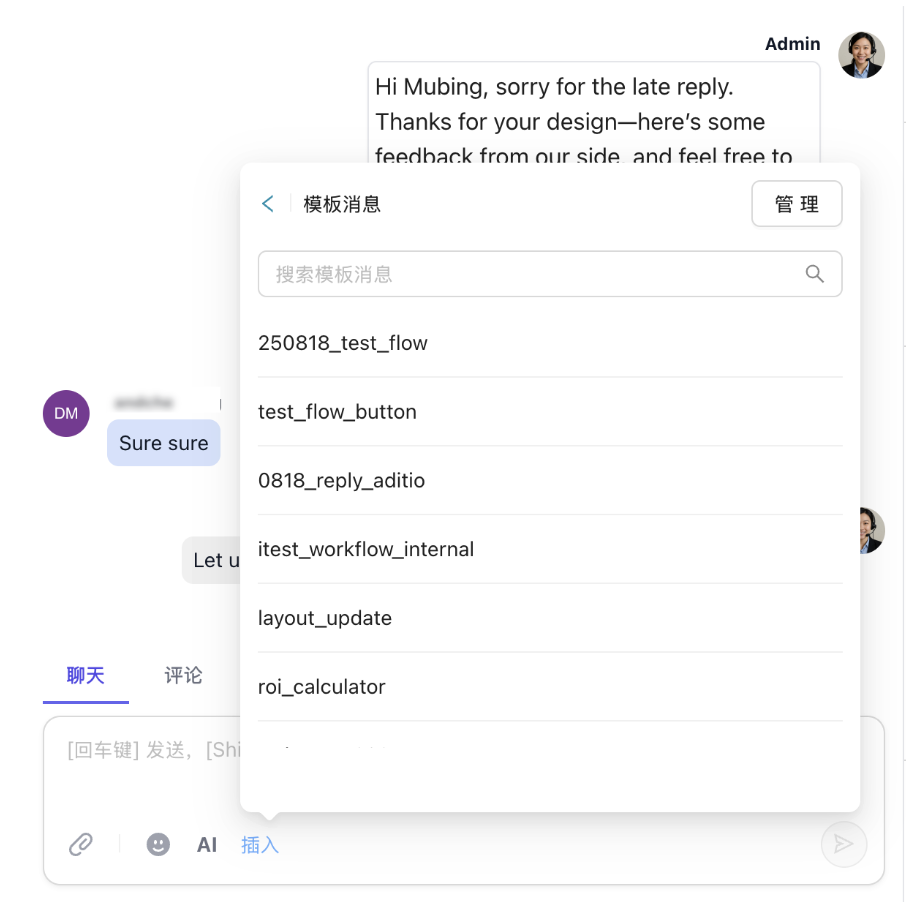
Step 2: Select a Template
In the template list pop-up, choose the specific template you wish to send (e.g., Shipping Notification, Appointment Confirmation, etc.).
Step 3: Fill in Variables
If your template contains placeholders (such as {{1}} for name or {{2}} for order number), fill in the corresponding personalized content here.
- Tip: If the template is plain text without variables, skip this step.
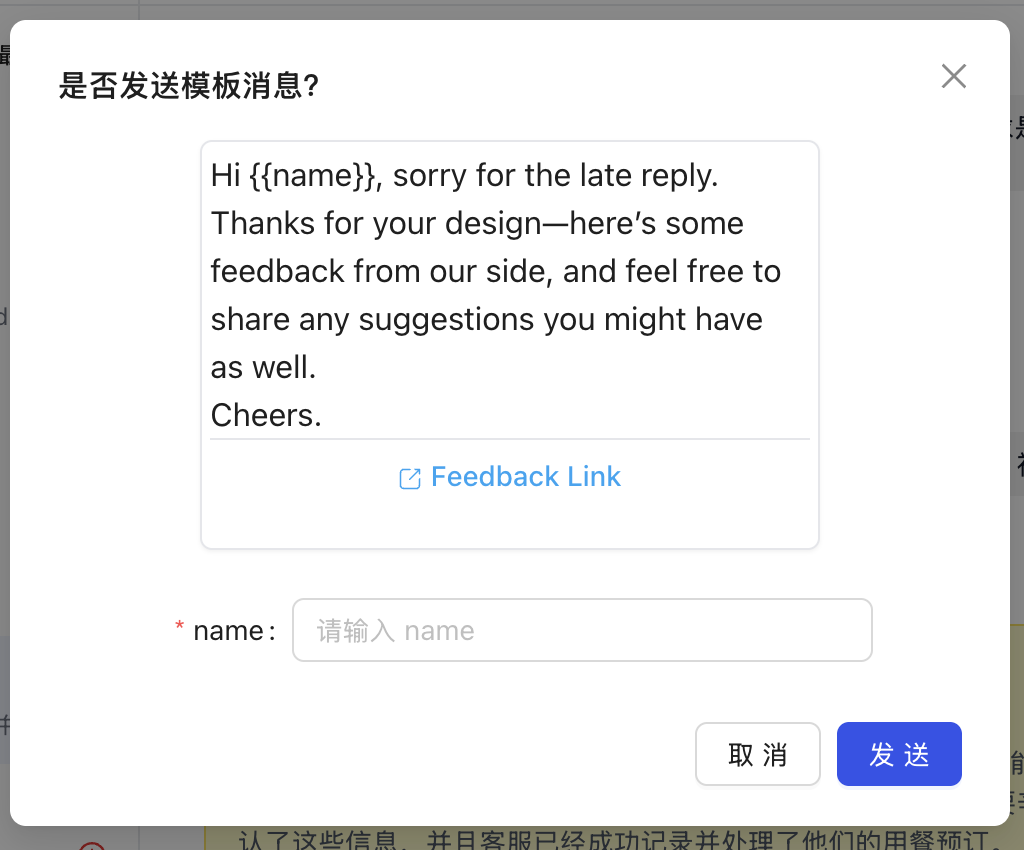
Step 4: Send
After reviewing the preview, click "Send."
You can combine frequently used template messages with Workflow Automation. For example: When a customer submits a form, the system can automatically trigger a WhatsApp confirmation template via a workflow to achieve an instant automated response.
Before sending templates in MsgBox, ensure:
- You have connected your WhatsApp Business account. Learn how to connect
- Your templates have been approved in the Meta backend and synced to MsgBox. How to sync WhatsApp templates?
Next Steps: