How to Apply MsgBox AI Agents in Conversations?
After creating and configuring your AI Agent, you need to deploy it to actual conversation scenarios using the "Conversation Automation" workflow. The AI Agent can act as a "Front-desk Receptionist," automatically replying to customers during non-working hours or when specific inquiries are received.
1. Enable AI Agent via Automation Workflow
-
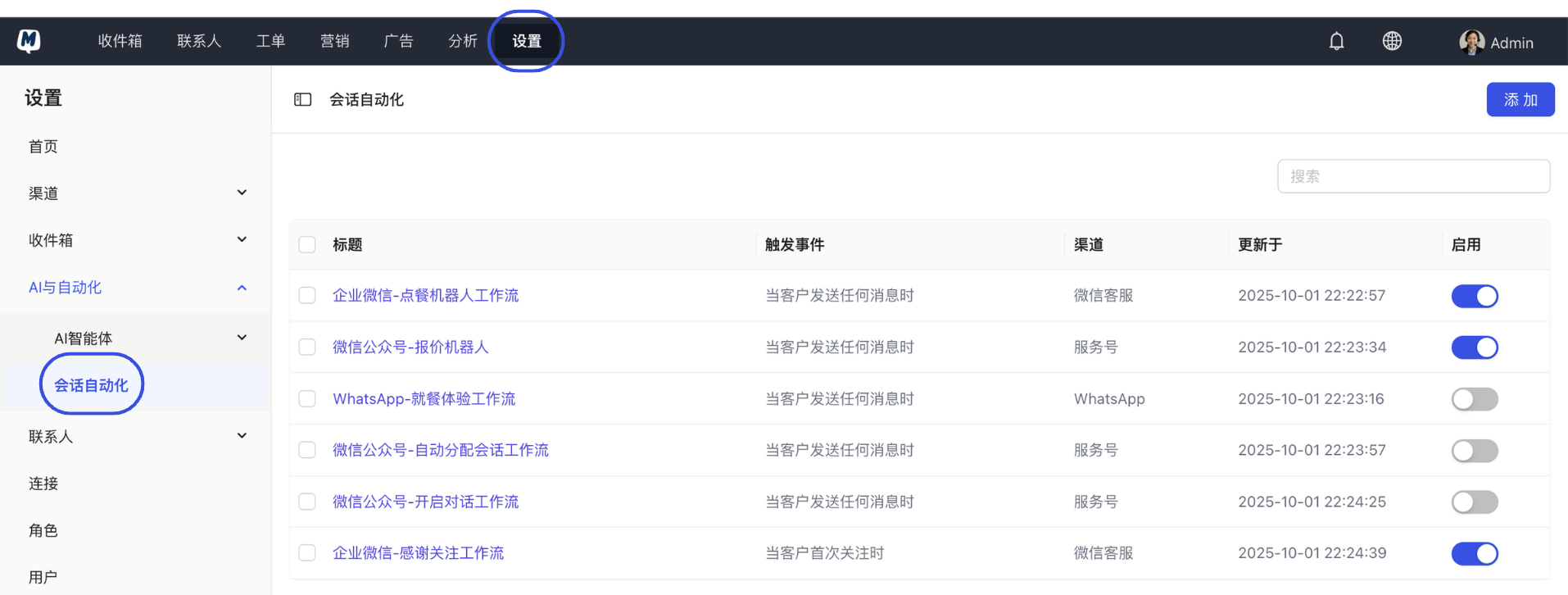
Enter Automation Settings Go to the Settings > AI & Automation > Conversation Automation page.
-
Create New Workflow Click the "Add" button in the top right corner.
-
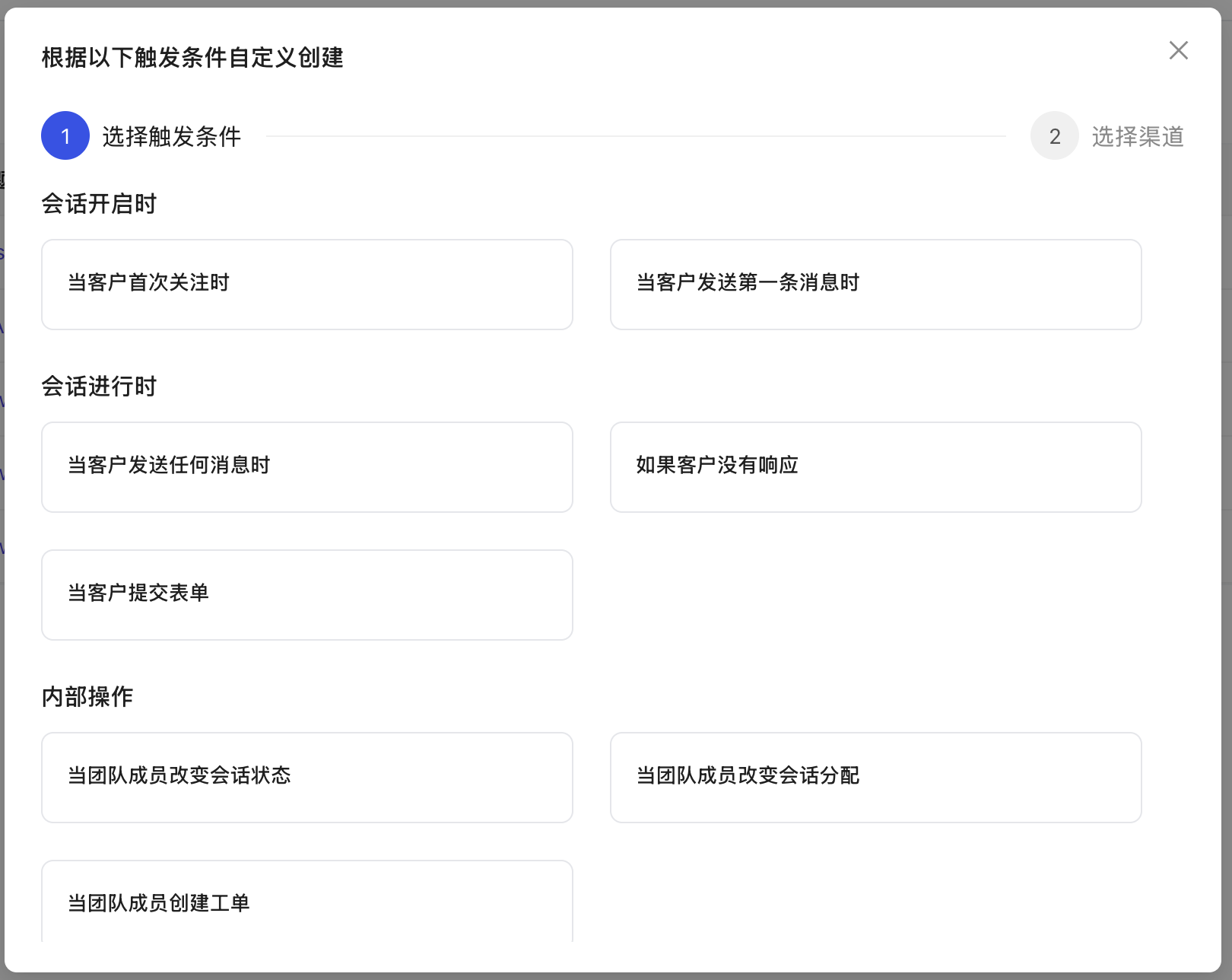
Set Trigger Conditions Choose when you want the AI to intervene (e.g., New conversation started or Message received during non-working hours).
-
Specify Messaging Channels Select the channels where this workflow will take effect (e.g., WhatsApp, Xiaohongshu, or all channels).
-
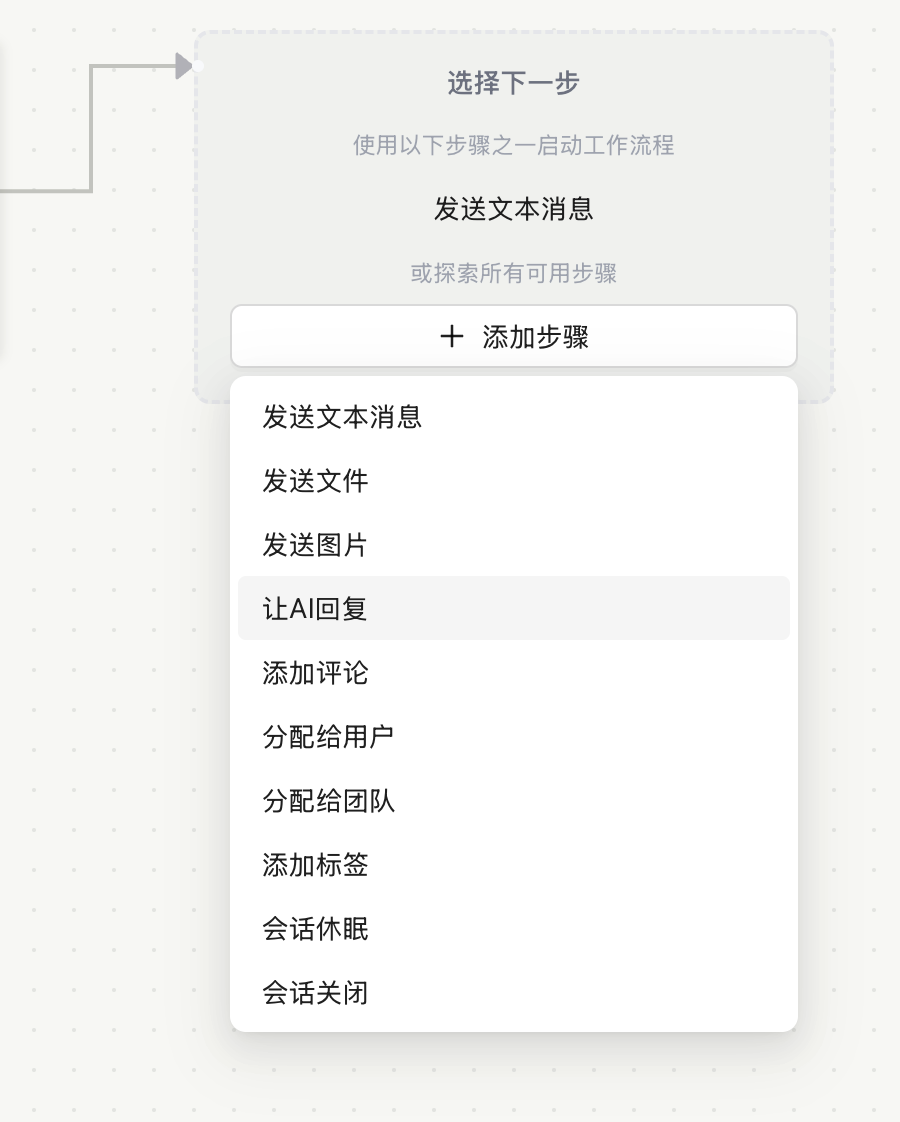
Add AI Reply Step In the "Action" section, click "Add Step" and select "Let AI Reply."
-
Select an Agent From the dropdown menu, choose the Target Agent you previously configured.
-
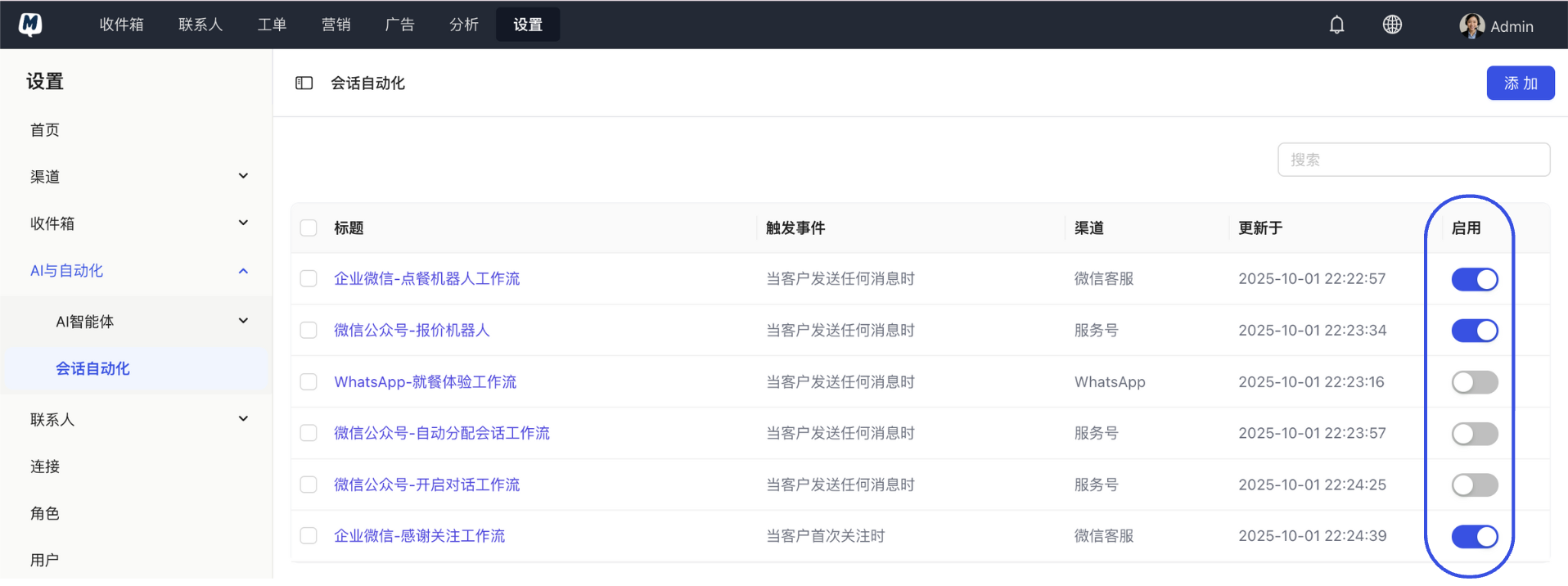
Save and Enable Click "Save." Return to the list page and make sure to toggle the "Enable" switch to ON for the AI to officially start working.
2. How to Identify AI Messages in the Inbox?
To help human agents monitor and review conversations, MsgBox clearly labels the source of each message.
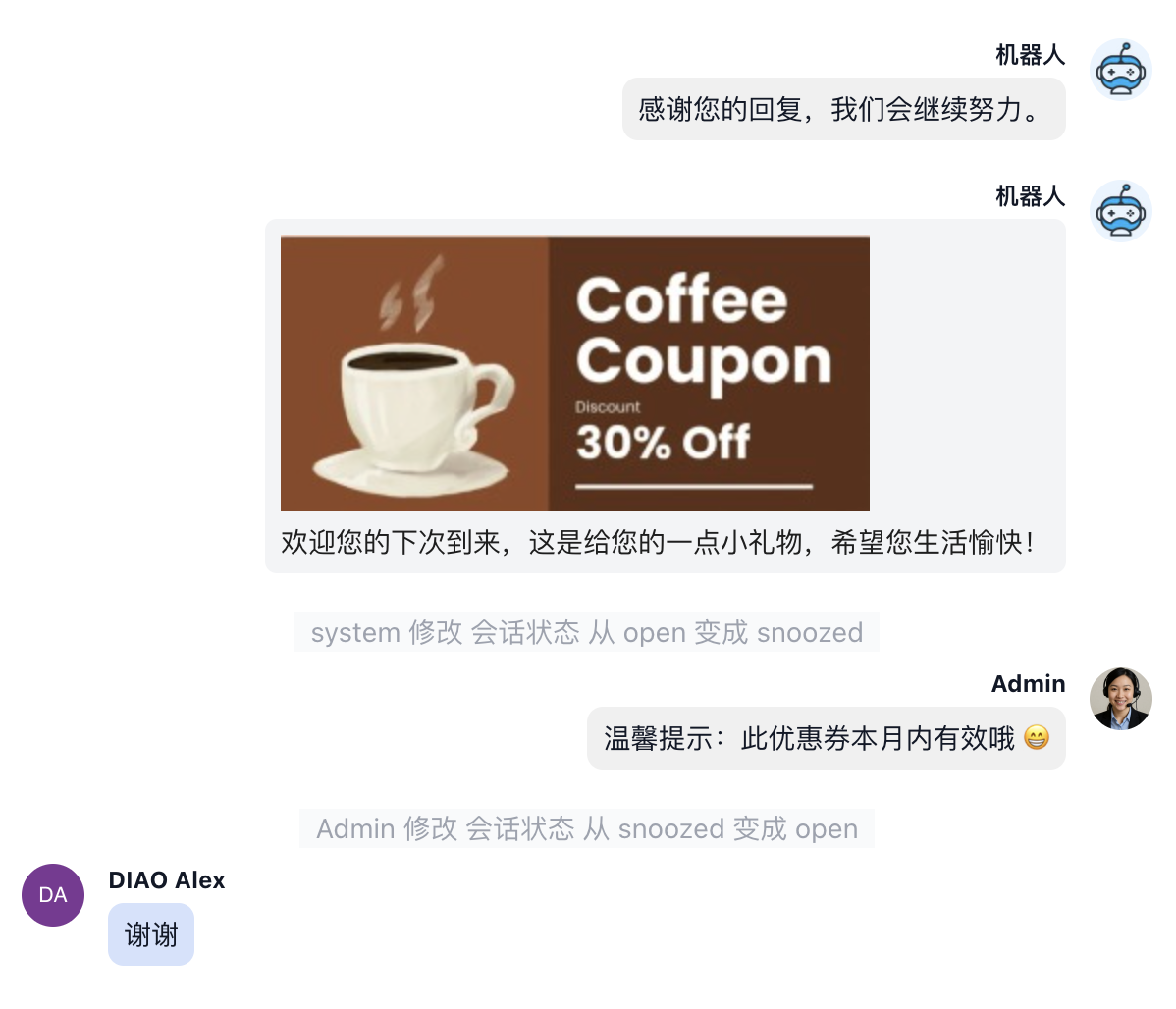
- Visual Distinction: In the inbox chat history, messages sent by the AI will feature the exclusive avatar and nickname you uploaded in the Agent Settings.
- Human Takeover: Human agents can type and send messages directly in the chat box at any time. Once a human sends a message, it usually triggers the AI avoidance mechanism (depending on your workflow settings).
You can build more complex logic. For example:
- Step 1: The AI attempts to answer the customer's question based on the knowledge base.
- Step 2: If the customer asks a question the AI cannot resolve, set up a Conditional Branch to automatically Assign to Team or hand over to a human agent.
Related Guides: