Smart AI
MsgBox deeply integrates AI capabilities to provide you with tools such as conversation summaries, message polishing, and real-time translation, aimed at eliminating language barriers and improving team collaboration and communication efficiency.
Conversation Processing: One-Click Summary Generation
AI can help you quickly review long conversations and extract core requirements, saving time spent scrolling through history.
- Enter Conversation: Open the conversation you want to process in the Inbox.
- Trigger Summary: Click "AI Summarize Conversation" in the chat toolbar.
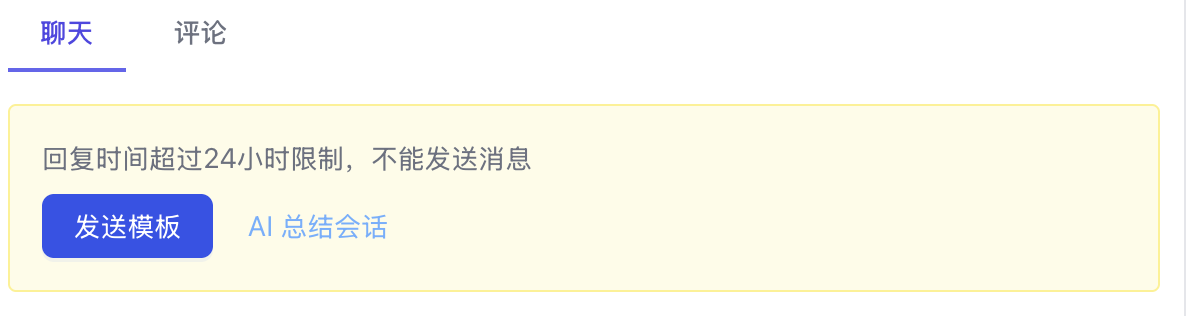
- View Result: The summarized content will appear in the chat history as a private message.
AI-generated conversation summaries are only visible to internal team members; customers cannot see them.
Content Creation: Message Polishing
If you're concerned that a reply isn't professional enough or the tone is slightly off, you can use the polishing feature to optimize it.
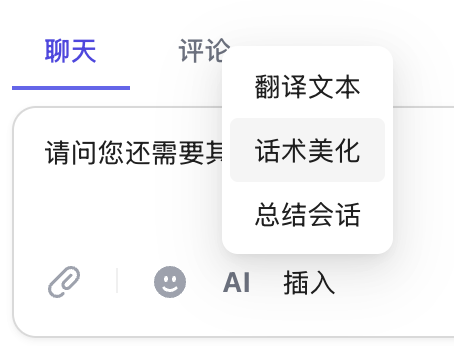
- Enter Draft: Type what you want to say in the chat box.
- AI Refinement: Click the AI icon above the input box and select "Message Polishing".
- Confirm and Send: AI will generate a more professional and polite version; click send after confirming.
Cross-Language Communication: Real-Time Translation
1. Set the Contact's "User Language"
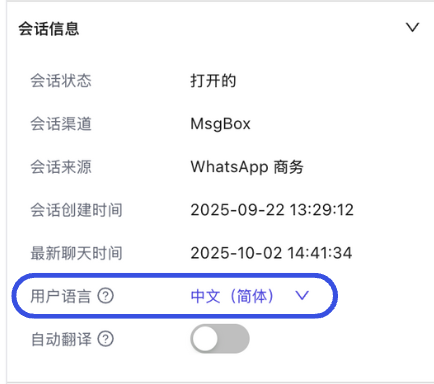
The system automatically identifies the language based on the customer's first message. To change it manually:
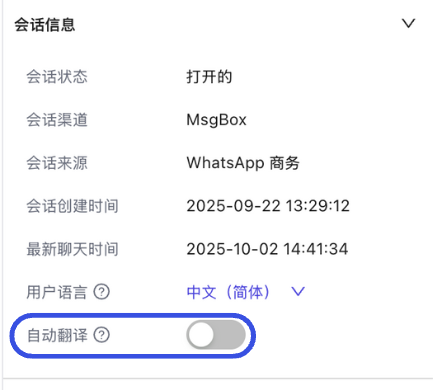
- In the Details panel on the right side of the conversation > Conversation Info, manually select the corresponding User Language.
2. Translate Outgoing Messages
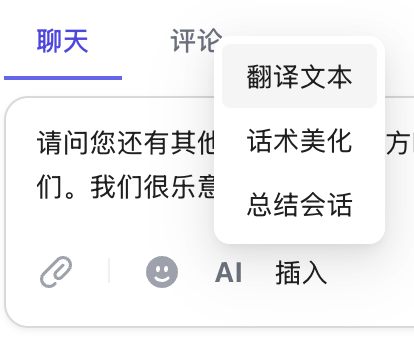
After typing your text, click the AI icon > "Translate Text". The system will translate it according to the "User Language" set above.
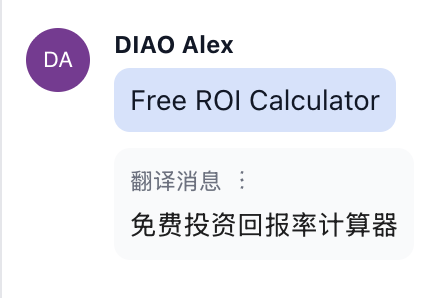
3. Translate Incoming Messages
Directly click "Translate" beneath a received customer message.
- Default Translation: Automatically translates into your system interface language.
- Switch Language: Click the switch icon next to the translation result to select a different target language.
Efficiency Tool: Enable Auto-Translation
Once enabled, you only need to type in your native language, and the system will automatically convert it to the "User Language" when you click send.
- Path to Enable: In the conversation's right-side Details > Conversation Info.
- Enable Toggle: Switch on the "Auto-Translation" toggle.
For multinational business teams, auto-translation allows customer service personnel to achieve a truly barrier-free communication experience without frequently switching between tools.
Next Steps: