Ticket Synchronization with HubSpot
MsgBox and HubSpot feature a deep integration for ticketing. Not only can you create tickets directly from conversations, but you can also ensure real-time data consistency across both platforms.
Bidirectional Deletion Sync: Unlike the contact deletion logic, if a ticket is deleted in either MsgBox or HubSpot, the corresponding ticket on the other platform will also be removed. Please confirm carefully before deleting.
Where to View Tickets?
MsgBox provides a centralized dashboard, making it easy to locate and process tickets within your CRM.
-
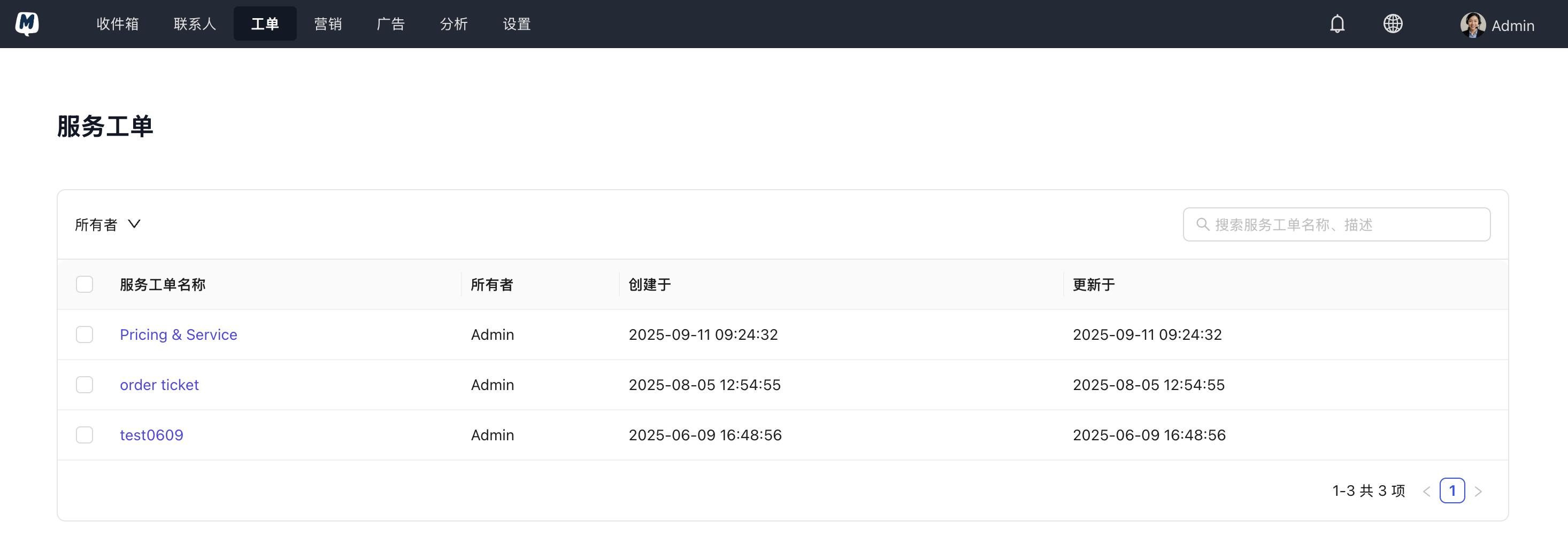
Enter the Tickets Page Go to the Tickets page in the navigation bar.
-
Jump to HubSpot Click any ticket entry in the list, and the system will automatically redirect you to the associated HubSpot details page for more advanced operations (e.g., modifying status, assigning owners, or adding notes).
How to Configure Ticket Fields?
To ensure that tickets created in MsgBox comply with your business standards in HubSpot, you can customize the synchronized field mapping.
-
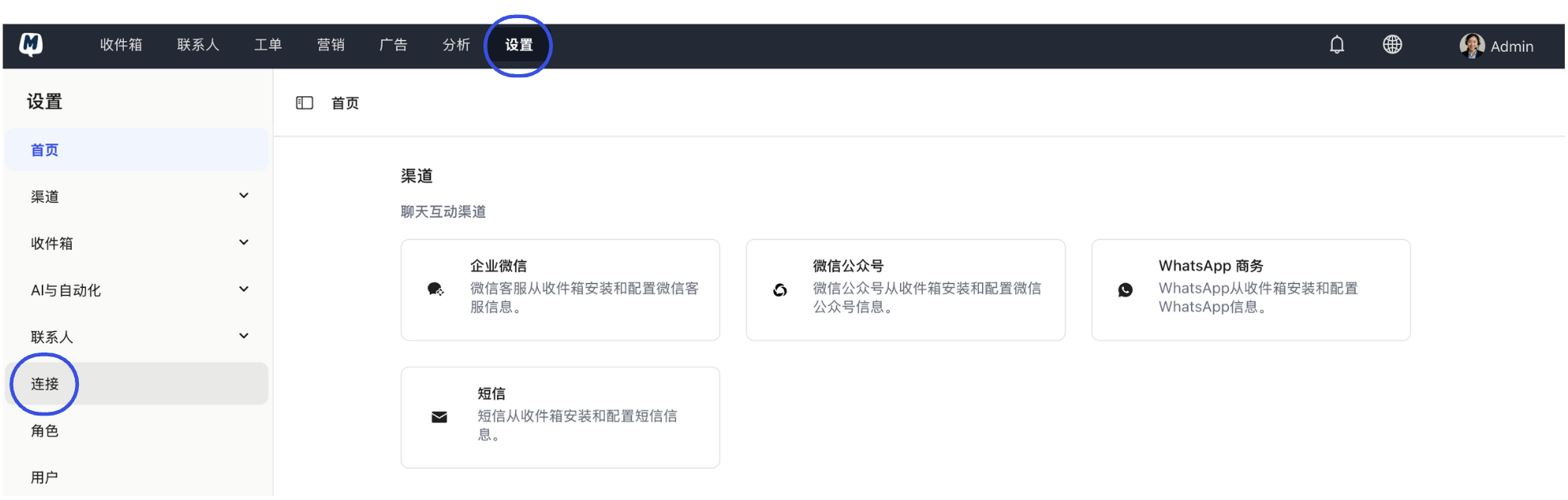
Enter Connection Settings Go to Settings > Connections.
-
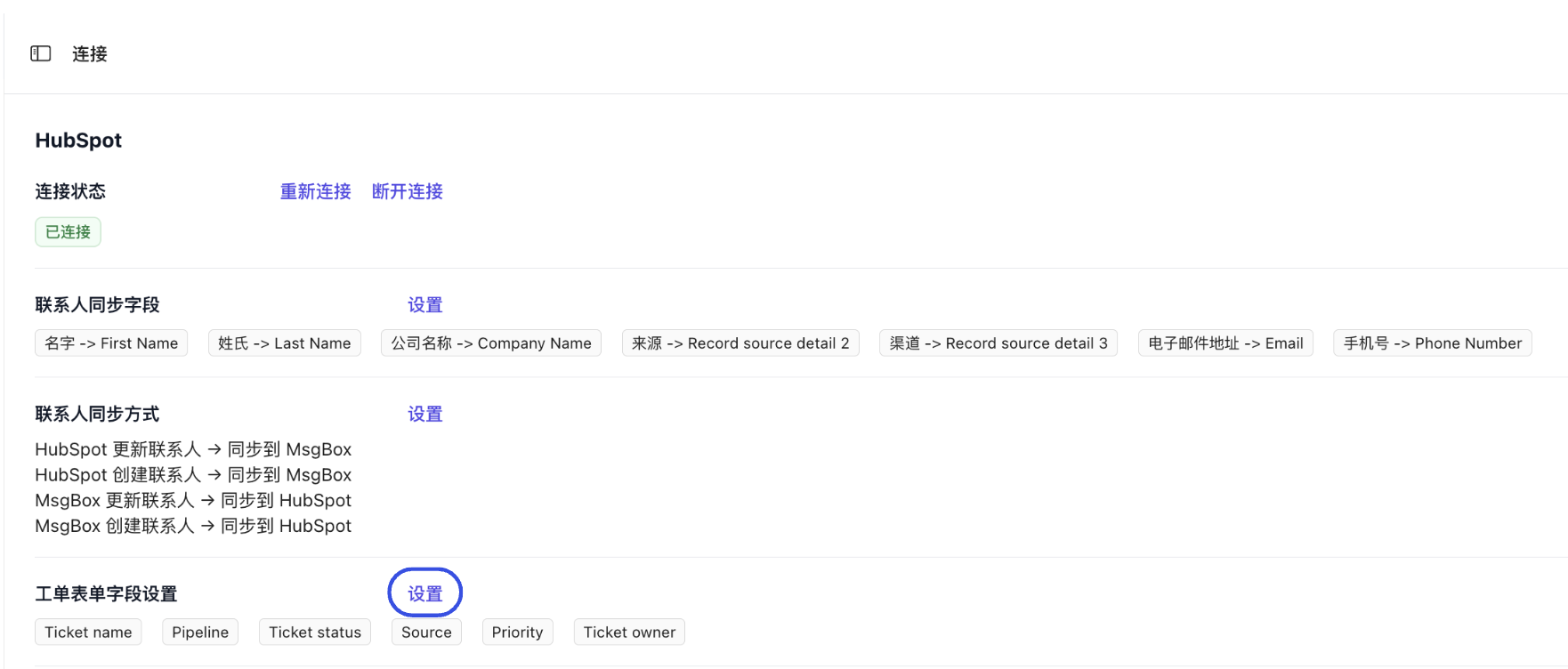
Open Field Configuration In the "Ticket Form Field Settings" section at the bottom of the page, click "Settings".
-
Manage Field Mapping
- Add Fields: Select the fields you want to display from the left (the HubSpot field pool) and click "Select" to sync them to the right.
- Remove Fields: Click "Delete" next to a selected field on the right to hide it when creating tickets in MsgBox.
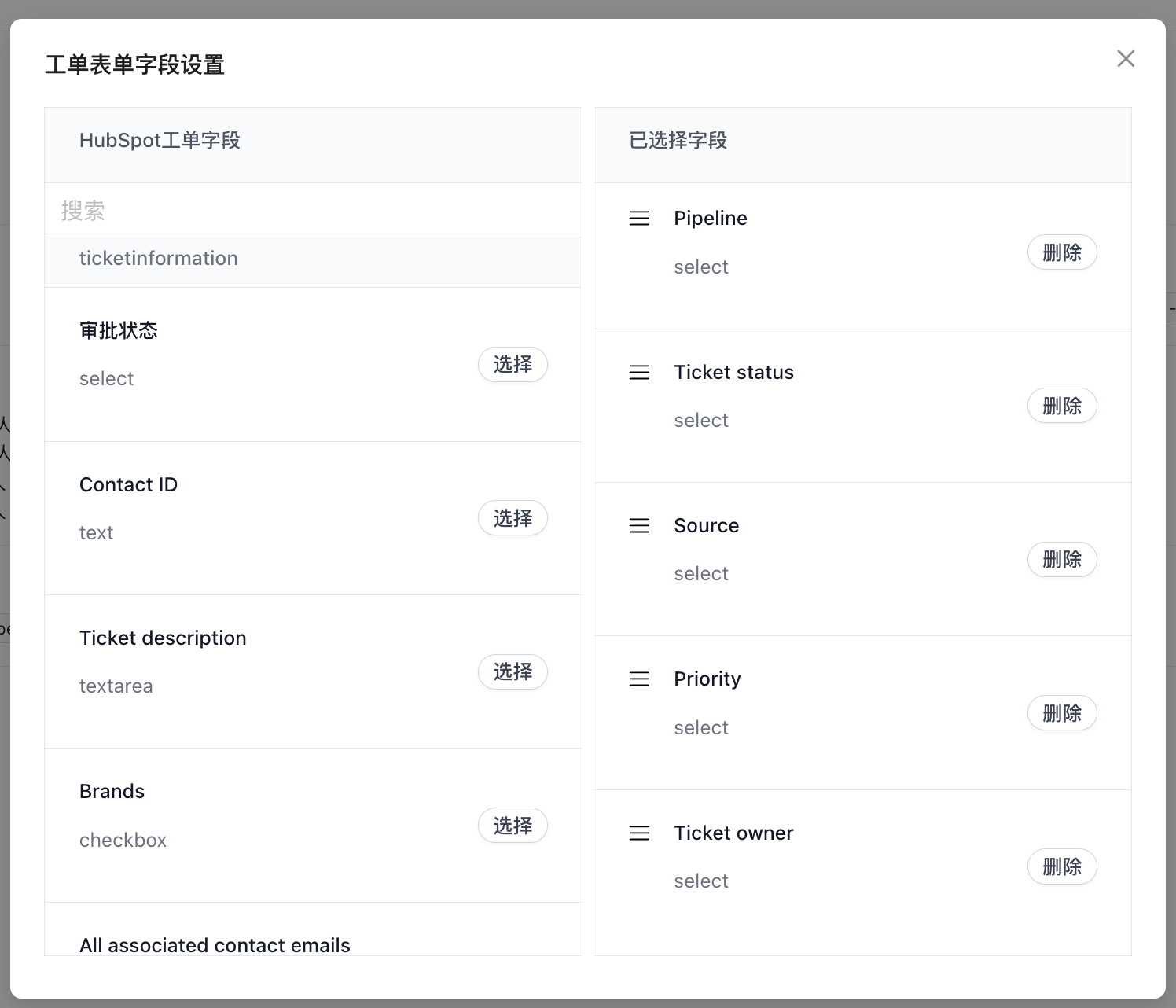
When configuring, we recommend adding all "Required Fields" from HubSpot into your MsgBox ticket fields to prevent synchronization failures caused by missing essential information.
Prerequisite Guides: