Contact Information Import
MsgBox provides flexible contact management capabilities, supporting rapid import of your customer data through various methods such as file uploads, HubSpot synchronization, and WeChat Work (WeCom) synchronization.
How to Import Contact Information from a File?
-
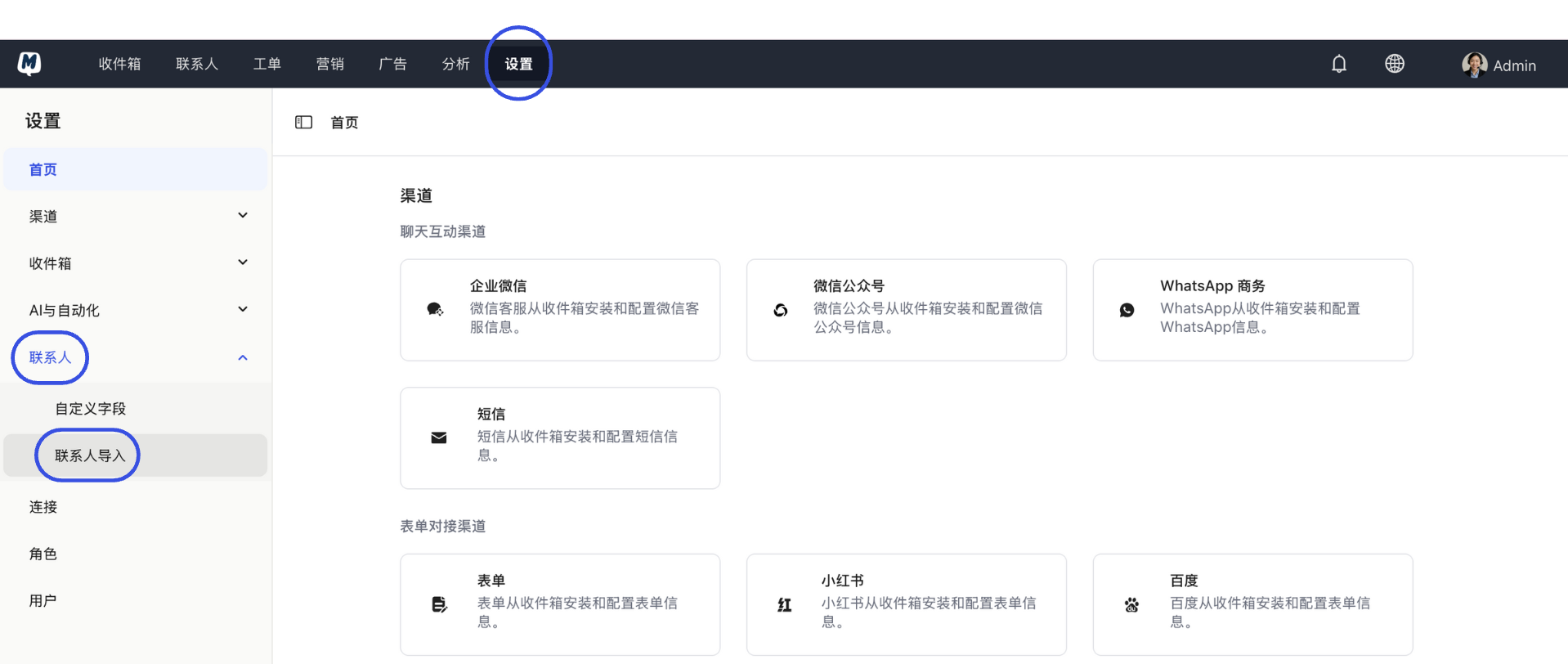
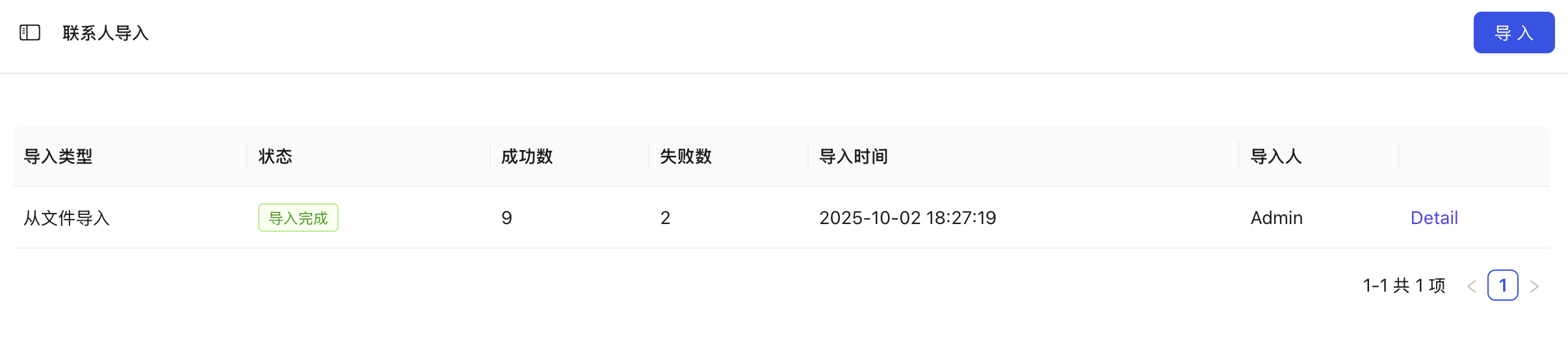
Enter the Import Page Go to Settings > Contacts > Contact Import.
-
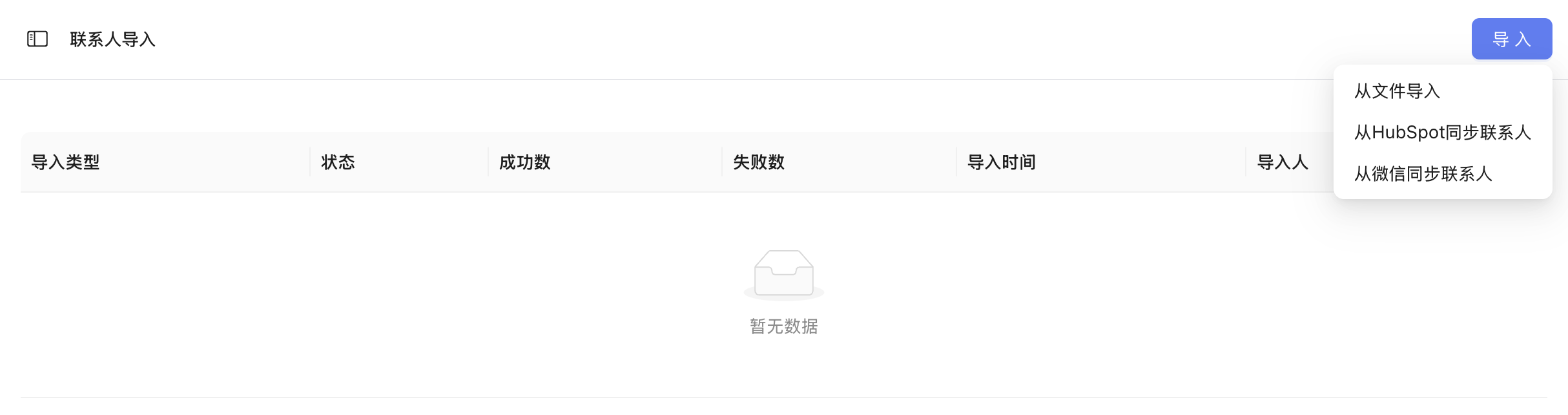
Choose Import Method Click the "Import" button and select "Import from File".
-
Upload Data File Upload your prepared
.xlsxformat file and click "Next".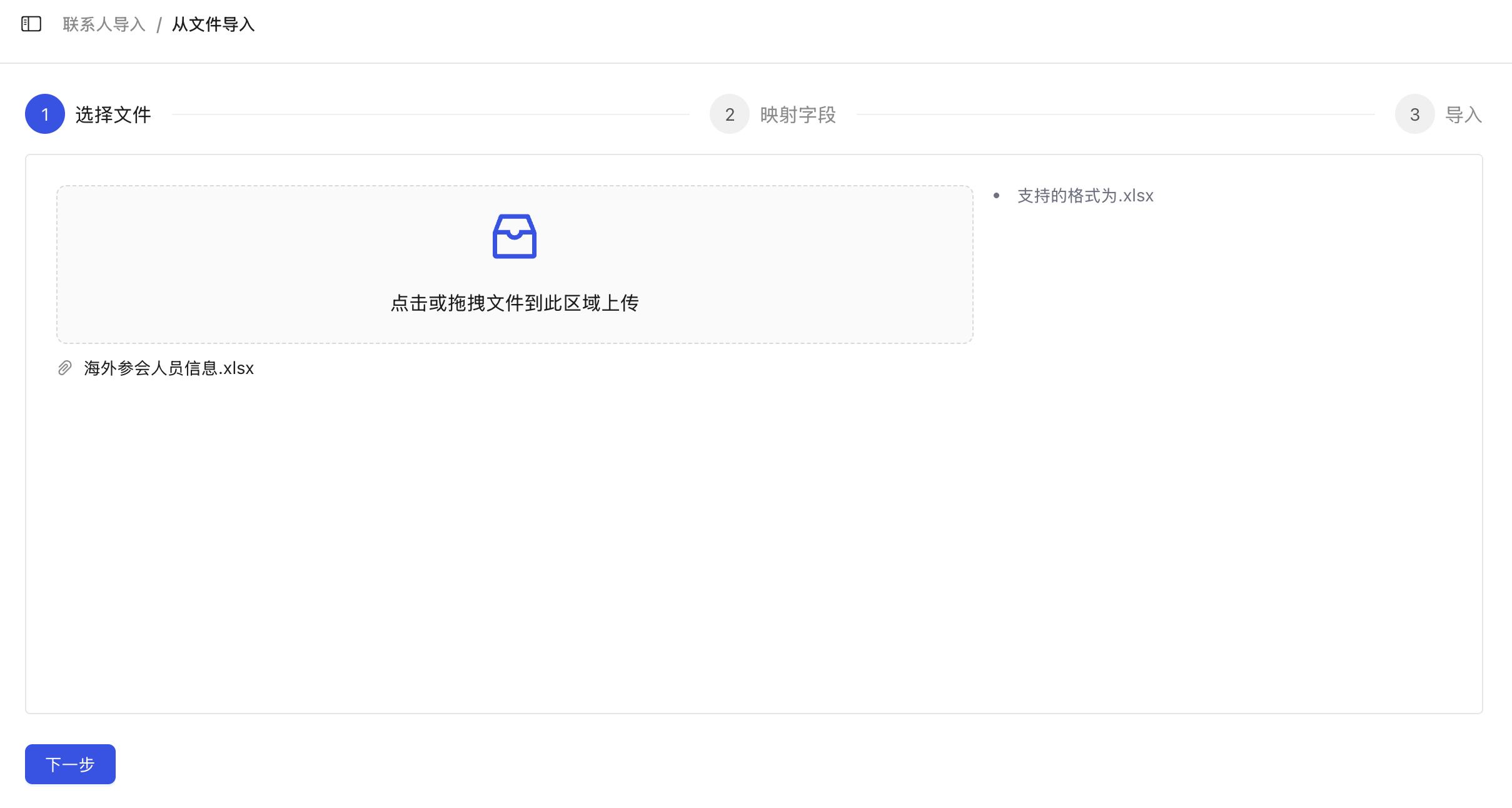
-
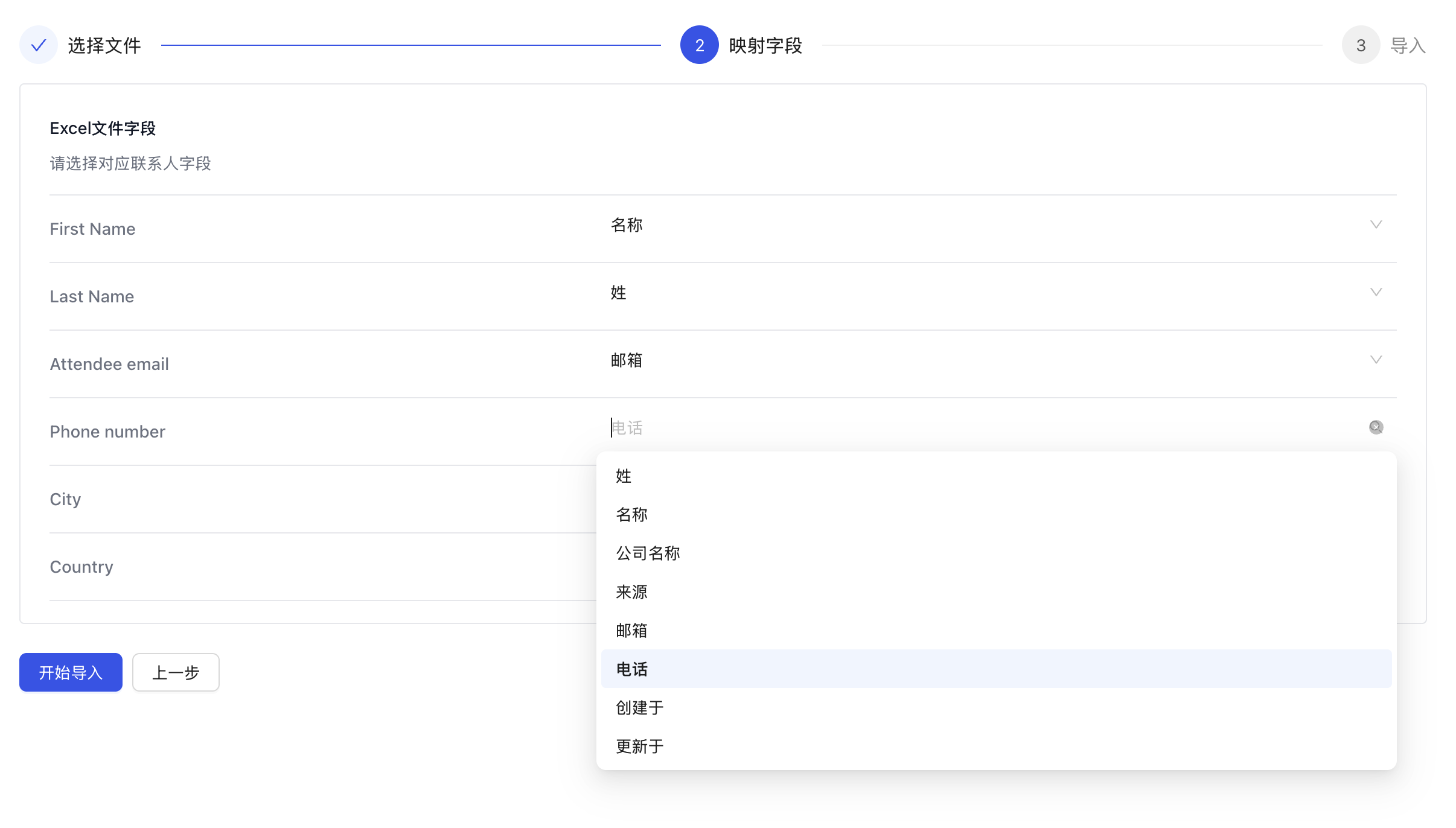
Field Mapping Configure the correspondence between your spreadsheet fields and MsgBox contact fields (the left side is your spreadsheet header, the right side is the system field).
-
Execute Import and Troubleshooting Click "Start Import". Once finished, you can click "Import Details" to view the results. If any data fails to import, you can click "Modify Import" based on the error reason to supplement the information.
How to Import Contacts from HubSpot?
Before synchronizing, please ensure you have connected your HubSpot account.
- Go to Settings > Contacts > Contact Import.
- Click "Import" and select "Sync Contacts from HubSpot".
- Configure Field Matching: Select the HubSpot contact properties that correspond to the MsgBox fields.
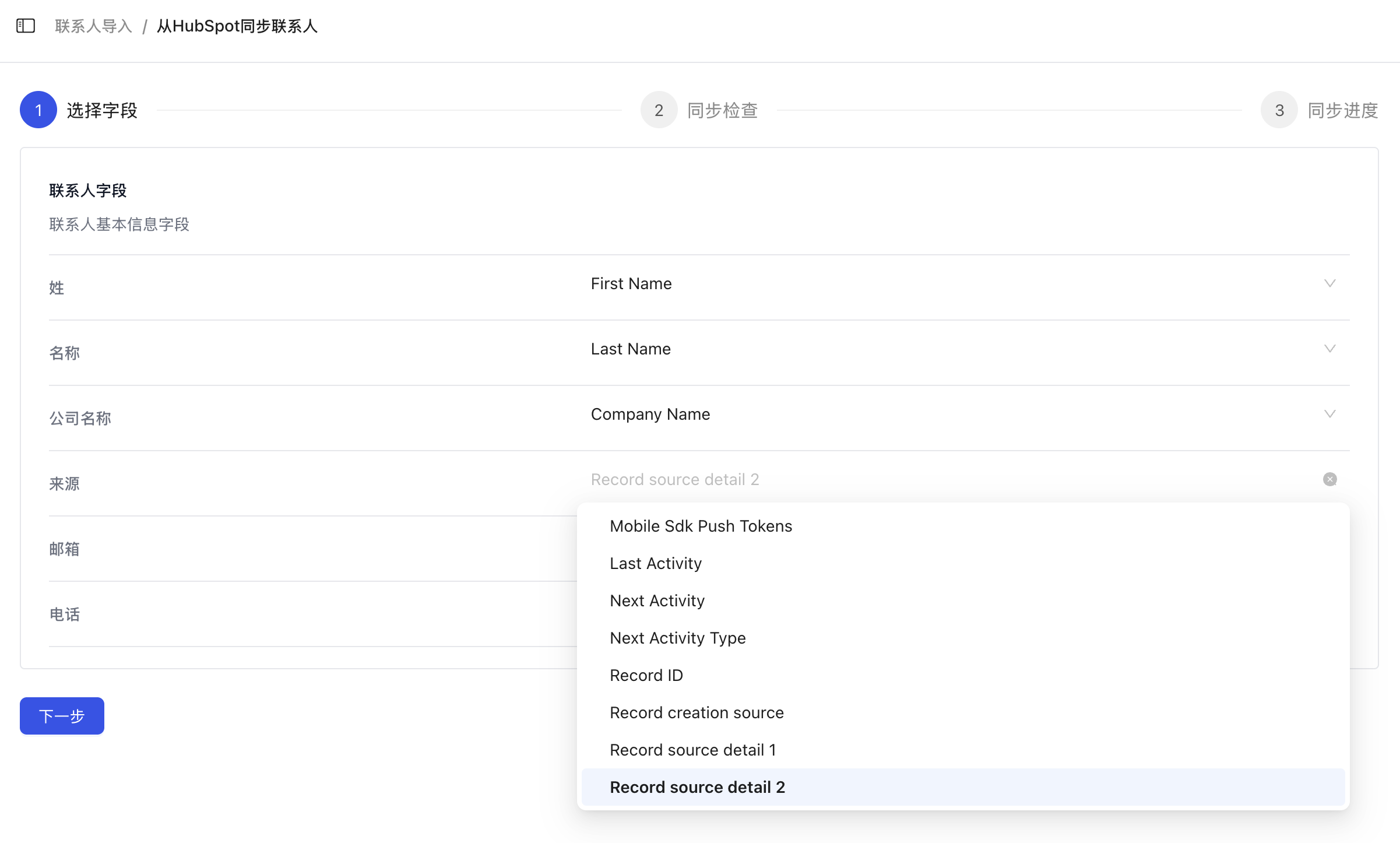
- After confirming everything is correct, click "Start Sync".
How to Import Contacts from WeChat Work (WeCom)?
Before synchronizing, please ensure you have connected WeChat Work.
- Go to Settings > Contacts > Contact Import.
- Click "Import" and select "Sync Contacts from WeChat".
- Configure Field Matching: Select the WeChat Work contact attributes that correspond to the MsgBox fields.
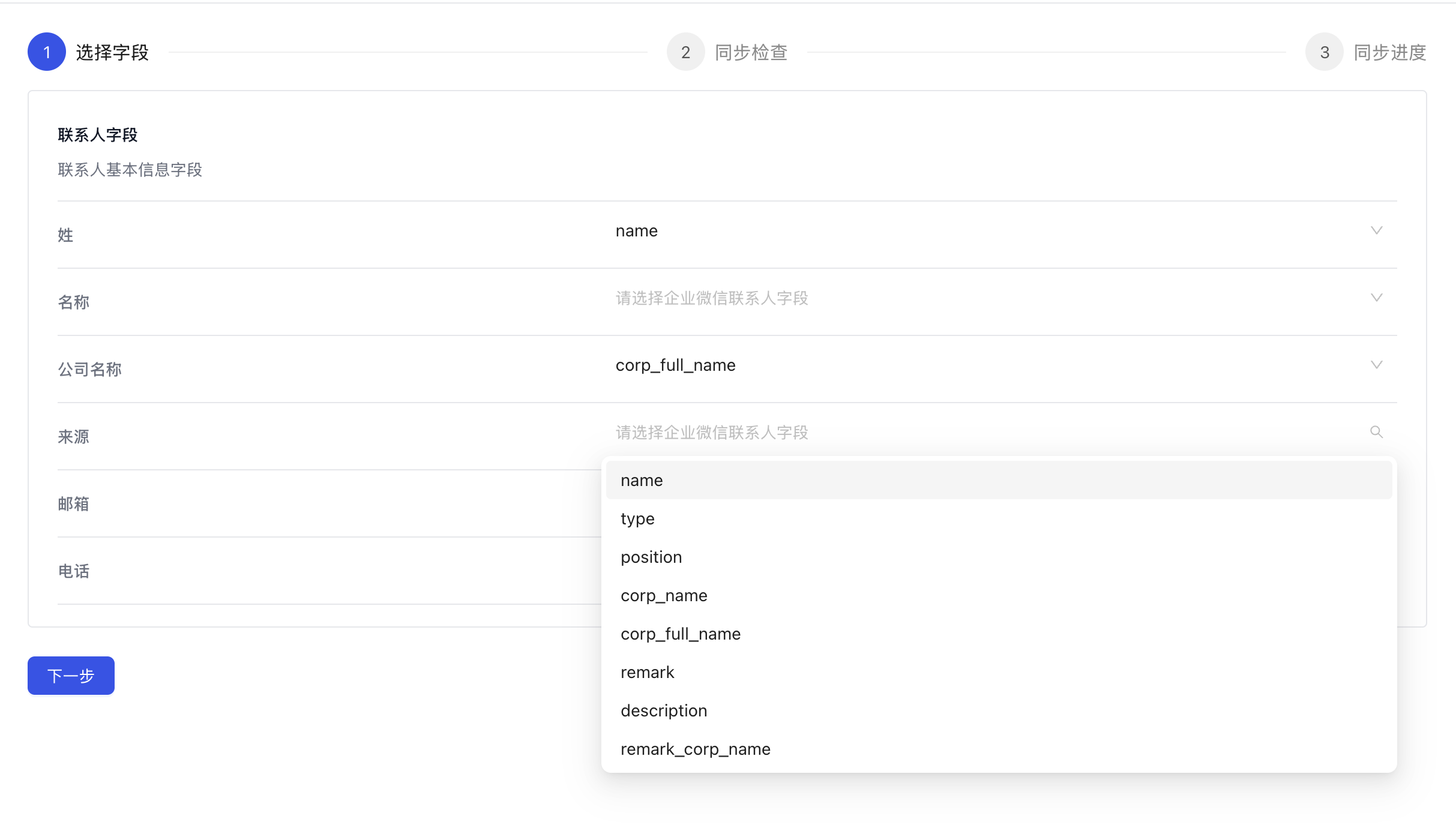
- After confirming everything is correct, click "Start Sync".
Troubleshooting FAQ
Q: What should I do if I find errors in the contact information after importing? A: Find the specific record in the Contact Import list and click "Modify Import" to directly supplement or correct the information within the system.
Q: How long does the synchronization process take? A: Import speed depends on the number of contacts. You can close the page, and the system will complete the synchronization task in the background; the record status will update to "Completed" once finished.